How to show the same thing on many TVs at once
Two routes. A splitter sends one source's pixels down a cable to every screen wired to it. A channel lets every screen be online on its own and read the same feed. When each one is right, and how to do the second one.
The short version, in 7 steps
- On the first TV, open play.channelos.tv in its own browser and scan the pairing code with your phone.
- Open Channels and create a channel, named after the place rather than the content.
- Click Add show, pick the board, and set its time range and Repeat mode.
- Tune the first screen to that channel.
- Walk to the second TV and pair it the same way.
- Tune the second screen to the same channel.
- Open the Display Board, switch to the By channel view, change one word in the show, and watch both previews change.
The second screen went up last week and now there are two boards to keep saying the same thing. You searched for how to put one thing on both, and the internet answered with a box: an HDMI splitter, one cable in, two or four out. That is a real answer, and in some rooms the right one. It is also very nearly the only answer anyone gives, which is worth knowing before you run a cable through a wall.
There are two ways to put one thing on many TVs. A splitter shares a cable: one source, copied, wired out to every screen. A channel shares a source: each screen is independently online, reads the same channel, and plays whatever that channel says is airing. Which one you want comes down to two questions. Can every screen be reached by a cable from one box, and will you ever need one of them to show something different.
One thing before the steps, because the two routes do not cost the same. A splitter is invisible to us: the source device is one paired screen, so four TVs fed off it sit on the free plan, and the free screen’s ChannelOS banner shows on all four, opening into a full ChannelOS slide for about 30 seconds every couple of minutes. The channel route is one paired screen per TV, so a second TV needs Solo: $5 per screen per month billed annually ($60 a year) or $6 monthly. That is where channels start, and any paid plan removes the banner.
When is an HDMI splitter the right answer?
When every screen is within cable reach of one box, they should all show identical pixels, and you would rather own a thing than subscribe to one.
The clearest case is a sports bar with one match on four screens. One source, and the correct behaviour is for all four to be the same screen: nobody needs the far corner showing something else. A splitter does that for the price of the box and nothing else, forever, and it keeps working if the broadband goes down, because no part of it was ever online.
It also carries something we do not. If what you are showing is a live feed, a camera, a match, a games console, a laptop output, a splitter is the only one of these two routes that can take it at all. ChannelOS plays a show you built in ChannelOS; it does not pick up a signal from a box in the room and pass it on. If that is your job, buy the splitter and stop reading.
Where does the splitter route stop?
At the end of the cable, and sooner than most people expect.
- Every screen has to be wired back to one box. A plain passive HDMI cable is comfortable for a few metres and gets unreliable sooner at 4K than at 1080p. Past that you are buying active cables, an HDBaseT extender over cat6, or fibre, and those cost more than the splitter did.
- A screen in another building is out. Not harder. Out. There is no run of cable to put it on.
- All the outputs share one video mode. A splitter negotiates one resolution across its outputs, so a 4K screen and an older 1080p one usually both end up at 1080p, and a screen that is switched off can upset the handshake for the rest.
- The source has to stay awake and stay on that one job. A laptop running the slideshow is not available for anything else, and it will try to sleep.
- Changing what plays means going to the source. Up the ladder, behind the bar, into the cupboard. That is fine once a quarter and miserable twice a day.
How do I show the same thing on many TVs without a splitter?
Give each screen its own connection and point them all at one channel. Nothing is transmitted between the screens, so there is no cable and no reach limit.
- On the first TV, open play.channelos.tv in the TV’s own browser. It shows a six character code and a QR code. Scan the QR with your phone and that screen is yours. The two minute version of this is pair your first screen.
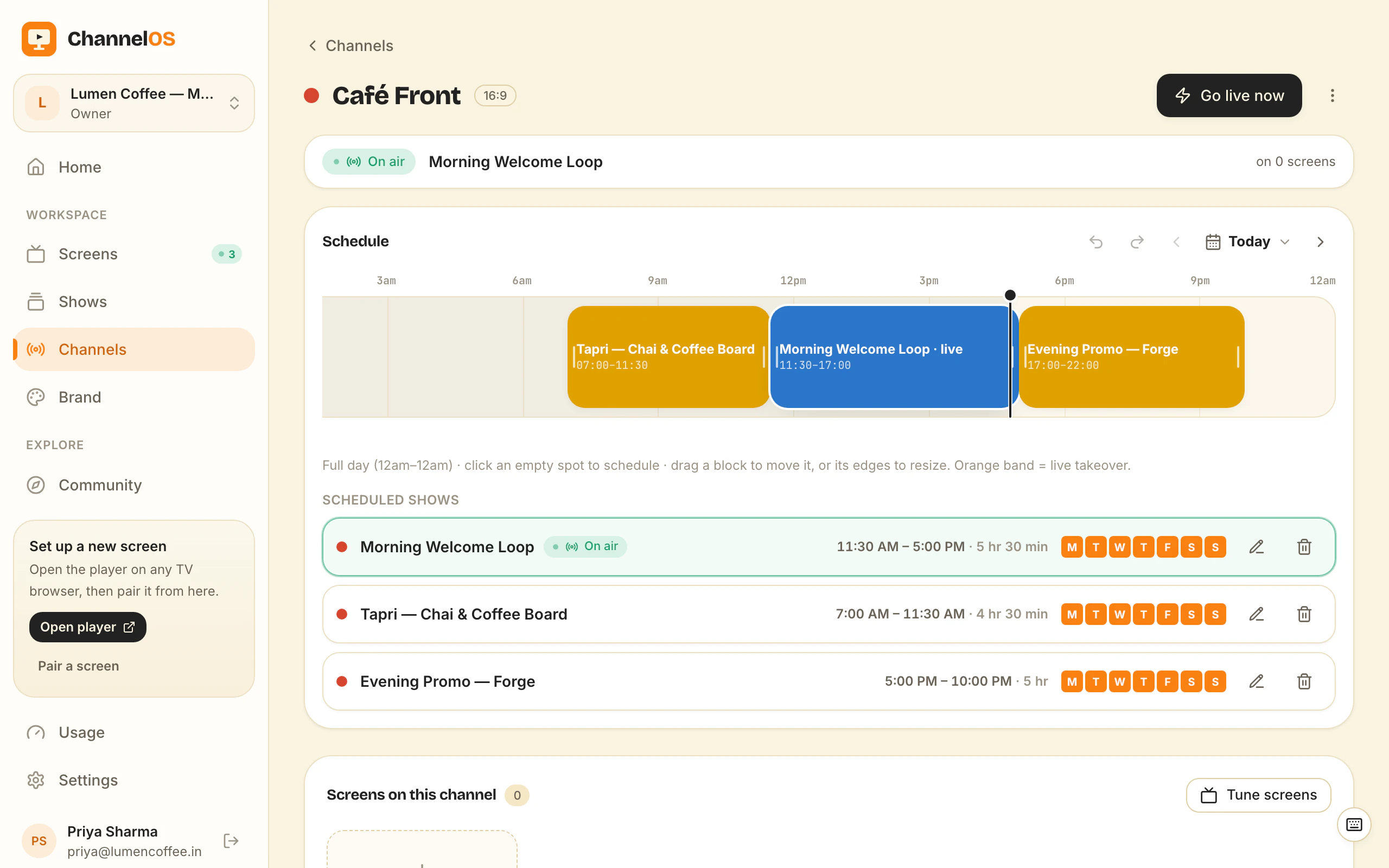
- Open Channels and create one.
- Click Add show, pick the board, and set its time range and Repeat mode.
- Tune the first screen to that channel.
- Walk to the second TV and do step 1 again. Pairing is per screen.
- Tune the second screen to the same channel.
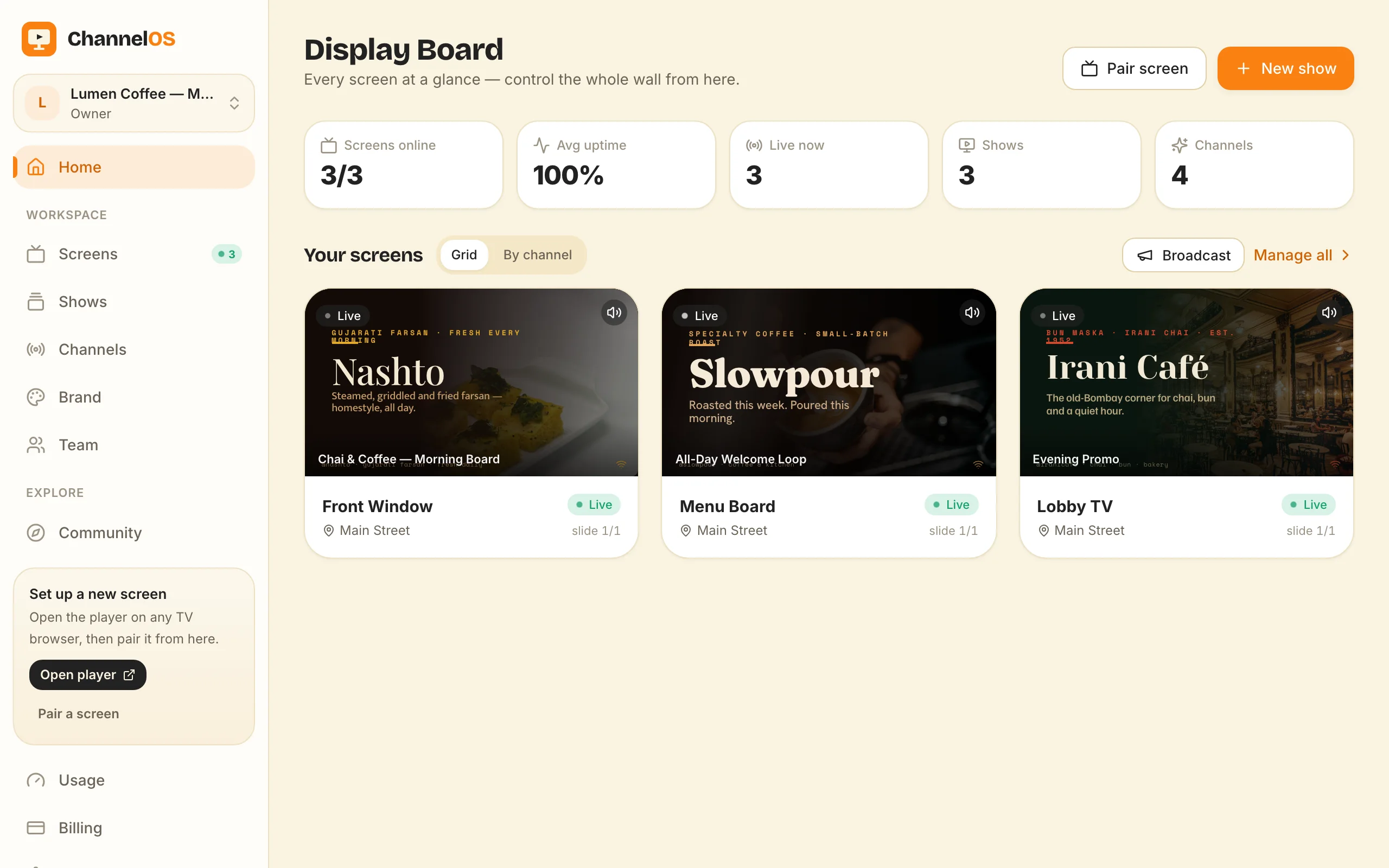
- Open the Display Board, switch to the By channel view so both screens group together, then change one word in the show. Both live previews change, and you touched neither TV.
Step 7 is the point, and it is worth doing rather than trusting. What a screen shows is worked out from the show and the channel in real time, so there is no publish step reaching screens one by one. The argument for building it that way is in manage many screens with channels.
A shortcut worth knowing: if both screens show one board all day, you do not need a channel at all. Publish the show straight to each screen and leave them. The edit-once behaviour still holds, because it comes from the show rather than the schedule. Reach for a channel when the day has more than one board in it.
How do I sync two TVs in different rooms?
If both screens are online, the rooms stop mattering. Each is a browser reading the same channel and the same clock, so they play the same board ten metres or ten miles apart.
Can I show something different on just one of them?
Yes, and this is the move a splitter structurally cannot make. Point that screen at a different channel, or publish a show straight to it for an immediate one-off, and the rest of the wall carries on with the plan.
There is also a takeover, a sanctioned cut-in placed on the channel: it overlays the schedule for every screen tuned in, for as long as it runs, then hands the channel back with nothing to undo. Burst pipe, one dish off. Check the plan, though: a takeover starts on Pro, not Solo, at $8 per screen per month billed annually ($96 a year) or $10 monthly. For one screen alone, the direct publish above is the Solo answer. Each screen being its own player is what makes any of this work, and what a realtime player is is the short version of why.
When is a channel the wrong answer?
Same content is not same frame. Two screens here are two independent browsers reading one channel. They land on the same slide, but the instant one slide swaps for the next is not guaranteed to be the same video frame on both. If two panels sit edge to edge carrying one picture between them, that will show. A video wall where a single image spans four panels wants a wall controller, or a splitter in a cropping mode, and that is the right thing to buy for it.
And the connection is the trade. A screen that is already playing keeps playing if the wifi drops, and it holds the show’s pictures and clips in the browser’s own storage so they are not fetched every loop. After a power cut, though, the page and the show are loaded fresh, so the screen needs the connection back before it comes up again. A splitter has no such exposure, because it was never online. If a screen has to survive a long outage on its own, a vendor who sells a media player with local storage is the better buy, and that is a real reason to buy hardware. Otherwise, no media player required explains what you save by skipping the box.
Nothing here is unlimited, either. Solo and Pro run to 99 paired screens; Agency includes 25 and runs to 999.
Do the second screen before you plan the tenth. Pair it, tune it to the same channel as the first, then stand where a customer stands and change one word in the show. Both boards change, and you will know which of the two routes you needed.
Frequently asked questions
- Can you run 2 screens off one HDMI port?
- Not directly. One HDMI port drives one screen, and HDMI has no daisy chain the way DisplayPort does, so two screens off one port means a splitter sitting in between. The splitter copies the signal, which is why both screens then show exactly the same picture and neither can be given anything different.
- What does an HDMI splitter do?
- It takes one HDMI input and copies it to two, four or eight outputs, so every screen wired to it shows identical pixels with no internet involved. It also negotiates one video mode across all of its outputs, so a 4K screen and a 1080p screen on the same splitter usually both end up at 1080p.
- How do I connect multiple TVs together wirelessly?
- Two different things get called this. A wireless HDMI kit sends one source to receivers in the same building, which is the cable route without the cable and with the same reach limit. The other way round is to give each TV its own internet connection and point them all at one channel, so nothing is transmitted between the screens at all.
- How do I sync two TVs in different rooms?
- If both screens are online, the rooms stop mattering. Each one is a browser reading the same channel and the same clock, so they play the same board whether they are ten metres or ten miles apart. What that does not give you is frame-exact timing, because they are two independent browsers rather than one signal split in two.
- Can I show the same thing on screens in different buildings?
- Yes, and this is the difference that matters most. A splitter cannot leave the run of cable it is wired into, so another building is not harder, it is impossible. Screens that tune into a channel only need their own internet connection, so a second site, a second town or a second country is the same single pairing as the screen next to you.
- How much does a second screen cost?
- It depends which route. A splitter is invisible to ChannelOS, so the source device is one paired screen and the extra TVs add nothing on the free plan, though the free screen's ChannelOS banner then shows on all of them. A screen that pairs on its own is a screen we count, so a second one of those needs Solo: $5 per screen per month billed annually ($60 a year) or $6 monthly, which is also where channels and scheduling start. A free screen carries a ChannelOS banner that opens into a full ChannelOS slide for about 30 seconds every couple of minutes, and any paid plan removes both.
Further reading
Do it on a real screen.
Open the player on the TV, scan the code with your phone, and publish a show. Your first screen is free.
Free screens show a ChannelOS banner, and about every 2 minutes it opens into a full ChannelOS slide; any paid plan removes both.