Digital signage player Android box? Run signage on any TV instead
You don't need a digital signage player Android box: ChannelOS runs in the TV's own browser — webOS, Fire TV, a Chromebox or a laptop — with AI-drafted, schedule-driven screens.
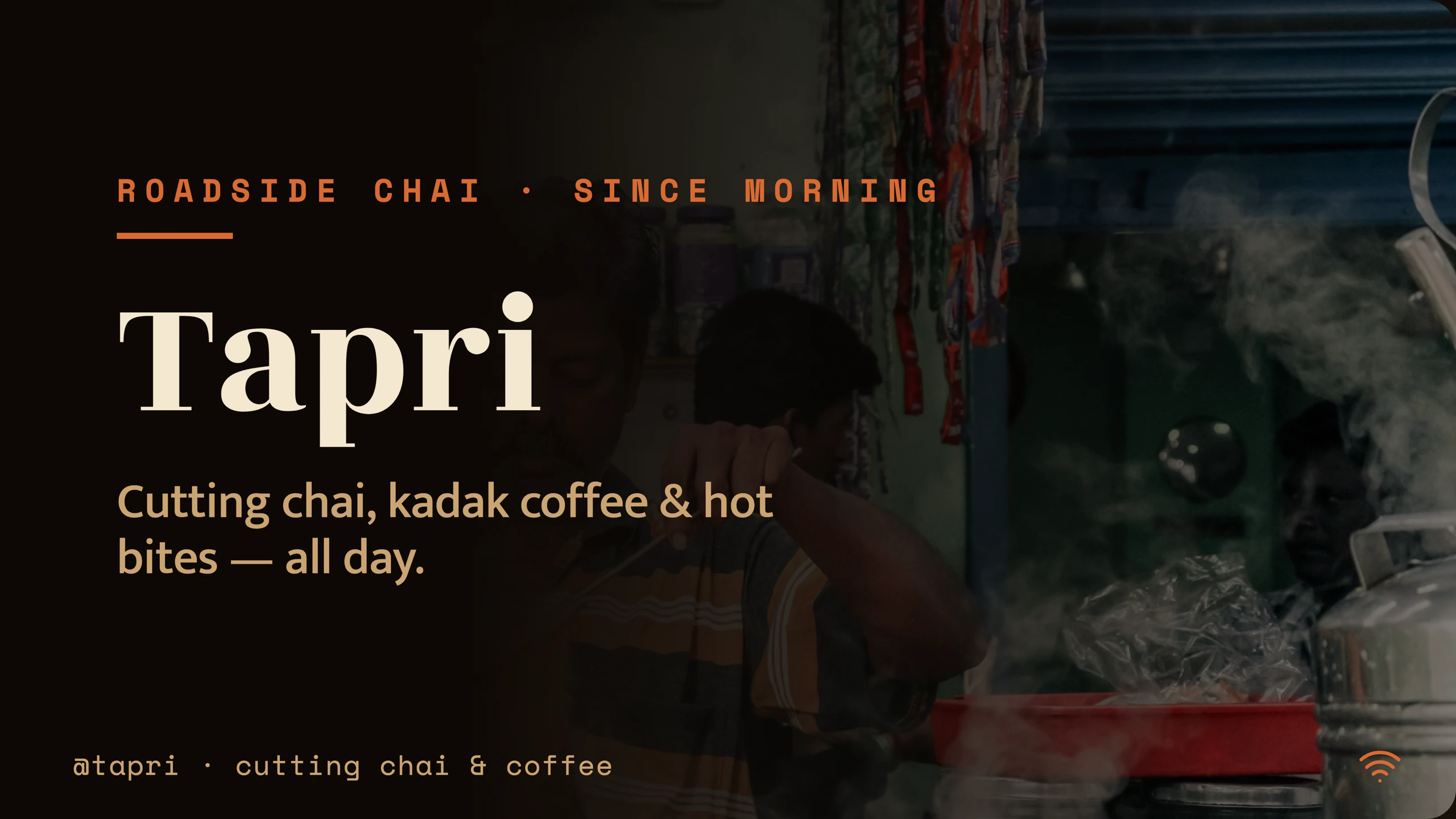
Almost every signage guide opens the same way: buy a digital signage player Android box, sideload the APK, velcro it behind the screen. You can skip that step entirely — ChannelOS plays in the TV’s own web browser, so there’s no Android box or HDMI stick to buy, provision or license. And it isn’t limited to Android: LG webOS, Fire TV, a Chromebox, a mini-PC, or a plain laptop in kiosk mode all work equally well.
This is the specific “I don’t want to manage an Android box” answer; for the broader case against owning any media-player hardware, see No media player required.
Can I run digital signage without an Android player?
Yes — you never need an Android player, because the TV itself is the player. ChannelOS loads as a web page on the screen, so the “player” is just a browser tab running full-screen: no per-device licence to track, no box to rack behind the display.
That removes the part of a rollout most people dread — sourcing identical Android sticks, flashing them, keeping firmware and player app patched, replacing the ones that die. If the display can open a URL, it can be a screen you run from your board.
Why it matters: the Android box is usually the single most fragile, most-license-encumbered part of a signage deployment — and it’s the part ChannelOS deletes entirely.
What can be the “player” if not an Android box?
Any device that renders a modern web page can be the player. You aren’t trading an Android box for some other required appliance — you’re using hardware you already have, and all of these pair the same way:
| The old way (Android player) | With ChannelOS (browser) |
|---|---|
| Buy + provision an Android TV box or stick per screen | Use the LG webOS TV, Fire TV, Chromebox or laptop you already own |
| Sideload an APK, keep it signed and patched | Open a URL — nothing installed on the device |
| Per-device player license to track | First screen free, then per screen per month, no seats |
| Walk the floor to update each box | Screens self-update and accept a remote reload |
| One vendor’s OS locks your hardware choice | webOS, Fire TV, Google/Android TV, a Chromebox or a mini-PC — your pick |
Why it matters: “no Android player” doesn’t mean “buy our appliance instead” — it means the screen you already own is enough.
What a digital signage player Android box actually does
“You don’t need a digital signage player Android box” is only useful if you know what the box was doing in the first place. It has three real jobs. It renders your content. It starts playing again on its own when power comes back after an outage. And it stays awake instead of sleeping or dropping into a screensaver. That’s the list — the CPU, the onboard storage and the VESA bracket all exist to serve those three.
Every panel sold in the last several years already does all three. The browser built into an LG webOS, Samsung Tizen, Google TV or Fire TV set renders a modern web page perfectly well, and the TV’s own settings control sleep and power-on behaviour. The box isn’t adding a capability you lack — it’s adding a second computer to do what the first one was already doing.
There’s a fourth job nobody prints on the spec sheet: on most platforms the player is the licensing unit. You buy the device, then the per-device licence that lets it talk to the CMS, and you keep paying that for as long as the screen exists. It’s the line ChannelOS doesn’t have — first screen free, the rest per screen per month, current numbers on the pricing page.
A box still earns its place on a genuinely dumb commercial panel with no browser, or an old TV whose browser chokes on video. The honest fix in both cases is a cheap HDMI stick or a Chromebox — plain hardware, not a licensed signage player. What you actually need for digital signage walks the full list.
Why it matters: once you know the box’s three jobs, you can check whether your TV already does them. Most modern panels do.
How does a browser-based screen stay updated without an APK?
It self-updates. A paired ChannelOS screen quietly polls for new builds and reloads itself when one ships, with a loop-guard so it never gets stuck — and an operator can force a remote reload from the board at any time. There’s no application package to re-sign, re-sideload or version-pin.
With an Android player you eventually owe every box an APK update, a security patch or a re-provision. A browser page has none of that surface: what’s on the screen is derived from the show and the channel schedule in real time, so an edit reaches the screen instantly with nothing to deploy.
Why it matters: the maintenance you’d normally owe a fleet of Android boxes — patching, re-signing, re-imaging — simply doesn’t exist when the player is a self-refreshing web page.
How smart TV digital signage runs on webOS, Fire TV and Google TV
Smart TV digital signage comes down to one question per panel: can it open a web page and stay on it? If yes, that panel is a screen. The platforms differ far less than their marketing suggests.
-
LG webOS — the browser is already in the launcher. Open it, type the URL once, scan the code from your phone.
-
Samsung Tizen — the same flow through the Internet app on the sets that ship one.
-
Google TV / Android TV — Chrome, or any browser from the Play Store; the Google TV phone app makes typing the URL painless.
-
Fire TV — Amazon’s Silk browser, installed from the Appstore in about a minute. There is a native Android TV app as well, and it is worth knowing what it is for: not rendering the board, which the browser already does, but the unattended part. The Android TV signage app covers boot start, kiosk mode and the remote menu, and says plainly that the app is not on Google Play yet and is a download from our own site.
-
Chromebox, mini-PC or laptop — kiosk mode, full-screen: the most predictable option, and the right answer for a panel whose own browser isn’t up to it.
You type that URL exactly once on the remote and never again — after the code is scanned from your phone, every later change reaches the screen by itself.
Two TV settings matter more than which platform you picked: turn off the sleep timer and screensaver, and set the TV to power on to its last input. Those account for most “the screen was black this morning” reports — neither is a signage feature, just settings a player box would otherwise have papered over.
The honest catch is browser age. A panel from before roughly 2018 can be sluggish with video-heavy slides, and a few older sets ship a browser that struggles with modern pages. A cheap HDMI stick or Chromebox fixes that — still not a signage player licence.
Why it matters: smart TV digital signage doesn’t depend on picking the right platform, only on a decent browser that doesn’t fall asleep.
Is browser signage as reliable as a dedicated Android player?
For most rooms, yes — and with fewer moving parts, because the display and the player are the same device. A dedicated Android player adds a second device, a second OS, and a second thing to update behind every screen; a browser page removes that entire layer.
It’s worth naming where a dedicated player still wins, though. A hardened, locked-down box with a watchdog can auto-recover after a crash and guarantee cached, offline playback when the network drops, and it gives you one known browser build instead of whatever browser a given smart TV happens to ship. If you’re running unattended screens that must keep playing through an internet outage, that’s a real edge. For the lobbies, cafés and offices with steady Wi-Fi that most signage lives in, it isn’t worth bolting a box behind every panel.
Take a real example. An LG webOS TV in a hotel lobby: open the built-in browser, load play.channelos.tv, scan the code, and it’s live — no box velcroed behind the panel, nothing to steal or unplug. Set up a channel with dayparting once, and the lobby shows a breakfast welcome board in the morning and an events board at night. When reception spots a typo in the Wi-Fi password they fix it in the Canva-style editor and every lobby and elevator screen updates instantly. Drop the hotel’s existing events flyer in as a PDF and the AI drafts the show back, with a live clock widget and a QR code to the booking page.
Why it matters: fewer moving parts is fewer 3am pages — the most reliable player is the one that was never a separate device.
How do I pair a TV with no app installed?
Open play.channelos.tv in the TV’s browser and scan the on-screen code from your phone. That’s the whole install. The screen is live in about two minutes, with no account signed in on it, and no configuration to walk through.
From there the screen shows up on your one live board alongside every other screen — a rendered preview, live status, and one-tap play/pause/blank/mute controls — whether that screen is a webOS panel, a Fire TV, a Chromebox or a laptop. The pairing flow is identical regardless of the device, because they’re all just browsers.
Why it matters: pairing is scanning a code, not a provisioning project — so adding a screen costs minutes, not a hardware order.
Is there free digital signage software for smart TV?
Yes — with conditions worth reading properly, because “free” means several different things in this market.
With ChannelOS, your first screen is free forever: not a 14-day trial, and no card to start. That screen gets AI drafting a multi-slide show from one sentence, the editor with the free Pexels library, live widgets and the live board. Free screens show a ChannelOS banner along the bottom of the screen, and any paid plan removes it. Channels with dayparting and takeover, and one-tap background removal, start on the paid Solo plan. Past one screen it’s per screen per month; the pricing page carries the current numbers.
Two other kinds of free are worth knowing about. Xibo is genuinely free software — its self-hosted CMS is open source under AGPLv3, no per-screen software fee at all — but you supply and maintain the web and database server, and its Android, Tizen and webOS players carry a per-device commercial licence, so free digital signage software for smart TV isn’t quite the whole invoice (full comparison). And most cloud platforms advertise a free trial, usually 14 days, rather than a permanent free tier — a different offer wearing the same word.
You can also get output before signing up for anything: the menu board maker builds a board for 14 cuisines in the browser, and the templates gallery is open to browse and remix.
Why it matters: free-for-one-screen and free-if-you-run-a-server are both real, but they cost you very different things.
If your screen is specifically an Android TV or a Google TV, Android TV digital signage is the version of this page written for that box: which devices work without one, what the native app adds over the browser, and when buying a player is still the right call.
If you’ve been putting off digital signage because you didn’t want to buy, flash and babysit a rack of Android boxes, skip that step. Use the LG TV in the lobby, the Fire TV Stick in the break room, or a spare laptop for the pop-up — open a URL, scan a code, describe the screen you want. The first screen is free, so you can prove the whole no-Android-player idea on a TV you already own before paying for anything.
Frequently asked questions
- Do I need a digital signage player Android box?
- No. ChannelOS runs in the TV's own web browser, so there's no digital signage player Android box, HDMI stick or media player to buy. Any device that renders a modern web page — LG webOS, Fire TV, a Chromebox, or a laptop in kiosk mode — pairs by scanning a code and becomes a screen you run from your board.
- Is there free digital signage software for smart TV?
- Yes, for one screen. ChannelOS's first screen is free forever with no card and no time limit: full AI show drafting, the editor, the Pexels library and widgets included. Free screens show a ChannelOS banner along the bottom of the screen, and any paid plan removes it. Beyond one screen it's priced per screen per month; see the pricing page for current numbers. Xibo's self-hosted CMS is also genuinely free under AGPLv3, but you run the server yourself and its smart TV players carry a per-device commercial licence.
- How does smart TV digital signage work without installing an app?
- The TV's built-in browser is the player. You open one URL on the smart TV, scan the on-screen code from your phone, and that screen joins your board. What it shows is derived from your show and channel schedule in real time, so an edit appears on the screen with no publish-and-wait step and nothing installed on the TV.
- Which devices work if I don't want an Android box?
- Anything with a modern browser: LG webOS TVs, Samsung Tizen sets, Fire TV's Silk browser, Google/Android TV, a Chromebox or mini-PC, or a plain laptop in kiosk mode. If it loads a web page, it can be a ChannelOS screen.
- How do screens update with no APK installed?
- They self-update. A paired TV quietly polls for new builds and reloads itself, and operators can force a remote reload from the board. There's no app package to patch, sideload or keep signed — the web page is always current.
- How do I pair a TV with nothing installed on it?
- Open play.channelos.tv in the TV's browser, then scan the on-screen code from your phone. The screen is live in about two minutes — no app install, no account on the TV, no configuration.
Your screen is two minutes away.
Open the player on a TV, scan the code, publish a show. Your first screen is free.
Free screens show a ChannelOS banner along the bottom of the screen, and any paid plan removes it.