How to run a local advertising business with a second-hand Android TV
A practical playbook for a tiny local out-of-home advertising business: rent a wall spot, plug in a used Android TV, and use ChannelOS to pair it, schedule advertisers into dayparts, and run several locations from one board. You sell the ads; ChannelOS runs the screens.
Before any of the setup below matters, one number decides whether this is a business or a hobby: what a local shop will actually pay you, every month, to be on that screen. Everything else here is cheap and solvable. That number is neither, so it goes first.
Work it out on the back of an envelope with your own market’s figures, because ours would be a guess. A realistic monthly slot fee in a small Indian market sits well below what agencies quote publicly, and you will need more advertisers than feels comfortable to make a month worth the walking. A screen with four paying slots at a fee you invented is a spreadsheet. A screen with one advertiser who renewed is a business.
You can run a small local out-of-home (DOOH) advertising business on cheap hardware: rent a high-footfall wall spot, plug in a second-hand Android TV, open play.channelos.tv to pair it, then sell time slots to nearby shops and schedule each advertiser into a channel’s dayparts. To be clear up front: ChannelOS is only the control plane — you find and sell the advertisers and keep that revenue; ChannelOS has no ad marketplace and pays you nothing. Your only platform cost is a per-screen subscription, and the first screen is free.
This is a playbook, not a get-rich promise. The money comes from your legwork — footfall you can prove, local businesses who want in front of it, and screens that stay current. ChannelOS just removes the technical tax: no media box to source, no APK to babysit, no driving out to swap a poster. Here’s the whole loop.
Can you make money with a cheap TV and signage?
The business is simple to describe: you control a screen in a place people wait or pass, and you rent time on it to local shops who want to reach that foot traffic. You are the one selling the ad slots, and you keep that revenue. ChannelOS is the tool that turns a TV into a screen you can schedule and control remotely — nothing more, nothing less.
The revenue math is entirely yours to build. A café corner near the till, a salon or gym waiting area, a clinic waiting room, a shop counter queue — each is a captive audience for a few minutes. You sell, say, a rotating slot to the pizza place two doors down and another to the local dentist, and you set the price. What ChannelOS costs you against that is one per-screen subscription per month (the first screen free while you prove the spot), so the platform is a small fixed cost line, not a cut of your sales.
Be realistic about what only you can do:
- Find the advertisers — local shops, services, events. ChannelOS does not supply them.
- Set the pricing — per slot, per week, morning vs evening. That’s your rate card.
- Handle content rights — you’re responsible that an advertiser’s logo, photos and claims are theirs to use.
- Get permission to place the screen — a signed nod from the café or clinic owner to hang a TV on their wall, and whatever revenue split you agree with them.
None of that is ChannelOS’s job, and pretending a platform does it for you is how these ventures fail. What ChannelOS does remove is the reason most people never start: the hardware and the busywork.
There is a second version of this that needs no wall at all. If the shops you talk to would rather run their own screen than buy a slot on yours, you can refer shops to ChannelOS and take a share instead of renting them time. That pays 20% of what they pay us for their first 12 months and 10% for as long as they stay, and it costs nothing to set up. The two are not exclusive: the same conversation ends in one or the other depending on whether the owner wants to sell space or fill it.
Why it matters: the venture only works if you own the sales — ChannelOS makes the screen trivial so you can spend your time on the part that actually earns.
What hardware do you need?
Almost none, and it can be old. Because ChannelOS plays inside the TV’s own web browser, the browser is the player — so a second-hand Android TV, a cheap smart TV, or a streaming stick you already own is enough. There’s no dedicated media-player box to buy for each screen, and no per-device license to track.
That’s the whole reason cheap hardware works here. A traditional signage rollout wants an identical Android box behind every panel, flashed, patched and licensed. ChannelOS deletes that layer: if the screen can load a modern web page, it can be a paid ad spot. In practice these all pair the same way:
- An Android TV or Google TV you found second-hand.
- An old smart TV with a working browser (LG webOS, for instance).
- A Fire TV Stick using its Silk browser.
- A Chromebox, mini-PC, or a spare laptop in kiosk mode for a pop-up.
You still supply the physical basics — a TV that turns on, a power outlet, and steady Wi-Fi at the location. And here’s where honesty about the trade-off matters: browser signage on a smart TV is perfect for a café or waiting room with reliable internet, but it is not a hardened offline media player. A dedicated, locked-down box guarantees cached playback through an internet outage; a browser page needs the location’s network. For most high-street spots that’s a fine trade for near-zero hardware cost, but if you ever place a screen somewhere with flaky connectivity, weigh that.
For the fuller hardware-and-network checklist, see what you need for digital signage. And the no-media-player argument is the same idea from the buyer’s side — it’s exactly why your startup cost per spot is a used TV, not a signage kit.
Why it matters: the browser-as-player model is what makes the numbers work — your cost per new location is a cheap TV and a subscription, not a media-box order.
How do you pair a screen in two minutes?
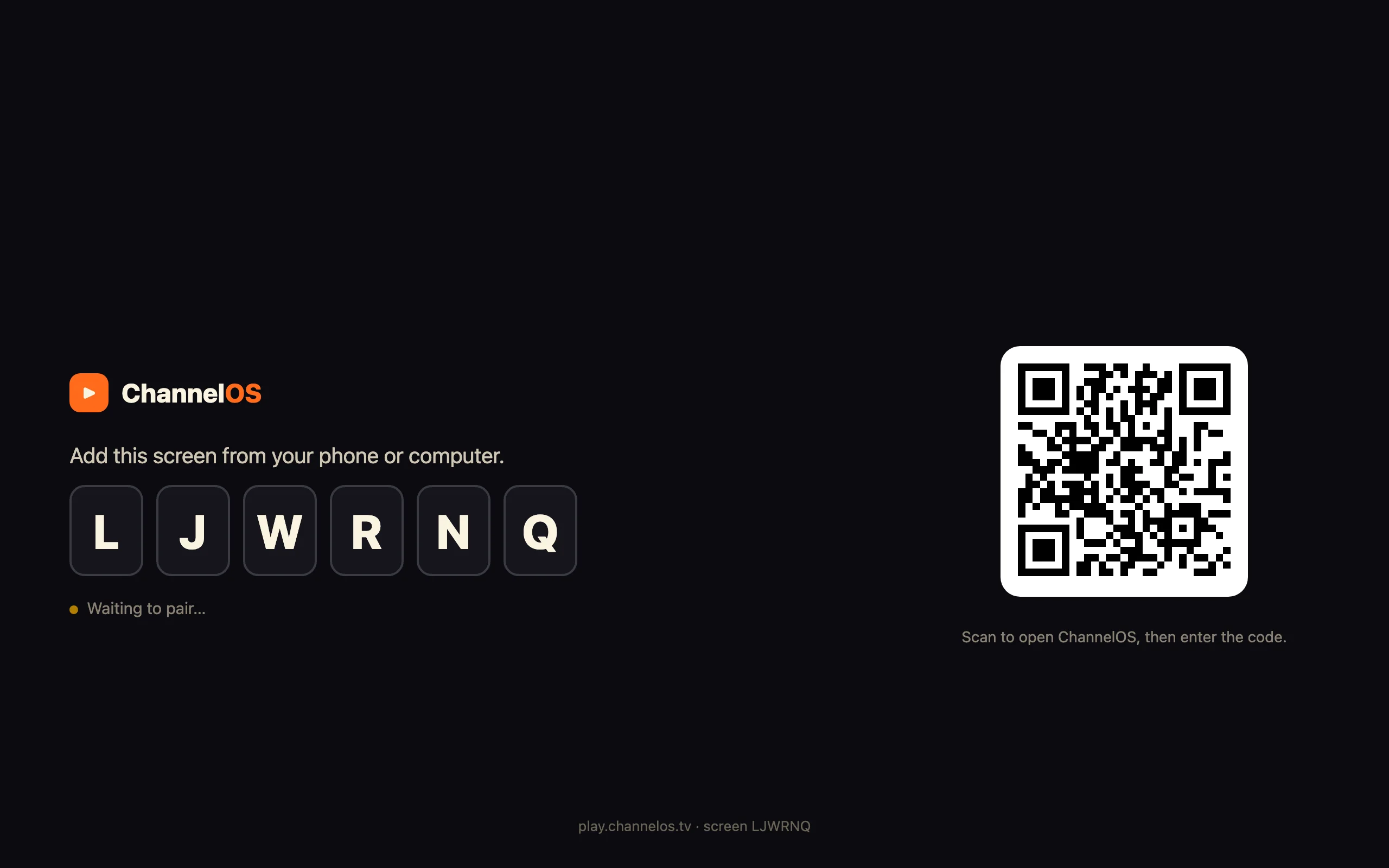
You open play.channelos.tv in the TV’s browser and scan the code with your phone. The page mints a screen and shows a 6-character code and a QR (“Add this screen from your phone or computer” · “Waiting to pair…”). Scan it, and the screen links to your account. It’s live in about two minutes, with nothing installed on the TV.
That speed is what lets you treat a spot as a same-day setup. Walk into the café with a second-hand Android TV under your arm, mount it, load the URL, scan, and you have a live, controllable screen before your coffee’s cold. From then on the screen self-updates — it polls for new builds and reloads itself — and it accepts a remote reload from your board, so you never need to physically touch it to push a change. Pairing is also honest and reversible: if a location owner unplugs or re-pairs the TV, the screen knows it’s been unpaired or taken over and says so, instead of going silently dark on you.
Why it matters: adding a location is a two-minute scan, not an install job — so scouting a new spot and going live can happen in a single visit.
How do you build advertiser slides fast?
You describe each advertiser to the AI and get a real, editable show back in seconds. Click New show and you land in the editor with the AI chat open, grounded in your brand kit — type what the slide is for and send, and the AI builds the deck on-brand as the slides appear on the canvas (it reports what it made, e.g. “Built 5 slides with 4 images”). You can hand it the advertiser’s own material for context: their PDF flyer (text, structure and colours are extracted), their images (mark each “Use it” or “Inspo”), or a webpage URL. Pexels imagery is free; AI-generated imagery costs credits.
There are two clean ways to organise advertisers, and both are just shows:
- One show per advertiser — the pizza place is its own show, the dentist is another. Program them separately on the channel so each gets its own time.
- Slides in one rotating show — several advertisers share a single loop, one slide each, cycling on a wall.
Either way it’s a real editable show, not a flat export. When you want to fine-tune — swap a photo, fix a price, drop in a live widget like a clock, QR code, ticker or menu — you open the Canva-style editor (drag, resize, rotate, group, undo/redo, one-tap background removal, free Pexels photos and video). It autosaves as you edit, and imagery stays cheap because Pexels is free while only AI-generated images cost credits — so a rate-conscious ad business can build entirely on free stock and pay nothing extra for pictures. If an advertiser hands you a PDF and a logo, the AI drafts an on-brand slide from it in seconds — then you drop in a QR to their booking page from the editor’s widgets.
Why it matters: slide production is the part that could eat your margin — free Pexels imagery keeps picture costs at zero, and you only spend credits when you choose AI drafting or AI-generated images.
How do you schedule different advertisers?
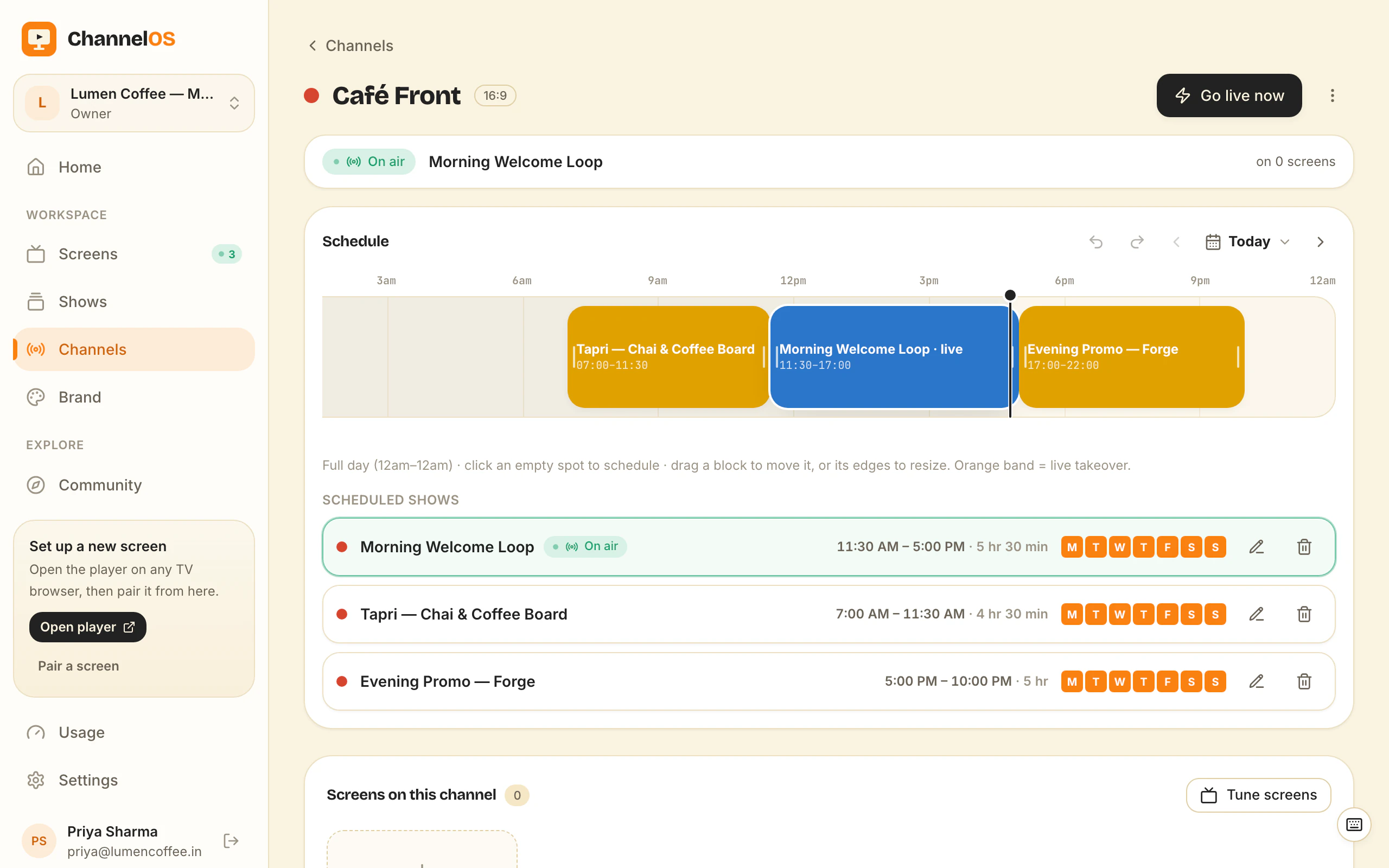
You program each advertiser onto the channel’s daily timeline, and dayparting lets you sell — and price — different times of day separately. A channel is the named feed a screen tunes into, and its page (e.g. “Café Front · 16:9”) gives you a full-day timeline (12am–12am) with per-weekday tabs (M T W T F S S), coloured show blocks with time ranges, and “Go live now” / “Schedule” / “Add show” controls.
This is where the rate card becomes real. Each scheduled show is a row with its time range, duration, weekday chips, and edit/reschedule/delete, and you set repeat mode: Once, Weekly (pick the weekdays), or a Date range for a fixed campaign. So a morning slot (breakfast rush) and an evening slot (after-work footfall) are two separate blocks you can charge two different prices for. Drag a block to move it, drag its edges to resize, and ⌘Z / ⌘⇧Z undo and redo schedule changes. New channels can even start from a template — Café Day, Retail Floor, Events, or Blank.
The remote-swap is the quiet moneymaker. When an advertiser’s campaign changes — new promo, sale ends, a typo — you edit the show once and, because what a screen displays is derived from the show and the channel schedule in real time, every screen tuned to that channel updates instantly. No re-publish, no device-sync, no driving out. Edit once, airs everywhere. Selling a new advertiser is then just adding a scheduled block; ending one is deleting a row. For the full scheduling walkthrough, see manage many screens with channels.
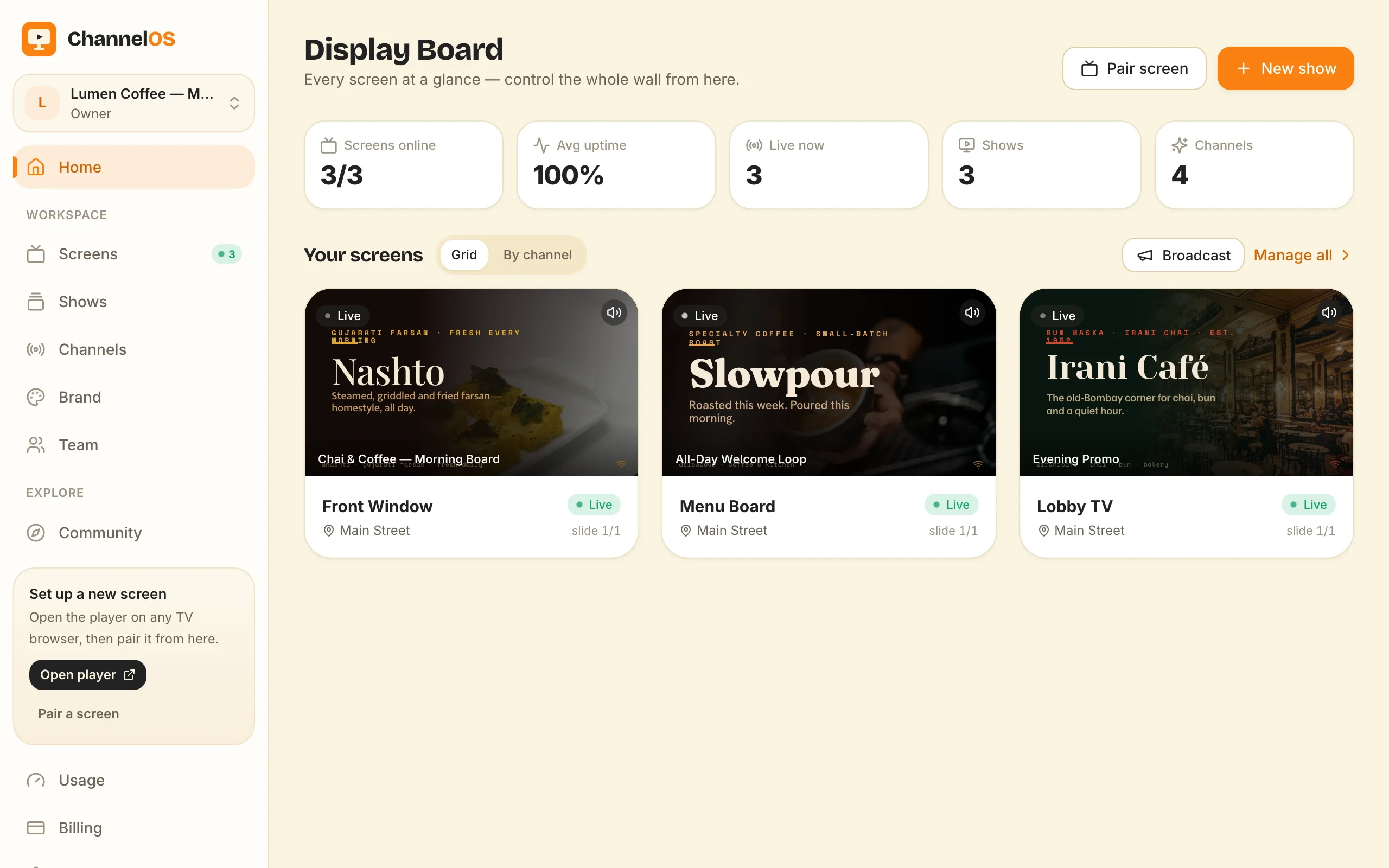
You also keep live, hands-on control from the Display Board — every paired screen with a rendered live preview and one-tap play, pause, blank, mute, next, and broadcast/takeover. If a location owner asks you to blank the screen during a private event, that’s one tap; if you want to force a single announcement across a spot, that’s the takeover (an orange band on the timeline marks a live takeover). The broadcast controls guide covers those in depth.
Why it matters: dayparting turns one screen into several sellable inventory slots, and remote swaps mean a campaign change is a click, not a call-out.
How does this scale to more screens?
You run every location from one board, so a second, third and tenth spot don’t multiply your admin — they add rows to the same view. The Display Board shows every paired screen with a live preview and status, top stats (Screens online, Avg uptime, Live now, Shows, Channels), and Grid or By channel views, plus “Pair screen” and “New show” buttons.
Because control is centralised, scaling is mostly sales, not ops. Each new spot is: find the wall, agree terms with the owner, hang a used TV, scan to pair, point it at a channel. From then on it lives on the same board as the rest. You can run a shared channel across several similar spots — every “café corner” screen tuned to one Café Front channel updates together when you swap an advertiser — or give a location its own channel when its inventory and rates differ. The controls hit the glass in milliseconds (Cloudflare Workers and Durable Objects power the realtime layer), so pausing a screen or pushing a change is instant whether you have one screen or a dozen.
Pricing stays honest as you grow: paid plans are per screen, per month, with no per-user seats — so a five-location operator pays for five screens, not for the size of their team, and the first screen is always free to trial a new spot before it earns.
Why it matters: one board turns “more screens” into a sales problem, not an operations problem — the tooling cost scales linearly per screen while your control effort barely moves.
Scaling has a second door, and it is worth knowing before you go hunting for wall number six. Every location you approach falls into one of two buckets: places that will let you hang a screen and sell slots on it, and places that want a screen of their own. The second bucket is not a dead lead. Our digital signage reseller program pays you a recurring share of what those businesses pay us, with nothing to stock and no territory to defend, so a “no” to renting your wall time can still be worth something. The mechanics, the payout dates and the exclusions are all published there.
If you’ve got a line on a busy wall and a used TV in a cupboard, you can test the whole idea today for nothing. Open play.channelos.tv on the TV, scan the code from your phone to pair it in about two minutes, then describe your first advertiser’s slide and let the AI draft it. The first screen is free, so you can prove a spot pulls foot traffic and land your first paying advertiser before the platform costs you a cent — the ad revenue is yours; ChannelOS just keeps the screen running.
So the test is not technical, and it is not “can I get a screen up”, because you can and it is free. Go and get one signed advertiser before you buy anything at all. Ask for a month’s fee in advance for a screen that does not exist yet, and see what they say. If someone pays, the rest of this page is a shopping list. If nobody will, you have saved yourself a TV, a wall rental, and three months.
Frequently asked questions
- Can I start a small local advertising business with a used TV?
- Yes. Rent a high-footfall wall spot, connect a second-hand Android TV or stick, and open play.channelos.tv in its browser to pair it. You sell the ad slots to nearby shops and keep that revenue; ChannelOS is only the tool that runs the screens, at a per-screen subscription, with the first screen free. Free screens show a ChannelOS banner along the bottom of the screen, and any paid plan removes it.
- Do I need a media player box to run ad screens?
- No. ChannelOS plays in the TV's own browser, so an old Android TV, smart TV or streaming stick works with nothing to sideload. That's why cheap or second-hand hardware is enough — there's no dedicated media box to buy per screen.
- How do I charge advertisers different rates for different times of day?
- Program each advertiser onto the channel's daily timeline with dayparting, so a morning slot and an evening slot are separate blocks you can price differently. When a campaign changes, swap the creative remotely — every screen tuned to that channel updates instantly, with no site visit.
- Does ChannelOS find advertisers or pay me for showing ads?
- No. ChannelOS has no ad marketplace and does not supply advertisers, broker deals or share revenue. Finding advertisers, setting prices, securing content rights and getting permission to place a screen are all yours to handle — ChannelOS only pairs, builds and schedules the screens.
Your screen is two minutes away.
Open the player on a TV, scan the code, publish a show. Your first screen is free.
Free screens show a ChannelOS banner along the bottom of the screen, and any paid plan removes it.