The ChannelOS flow: create a show, schedule a channel, pair a screen
A screenshot-by-screenshot walkthrough of the core ChannelOS flow: create a show with AI, program it onto a channel's daily schedule, pair a TV as a screen, then run everything from one live board.
Nobody sets out to learn a signage product. They set out to get today’s specials onto the TV before the lunch rush, and everything between those two points is friction they did not ask for. So this walks the whole route once, end to end, so you can see how long it actually is before you start.
Here is the entire ChannelOS flow, start to finish: create a show (describe what the screen is for and AI drafts the slides on-brand), schedule it onto a channel (a named feed with a real daily timeline and dayparts), and pair a screen (open play.channelos.tv on any TV and scan the code). Once those three are done you run the whole wall from one live board — and because what a screen shows is derived from the show plus the channel schedule in real time, editing the show later updates every screen automatically. If you want the concept map before this hands-on walkthrough, start with how ChannelOS works.
Step 1 — How do you create a show?
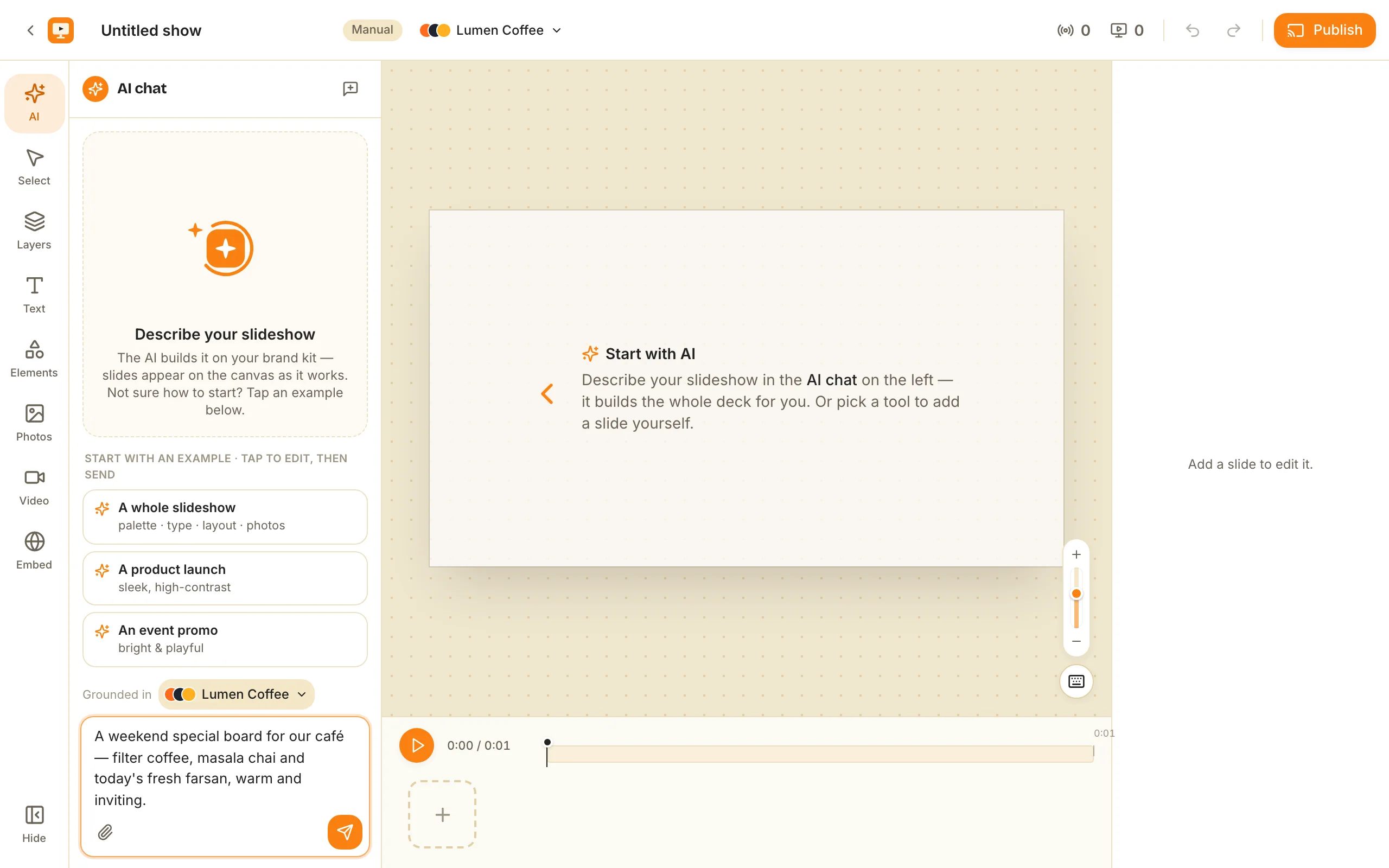
Click New show and you land straight in the editor, with the AI chat open on the left — there’s no separate setup form to fill in first. A brand-new show opens ready for you to describe it: the panel reads “Describe your slideshow — the AI builds it on your brand kit, slides appear on the canvas as it works,” with a “Grounded in [your brand kit]” selector and tap-to-edit example starters (A whole slideshow, A product launch, An event promo).
Type what the screen is for — “A weekend special board for our café: filter coffee, masala chai, and today’s fresh farsan” — optionally attach a PDF, image, or webpage URL for context, and send.
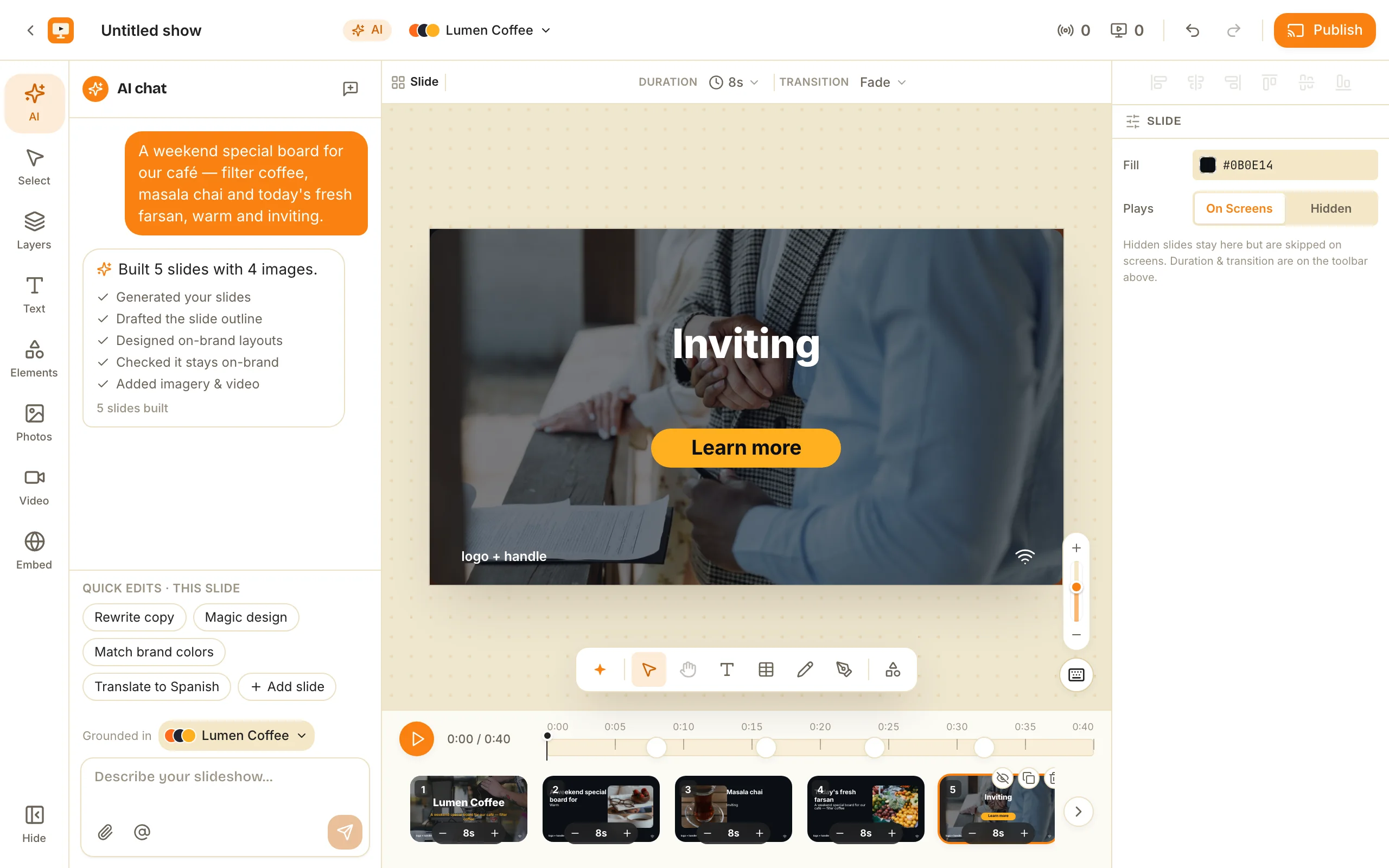
In seconds the AI builds the whole deck on-brand — it drafts the slide outline, designs on-brand layouts, adds imagery, and reports back (“Built 5 slides with 4 images”) as the slides appear on the canvas. This is a real editable show, not a flat export.
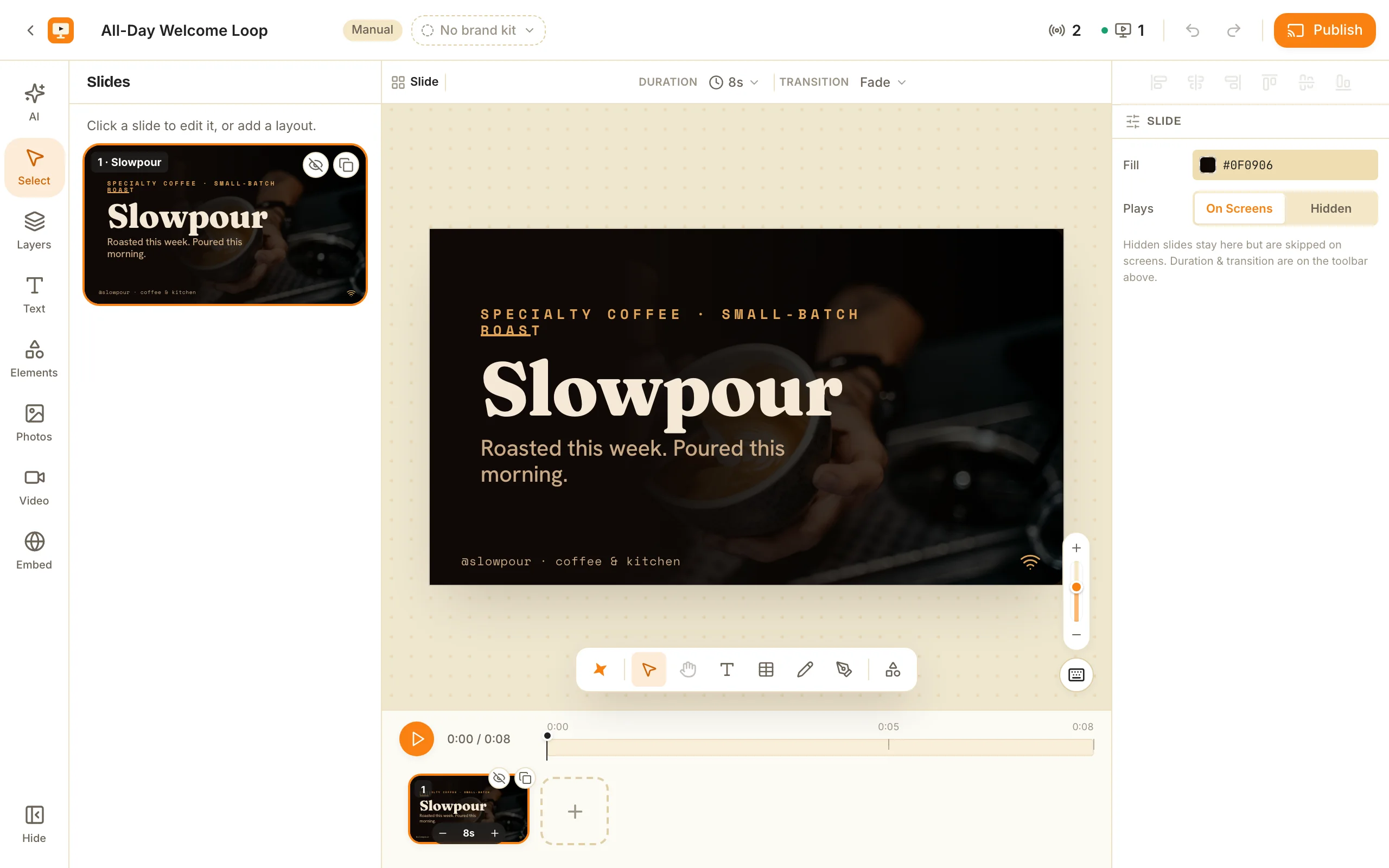
Everything is then yours to refine in the same Canva-style canvas: drag, resize, rotate, group, undo/redo, copy/paste, with keyboard shortcuts (Undo ⌘Z, Redo ⌘⇧Z, Duplicate ⌘D, Delete Del/⌫, Deselect Esc). Built in are one-tap background removal, rich text, live widgets (clock, QR, ticker, weather, menu), tables, and free Pexels photos and video. Per-slide quick edits — rewrite the copy, match brand colours, add a slide — sit right in the AI chat, and it autosaves as you edit (the always-live model), so you’re never hunting for a save button. If you want the AI path in more depth, AI slideshow generation covers it.
Why it matters: the fastest first draft is one you describe in a sentence — and it arrives as a real editable show, right where you’ll refine it, not something you redo by hand.
Step 2 — How do you schedule a show onto a channel?
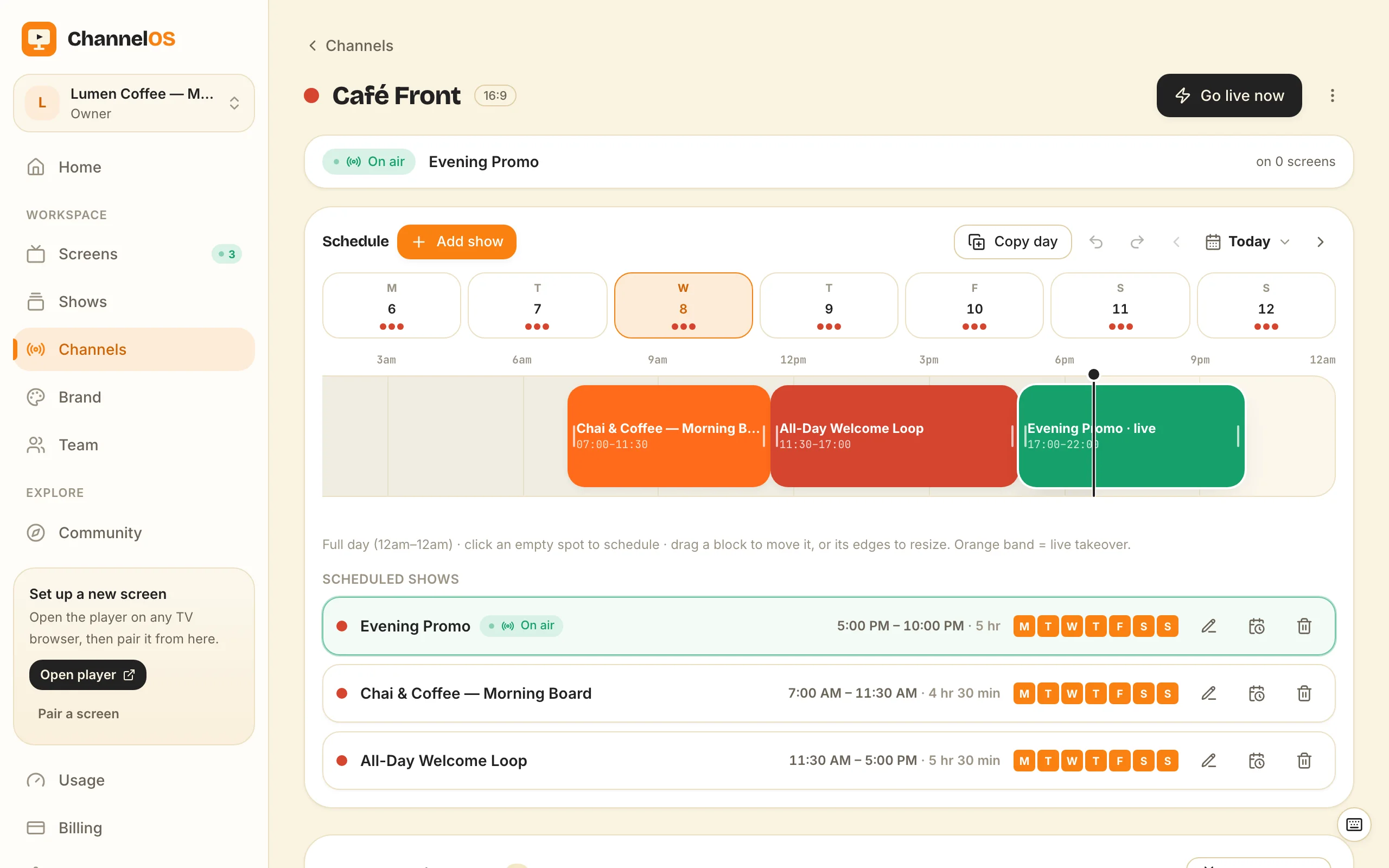
A show is the content; a channel is the named broadcast feed a screen tunes into, with a real daily timeline and dayparting. Create a channel — new ones can start from a template (Café Day, Retail Floor, Events, or Blank) — and open its page. You’ll see something like “Café Front · 16:9” with a “Go live now” button and a full-day timeline running 12am–12am, with per-weekday tabs (M T W T F S S).
Click Add show, pick the show you just made, and set its time range. Each scheduled show becomes a row with its time range, duration, weekday chips, and edit/reschedule/delete controls. The Repeat mode is where dayparting happens:
- Once — a single airing.
- Weekly — pick the weekdays it repeats on.
- Date range — for a run with a start and end date.
For a café, you’d set the morning menu to repeat Weekly on weekdays, then add an afternoon show and an evening show in their own time slots — dayparts stacked across the day. Drag a block to move it, drag its edges to resize, and use ⌘Z / ⌘⇧Z to undo/redo schedule changes. An orange band on the timeline means a live takeover is airing over the schedule.
Why it matters: set the schedule once and the channel plays the right show at the right hour every week, without anyone touching the TV.
Step 3 — How do you pair a TV as a screen?
Open play.channelos.tv in the TV’s web browser. The page mints a screen and shows a six-character code and a QR code, with the prompts “Add this screen from your phone or computer” and “Waiting to pair…”. Scan the QR from your phone, and the screen links to your account — live in about two minutes.
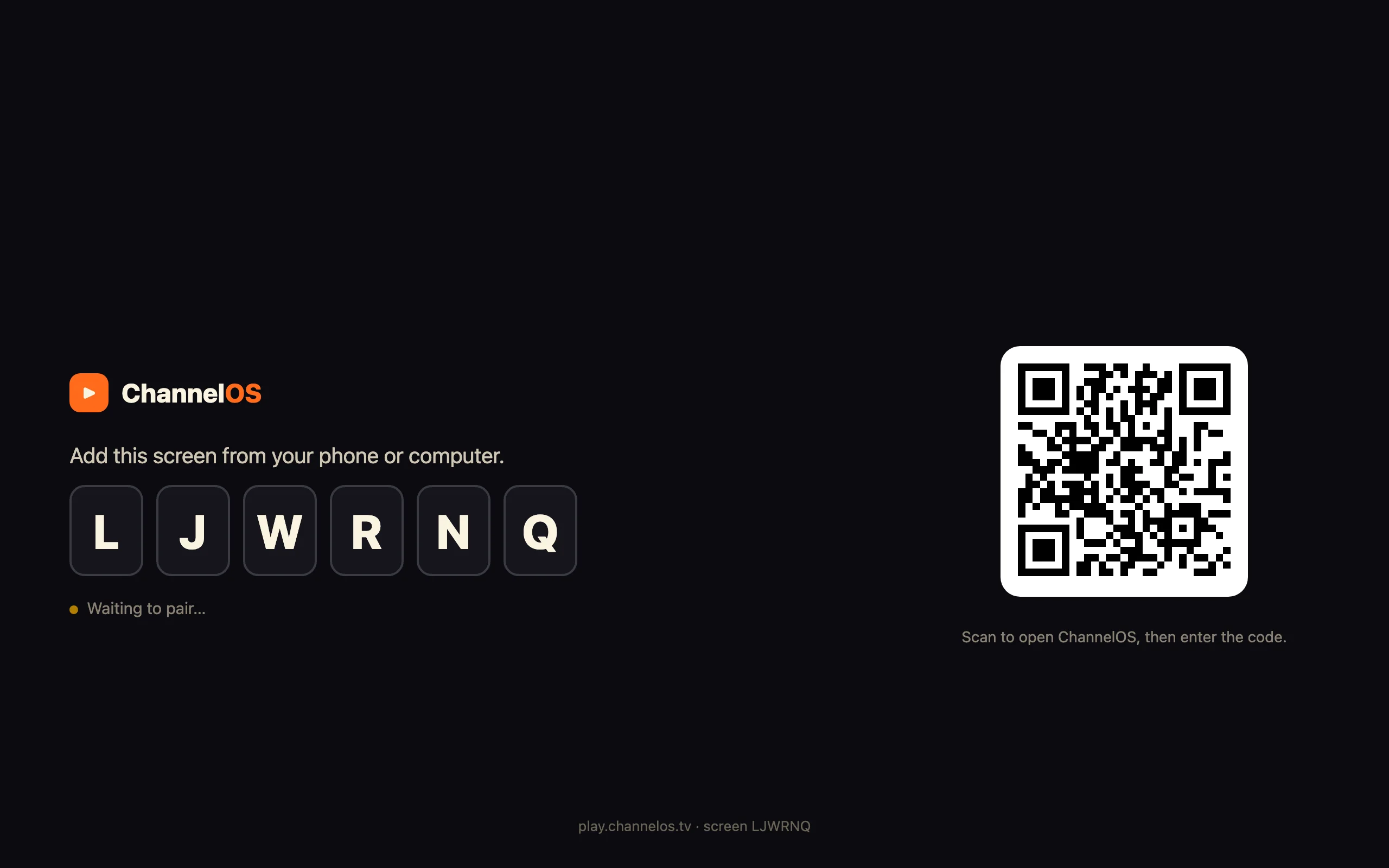
There’s on the TV, no media-player box, no per-device license, and . It works on Android TV, Google TV, LG webOS, Fire TV (Silk browser), a Chromebox, a mini-PC, or a laptop in kiosk mode — anything that renders a modern web page. Once paired, point the screen at the channel from Step 2 and it starts playing that feed on schedule.
Screens self-update — they poll for new builds and reload themselves — and they accept a remote reload from the board. Pairing is reversible and honest, too: a screen knows when it’s been unpaired or taken over and says so, instead of going silently stale. If a browser-based screen sounds too good to be true, no media player required makes the case in full — and names where a hardened offline media player still wins, like guaranteed cached playback through an internet outage.
Why it matters: any spare TV joins the wall in the time it takes to scan a code — no hardware to buy, no box to babysit.
Step 4 — How do you run everything from one board?
Everything you’ve paired lives on the Display Board — one live board with every screen shown as a rendered live preview, live status, and one-tap controls: play, pause, blank, mute, next, broadcast/takeover. Across the top sit the stats that tell you the wall’s health at a glance: Screens online, Avg uptime, Live now, Shows, Channels. Switch between Grid and By channel views, and the “Pair screen” and “New show” buttons start the loop again.
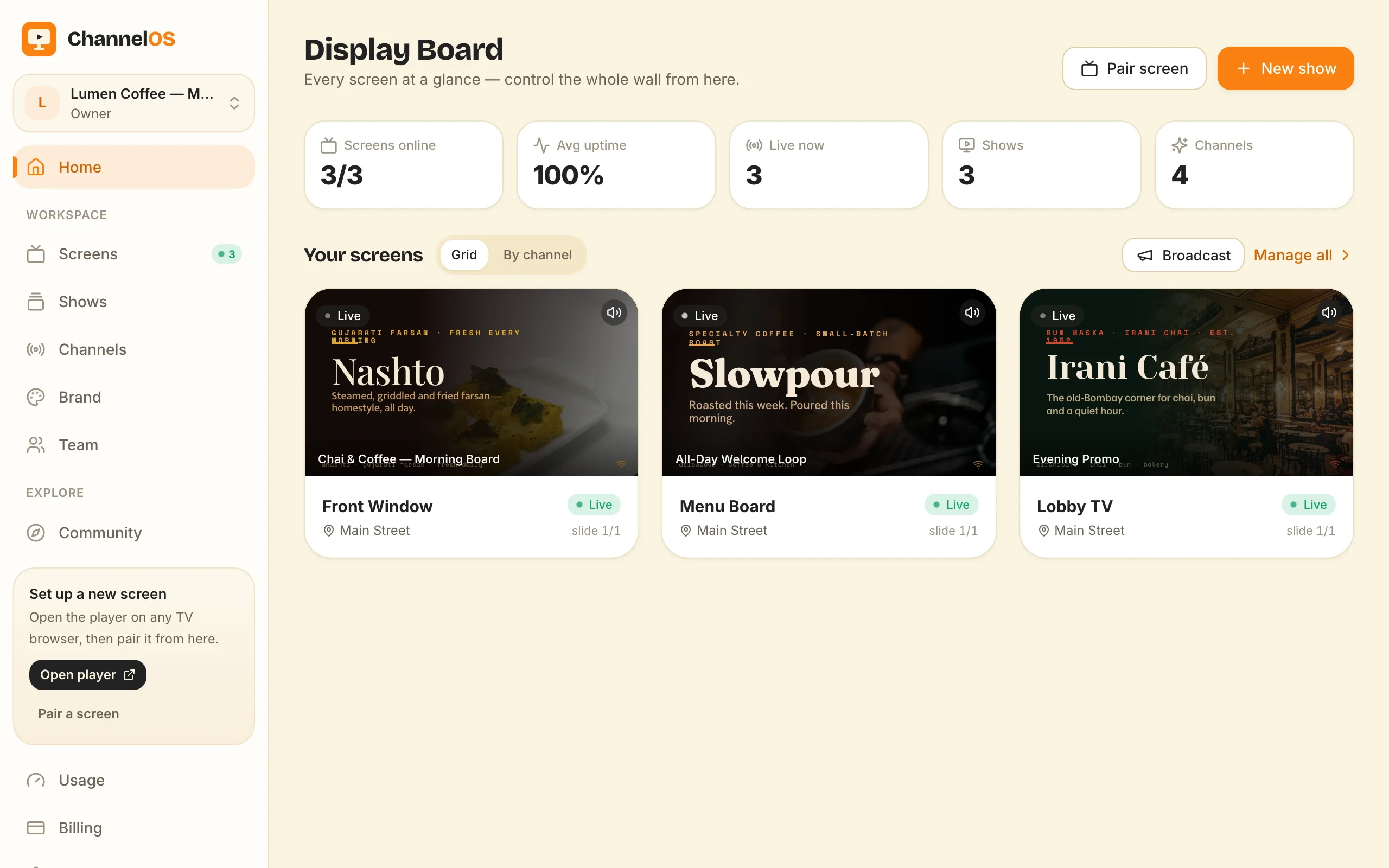
Controls hit the glass in milliseconds — the realtime layer runs on Cloudflare Workers and Durable Objects — so pausing a screen or triggering a takeover is instant. And here’s the payoff of the whole model: edit the show and every screen tuned to it updates instantly. “Edit once, airs everywhere.” No re-publish, no device-sync step. Fix a typo on the café’s specials slide and every paired TV shows the correction in real time. For the live-control side — takeover, blank, broadcast to the whole wall — see broadcast controls for your screens.
Why it matters: one board is the whole operation — you watch, control, and update every screen from a single glass, and content changes propagate on their own.
Getting started
That’s the full loop: create a show, schedule it onto a channel, pair a screen, run it from the board. The first screen is free, and paid plans are per screen, per month — no per-user seats. AI generation uses credits, while Pexels imagery is free and AI-generated imagery costs credits.
To try it, open play.channelos.tv on any TV, scan the code to pair your first screen, then describe what you want on it — AI drafts the slides in seconds, and you’re airing.
Time it once and you will know whether this fits your week. From opening the player on the TV to your own words being on the wall should be about two minutes. If any single step takes longer than the other three combined, that step is our bug, and telling us which one is more useful than telling us it was hard.
Frequently asked questions
- Do I have to schedule a show onto a channel, or can I just push it to a screen?
- You can do either. Pushing a show straight to a screen gives an instant result, while programming it onto a channel puts it on a daily timeline with dayparts so it runs on its own. This walkthrough uses the channel route because that's what keeps a wall running without you.
- If I edit the show after pairing the screen, do I re-publish?
- No. What a screen shows is derived from the show and the channel schedule in real time, never pushed file-by-file. Edit the show and every screen tuned to that channel updates instantly — there's no re-publish or device-sync step.
- What do I need on the TV to pair a screen?
- Just a modern web browser. Open play.channelos.tv on the TV, scan the six-character code from your phone, and the screen links to your account — no media-player box. It works on Android TV, Google TV, LG webOS, Fire TV, a Chromebox, a mini-PC, or a laptop in kiosk mode.
- How long does the whole flow take?
- Pairing a screen takes about two minutes, and the in-editor AI chat drafts every slide on-brand in seconds. The first screen is free, and paid plans are per screen, per month with no per-user seats. Free screens show a ChannelOS banner along the bottom of the screen, and any paid plan removes it.
Your screen is two minutes away.
Open the player on a TV, scan the code, publish a show. Your first screen is free.
Free screens show a ChannelOS banner along the bottom of the screen, and any paid plan removes it.