How ChannelOS works: shows, channels, screens, and one live board
How ChannelOS works, end to end: build a show, program it onto a channel, pair a TV as a screen, and run the whole wall from one board — where every screen's picture is derived from the schedule, so one edit airs everywhere.
ChannelOS works with three pieces and one board. A show is your slideshow — the slides and content. A channel is a named broadcast feed with a real daily timeline that decides what plays when. A screen is a paired TV that tunes into a channel. Above them sits the Display Board, one live view of every screen. The thing that makes it feel different from older signage tools is a single rule: what a screen shows is derived from the show and the channel schedule in real time — never pushed file-by-file. So you edit once and it airs everywhere. This post is the mental model; a step-by-step walkthrough of the whole flow is its own sibling post.
What are the three pieces?
Most signage platforms bury you in concepts — devices, players, assets, playlists, layouts, zones, roles. ChannelOS has three artifacts, and each one has a plain-language job.
- A show is the slideshow: your slides, your content. It stays a real, editable show — not a flat exported video. You can reopen it, change a price, swap a photo, and it’s still live.
- A channel is a named broadcast feed with a real daily timeline and dayparting. It’s what a screen “tunes into.” Think of a café that runs a breakfast board in the morning and a dinner board at night — that’s one channel with two shows scheduled across the day.
- A screen is a paired TV. It doesn’t hold your content; it just displays whatever its channel is airing right now.
The relationship is a chain: you build a show, you program that show onto a channel, and you point a screen at that channel. Change any link and the rest keeps working.
Why it matters: three nouns replace a dozen. Once you know show, channel, and screen, you know the whole product.
How does a screen know what to show?
This is the core idea, and it’s worth reading slowly: a screen’s picture is derived from the show plus the channel schedule, in real time. Nothing is copied onto the TV.
Older signage works by pushing: you finish a playlist, hit publish, and the platform ships files down to each device and waits for every one to sync. That model has a genuine strength worth naming — a hardened media player caches its playlist locally, so it keeps playing through an internet outage. Its weakness is the flip side: a pushed device can go stale silently the moment it misses a sync. ChannelOS makes the opposite trade — the screen simply asks its channel “what’s on now?” and renders it live, so it’s never out of date, at the cost of leaning on its connection rather than a local cache.
Two things fall out of that design, and they’re the whole reason the model exists:
- Edit once, airs everywhere. Fix a typo on a show and every screen tuned to a channel running it updates instantly — no re-publish, no device-sync wait. A clinic with four waiting-room TVs corrects one price and all four are right within moments.
- Screens stay honest. Because a screen is always reading live, it knows when it’s been unpaired or taken over and says so, instead of going quietly stale. Screens also self-update — they poll for new builds and reload themselves — and accept a remote reload from the board.
The realtime plumbing (Cloudflare Workers and Durable Objects) is what makes “derived, live” feel instant rather than eventual. You never touch it.
Why it matters: there is no publish-then-pray step. The screen reflects the truth continuously, so what you see on your board is what’s really on the wall.
What is a channel, really?
A channel is the piece people underestimate, because it’s the difference between “playing a slideshow” and running a broadcast. It’s a named feed — say Café Front · 16:9 — with a full-day timeline from 12am to 12am and per-weekday tabs (M T W T F S S).
On the channel page you schedule shows as coloured blocks with time ranges. A morning menu here, a lunch promo there, an evening board after 5pm. Each scheduled show is a row with its time range, duration and weekday chips, and repeat modes to match how signage is actually run: Once, Weekly (pick the weekdays), or a Date range. You drag a block to move it and drag its edges to resize — and schedule edits get ⌘Z / ⌘⇧Z undo/redo, the same as the editor. New channels can start from a template — Café Day, Retail Floor, Events, or Blank — so you’re not staring at an empty day.
The channel is also where dayparting lives: set it once a week and the right content shows up at the right hour without anyone touching the TV. And when you need to interrupt everything — a flash sale, an all-hands — a “Go live now” takeover paints an orange band across the timeline while it’s on air. Managing many screens comes down to managing channels, not devices.
Why it matters: a channel turns a pile of slides into a schedule that runs itself. You plan the week once; the screens follow it forever.
How do you get a show onto a screen?
Two ways, and you pick based on whether you want it now or on a schedule.
- Push a show straight to a screen for an instant result — good for a one-off, a test, or “put this up right now.”
- Program it onto a channel so it airs on a timeline — the durable, set-and-forget path for anything recurring.
Both routes obey the same derive-not-push rule, so a pushed show and a programmed show are equally live: edit the underlying show and the screen updates either way.
Getting to a show is just as light. There are two on-ramps, one artifact underneath. Describe it — type what the screen is for and AI drafts every slide on-brand in seconds, optionally reading in PDFs, images or a webpage URL you attach. Or design it in the Canva-style editor: drag, resize, rotate, group, with undo/redo, copy/paste and keyboard shortcuts, plus built-in background removal, rich text, live widgets (clock, QR, ticker, weather, menu), tables, and free Pexels photos and video. The editor autosaves as you edit (it’s always-live), and its Publish button is what reaches screens on a channel.
Why it matters: push for now, program for always — and either way you’re editing one real show, not juggling copies.
How do you control it all?
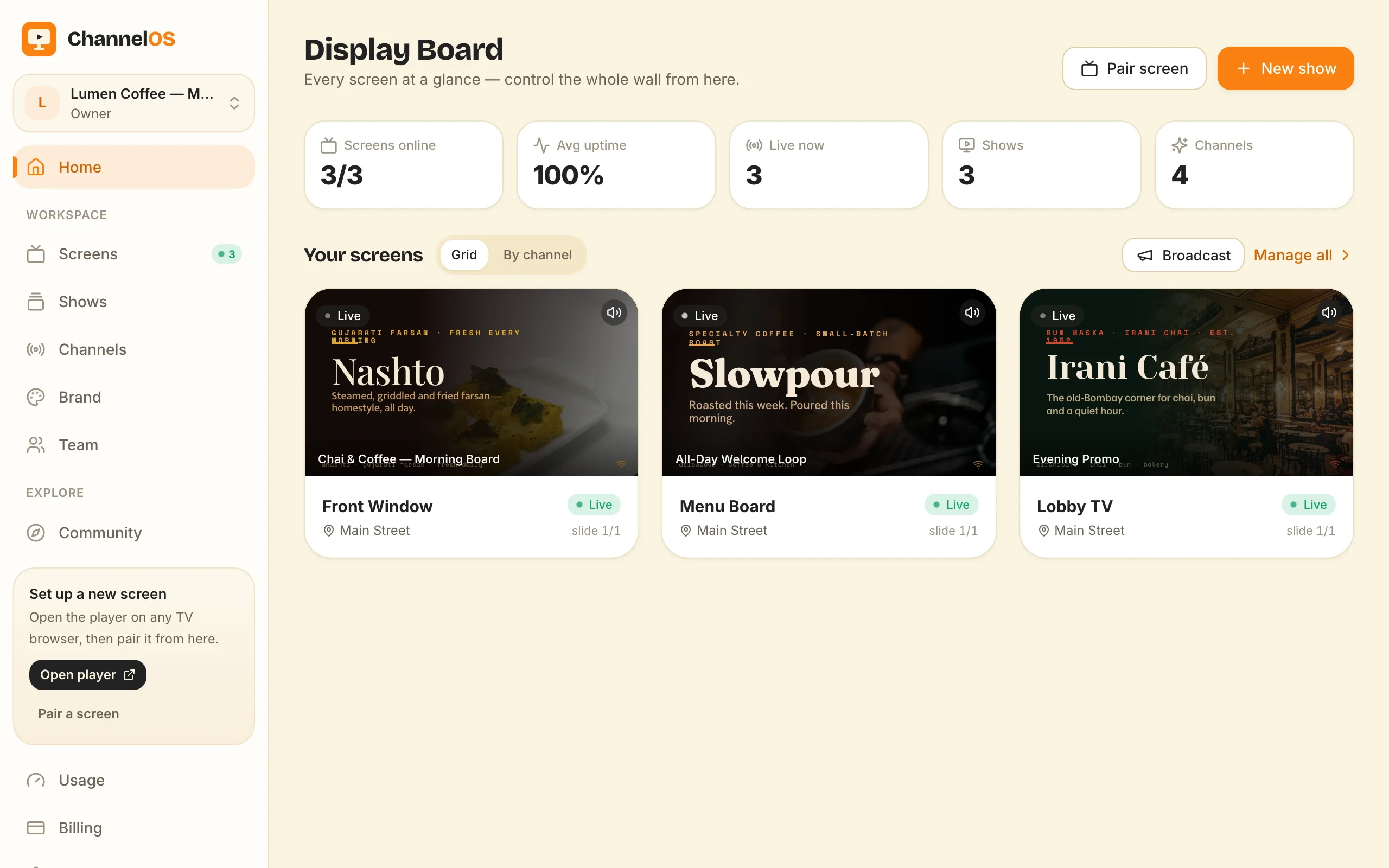
Everything ties together on one live board — the Display Board. It shows every paired screen with a rendered live preview, live status, and one-tap controls: play, pause, blank, mute, next, and broadcast/takeover. Across the top sit the numbers that matter — Screens online, Avg uptime, Live now, Shows, Channels — and you can view the wall as a Grid or By channel. “Pair screen” and “New show” buttons are right there to grow the wall.
Because it’s all derived and realtime, the board and the glass never drift, and actions hit the screen in milliseconds. A shop manager can blank a screen from a phone, jump another to the next slide, or take the whole floor over for an announcement — one-thumbed, from anywhere. This is the live broadcast-controls surface for the entire wall.
Why it matters: one screen or fifty, you run them from a single pane — no per-device dashboards, no guessing what’s actually playing.
Where does pairing fit?
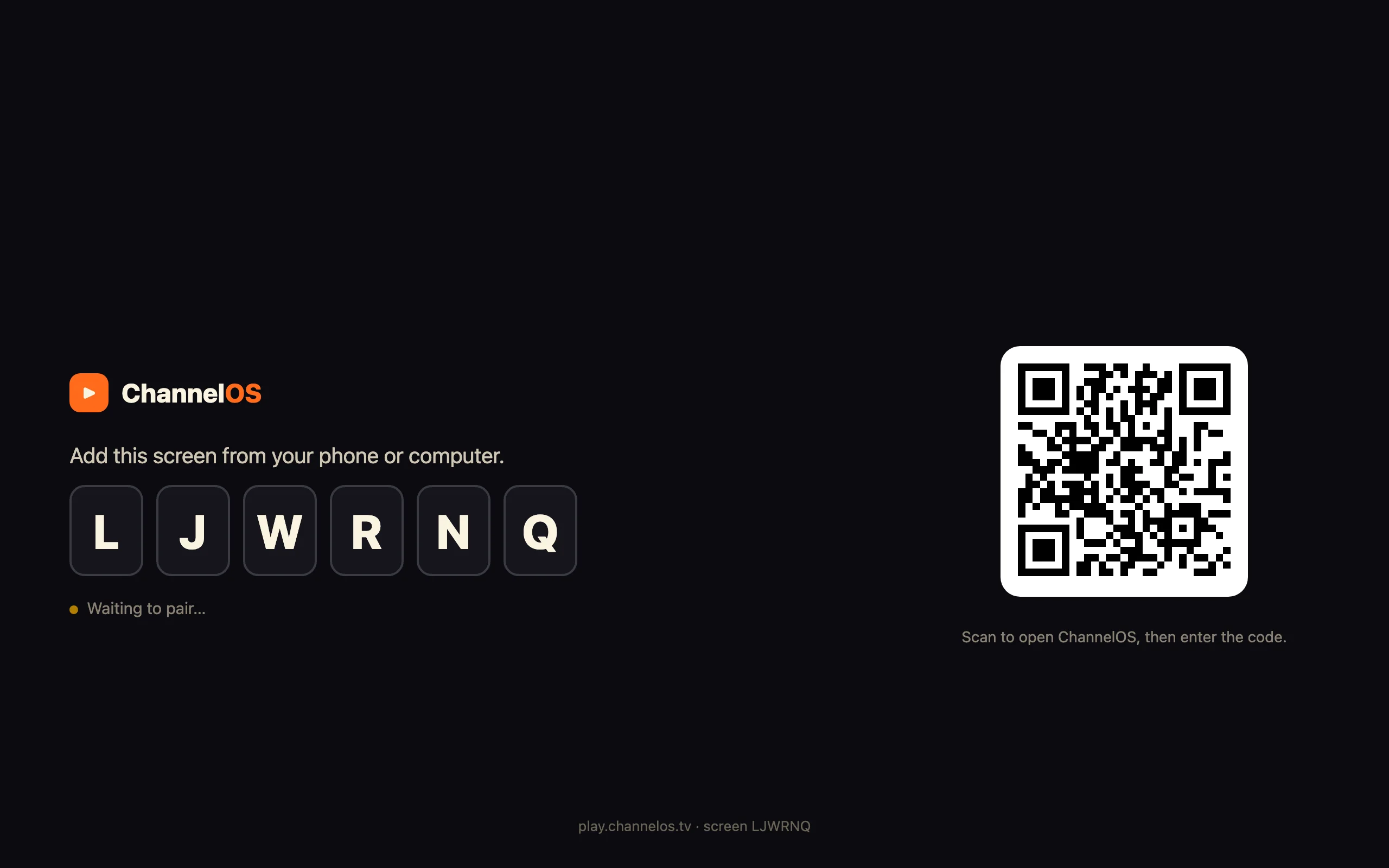
Pairing is how a TV becomes a screen, and it’s deliberately the smallest step. Open play.channelos.tv in any TV browser; the page mints a screen and shows a 6-character code and a QR (“Waiting to pair…”). Scan it from your phone and the screen links to your account. Live in about two minutes, with no media-player box, no per-device license.
The whole system, then, is the three verbs — Pair, Build, Publish — over the three artifacts. The three-verb model has its own explainer if you want the workflow framed as actions rather than pieces.
Ready to see it?
Your first screen is free. Open play.channelos.tv on any TV you have, scan the code from your phone, and describe what the screen is for — you’ll have a real, editable show airing on real glass in about two minutes, no box and no app required.
Frequently asked questions
- What are the three things I actually manage in ChannelOS?
- A show (your slideshow — the slides and content), a channel (a named broadcast feed with a real daily timeline and dayparting), and a screen (a paired TV). You build shows, program them onto channels, and tune screens to a channel.
- Do I have to re-publish after I edit a slide?
- No. What a screen shows is derived from the show and the channel schedule in real time, never pushed file-by-file. Edit a show once and every screen tuned to it updates instantly — there is no device-sync or re-publish step.
- Does the TV need an app or a media player box?
- No. You open play.channelos.tv in the TV's own browser and it becomes the player. There is no media-player box, and no per-device license — Android TV, Google TV, LG webOS, Fire TV, a Chromebox, a mini-PC, or a laptop in kiosk mode all work.
- How do I control all my screens at once?
- From one live board — the Display Board — which shows every paired screen with a live preview, live status, and one-tap controls (play, pause, blank, mute, next, broadcast). Actions hit the glass in milliseconds.
Your screen is two minutes away.
Open the player on a TV, scan the code, publish a show. Your first screen is free.
Free screens show a ChannelOS banner along the bottom of the screen, and any paid plan removes it.