How to manage many screens at once with channels and scheduling
Running lots of screens? Point them all at one channel, edit the show once, and it airs everywhere. How ChannelOS uses channels, dayparting and one live board to run a whole wall — or many locations — without touching each TV.
To manage many screens at once in ChannelOS, you point them all at one channel instead of touching each TV. A channel is a named broadcast feed with a real daily schedule; a screen “tunes into” it. Because what a screen shows is derived from the show and the channel schedule in real time — never pushed file-by-file — you edit the show once and every tuned screen updates instantly. You set the weekly daypart schedule once, and you run the whole wall from one live board: play, pause, blank, or broadcast a takeover across the whole wall at once. There is no per-device sync step. If you want the full model first, see how ChannelOS works end to end.
How do I put the same content on every screen?
Create one channel and tune every screen to it. That’s the whole trick to fleet management here — the channel is the shared thing, and screens are just windows onto it.
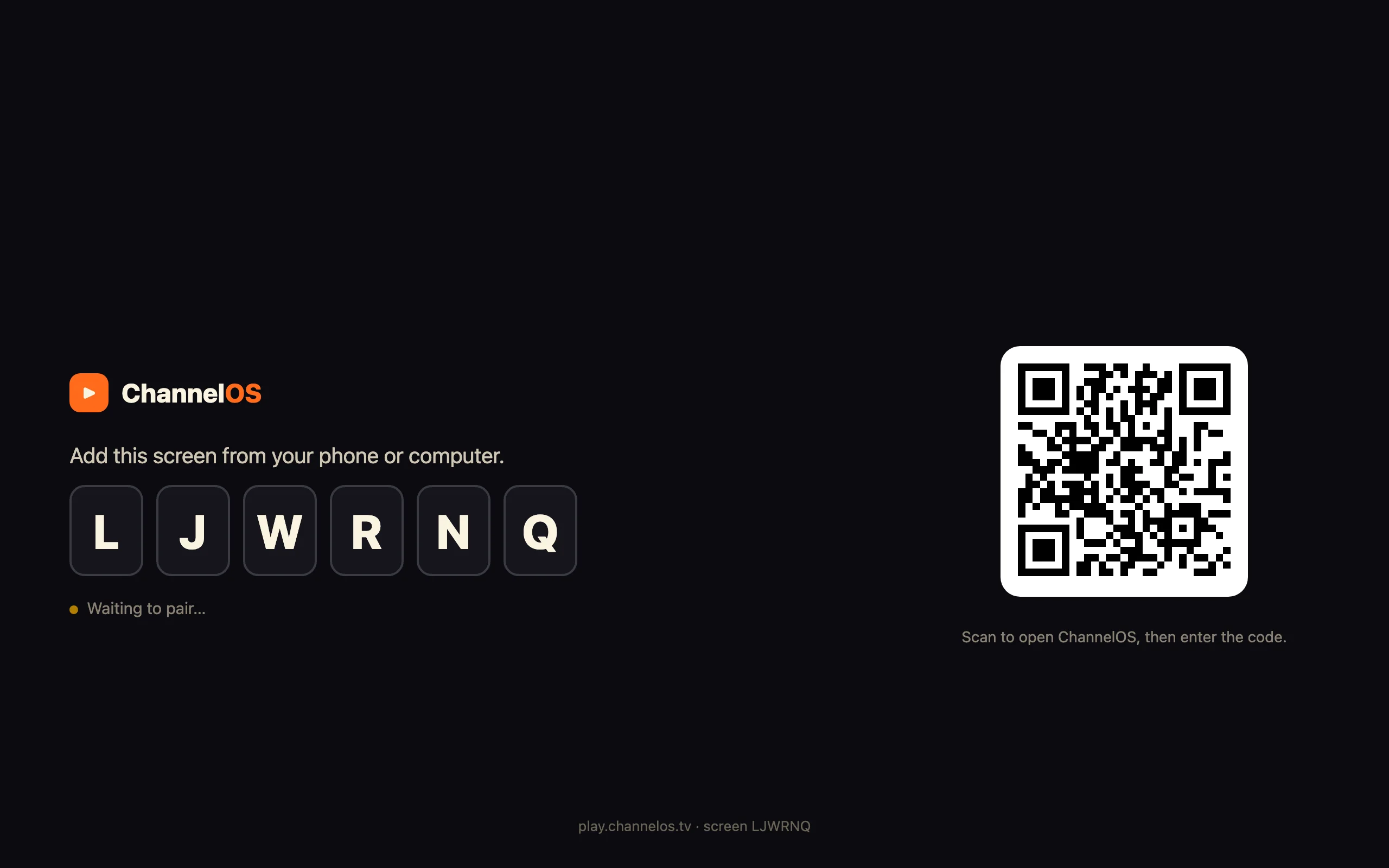
Say you run a small chain of cafés. Make one channel — call it “Front of house · 16:9” — with your menu show scheduled across the day. Then, in each location, open play.channelos.tv in the café TV’s browser, get the 6-character pairing code, and scan it from your phone to link that screen to your account. Do that in all five cafés and you have five paired screens, all tuned to the same “Front of house” channel.
Every one of those TVs now plays the same schedule. You didn’t design five things or copy content between locations — you built one channel and pointed the screens at it. The board can group them for you (more on that below), so the whole “Front of house” fleet reads as a single row.
Why it matters: the unit of work is the channel, not the TV — so adding your tenth screen is one pairing, not another thing to maintain.
How do I change what a hundred screens show?
Edit the show once. It airs everywhere. This is the part that removes the walking-the-floor problem entirely.
In a file-push signage tool, changing content means re-exporting and re-syncing every device — a job that scales with how many screens you have. ChannelOS doesn’t work that way. A screen’s picture is derived from the current show plus the channel schedule, computed live. So when you change the pastry price in your café menu show, every screen tuned to that channel updates in real time — five cafés or fifty, same single edit. This “why” is the whole reason the model looks the way it does: why ChannelOS thinks differently.
The editor autosaves as you edit (it’s an always-live model), and Publish is the action that pushes your saved changes onto the channel and out to screens. There’s no “sync to devices” button, because there are no device files to sync.
Screens also update themselves: each one polls for new builds and reloads on its own, and it will accept a remote reload from the board if you want to force one. So the fleet stays current without anyone visiting a single TV.
The honest trade-off: because the picture is derived live and screens pull updates over the web, they need to be online to change. If your priority is guaranteed playback through an internet outage, a hardened offline media-player box that caches content locally still wins on that one axis — ChannelOS trades that for edit-once-airs-everywhere and no hardware per screen.
Why it matters: the cost of a content change is flat — one edit — whether it lands on one screen or the entire wall.
How do I set the schedule once for all of them?
Set the weekly daypart schedule once on the channel, and it runs every week. Because screens tune into the channel, they all inherit that schedule automatically.
Open the channel page — “Front of house · 16:9” — and you get a full-day timeline from 12am to 12am with per-weekday tabs (M T W T F S S). Coloured blocks are your scheduled shows, each with a time range. Add a show to a slot and set its Repeat mode:
- Once — a single date.
- Weekly — pick the weekdays. This is how you daypart: a breakfast show Mon–Fri, a different one for the afternoon, weekend hours of their own.
- Date range — runs between two dates, good for a seasonal promo.
Drag a block to move it, drag its edges to resize, and ⌘Z / ⌘⇧Z undo and redo schedule changes. New channels can start from a template — Café Day, Retail Floor, Events, or Blank — so you’re editing a sane daypart layout instead of a blank timeline.
Set that once and the whole fleet on the channel follows it. A retail chain does the same thing with a Retail Floor template across every store — see retail digital signage for that pattern.
Why it matters: dayparting is a channel setting, not a per-TV chore — you schedule the week once, and every tuned screen honours it.
Can different screens show different things?
Yes — give roles their own channels, and use direct pushes for one-off overrides. Not every screen in a fleet should show the same feed.
Take a multi-floor office. The lobby wall tunes into a “Front of house” welcome channel; each floor’s break-room screens tune into a “Floor comms” channel with team notices. Different channels, different schedules, same board.
For a per-location override, you have two moves:
- Push a show straight to one screen for an instant result — no scheduling. Perfect when the third-floor screen needs a “Fire drill at 3pm” notice that the rest of the building doesn’t.
- Broadcast a takeover from the board — an orange band on the timeline marks a live takeover — to interrupt the normal schedule on a screen (or the whole wall) with something urgent, then hand control back.
So the default is shared (one channel, many screens), and the exceptions are cheap (a direct push, or a takeover) without breaking the fleet’s regular programming.
Why it matters: shared-by-default with easy overrides means you scale the common case and still handle the one screen that needs to be different.
How do I control the whole wall at once?
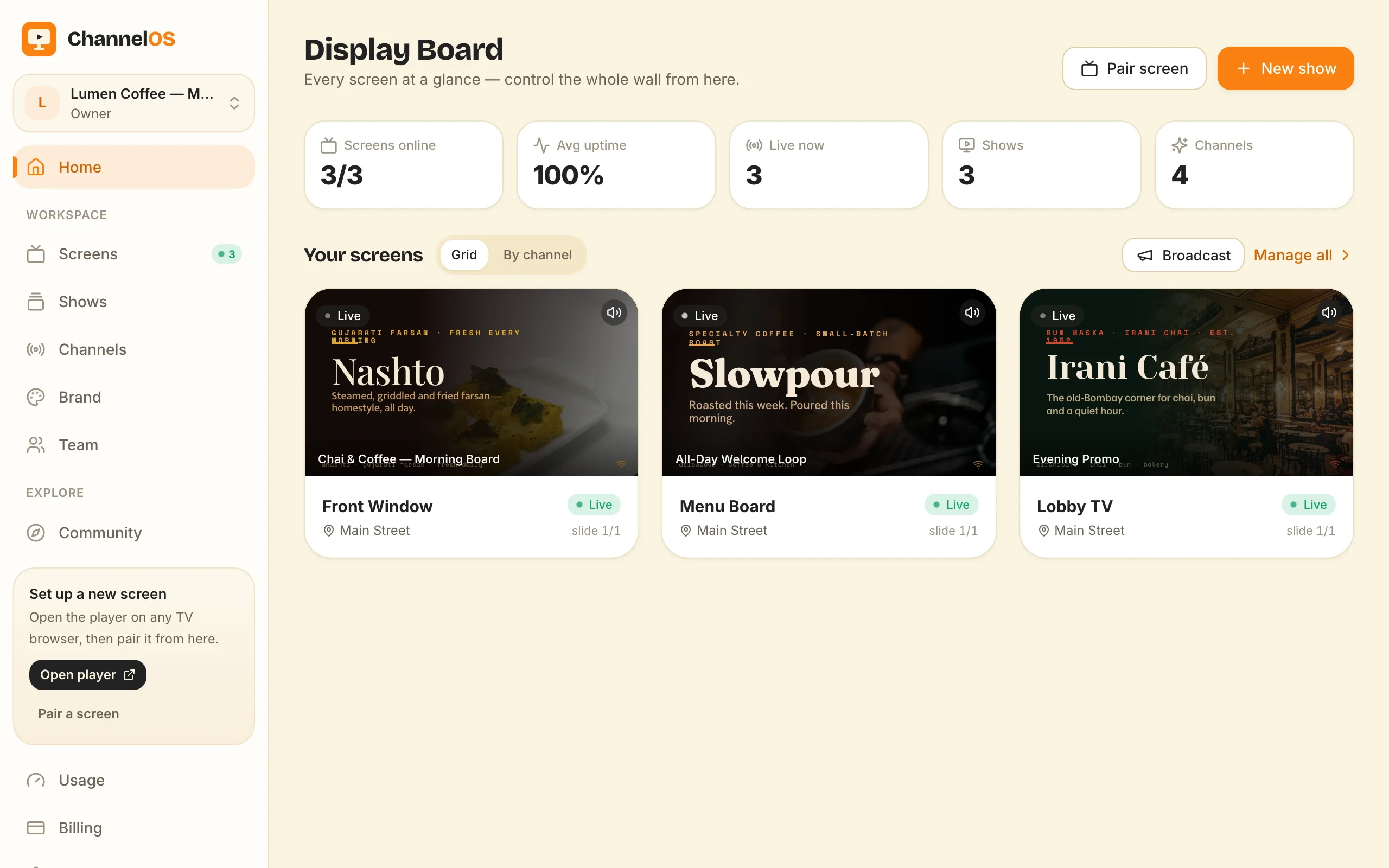
The Display Board is your mission control. It shows every paired screen with a rendered live preview and live status, so you see the whole fleet at a glance instead of guessing what each TV is doing.
Across the top are the numbers that matter: Screens online, Avg uptime, Live now, Shows, Channels. Two views organise the wall:
- Grid — every screen as a live tile.
- By channel — screens grouped under the channel they’re tuned into, so your “Front of house” fleet and your “Floor comms” fleet read as separate blocks.
Each screen has one-tap controls — play, pause, blank, mute, next, and broadcast/takeover — and you can blank or take over the whole wall when you need to. Because it’s built on Cloudflare Workers and Durable Objects, actions hit the glass in milliseconds — blank the room and it goes dark right away.
Pairing is also honest: a screen knows when it’s been unpaired or taken over and says so on-screen, instead of quietly going stale. So a screen that’s misbehaving tells you, rather than showing a customer yesterday’s menu. The board is where the day-to-day control lives — broadcast controls for your screens covers those buttons in depth.
Why it matters: one glass pane shows and controls the entire fleet in real time, so “manage many screens” is a single view, not a spreadsheet of IPs.
What does it cost to run many screens honestly?
The first screen is free, and paid plans are per screen, per month — no per-user seats. That’s the honest shape of it: each screen you add is one subscription line, so your bill scales with the number of TVs, not the number of people on your team.
There’s no hidden hardware cost per screen, though. Pairing runs in a plain TV browser, so there’s no media-player box, no per-device license — the screen is just a web page. AI slideshow generation uses credits, and Pexels imagery is free while AI-generated imagery costs credits, so you control that spend separately from the per-screen subscription.
To be clear about what ChannelOS is: it’s your operations and control-plane tool for the screens — it doesn’t sell ads, share revenue, or pay you. If those screens make you money, that’s your business; ChannelOS is the cost line that keeps the wall running.
Why it matters: the pricing follows the same logic as the product — you pay per screen you run, and adding screens is a predictable, flat line rather than a surprise.
Get your wall on one board
You can run a whole fleet from one channel and one board, and the first screen is free to prove it. Open play.channelos.tv on any TV, scan the code from your phone, and describe what the screen is for — AI drafts the show, you tune the rest to a channel, and you’re managing many screens from a single pane in minutes.
Frequently asked questions
- Can I run the same content on many screens at once?
- Yes. Tune every screen to the same channel and they all play its schedule. Edit the show once and each screen updates in real time — there's no per-device push, so one change reaches the whole wall.
- Do I have to re-publish when I change what a hundred screens show?
- No. What a screen shows is derived from the show plus the channel schedule in real time, never pushed file-by-file. Edit the show once and every screen tuned to it updates instantly — no walking the floor, no device-sync step.
- How do I show different content on different screens?
- Point them at different channels, or push a show straight to a single screen for an instant, per-location override. From the board you can also broadcast a takeover to one screen or the whole wall.
- How much does it cost to run many screens?
- The first screen is free. Free screens show a ChannelOS banner along the bottom of the screen, and any paid plan removes it. Paid plans are per screen, per month with no per-user seats, so each screen you add is one subscription line. AI generation uses credits, but Pexels imagery is free.
Your screen is two minutes away.
Open the player on a TV, scan the code, publish a show. Your first screen is free.
Free screens show a ChannelOS banner along the bottom of the screen, and any paid plan removes it.