Why your screens deserve TV-broadcaster controls
ChannelOS treats a wall of screens like a TV station: a channel is a named feed with a daily timeline, dayparting, live takeover and a go-live-now button — why broadcast controls beat a flat playlist for real-world signage.
A café screen showing the breakfast menu at seven in the evening is not a scheduling failure. It is what happens when changing the screen is a decision somebody has to remember to make. A timeline turns that decision into a thing that already happened, which is the entire difference between a wall you run and a wall that runs you.
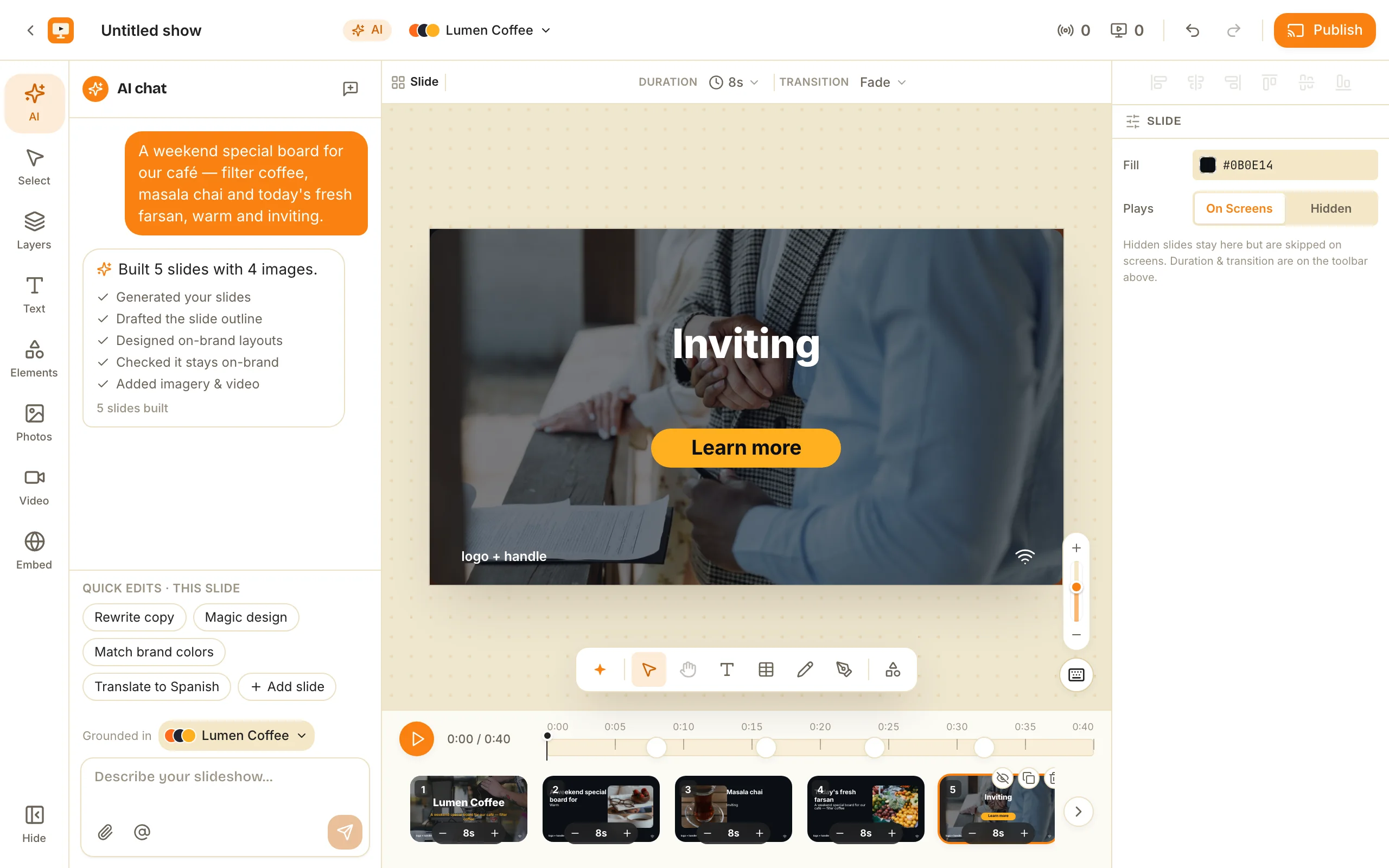
A channel in ChannelOS is a named broadcast feed with a real daily timeline — exactly what a TV station runs on. Instead of dropping clips into one flat loop, you program shows by time of day and weekday, take over every screen with a single Go live now, and let one channel drive a whole wall of screens. That’s the difference between broadcast controls and a playlist: a playlist plays the same thing all day and gets edited device-by-device, while a channel knows what a Tuesday lunch is supposed to look like.
What’s a channel?
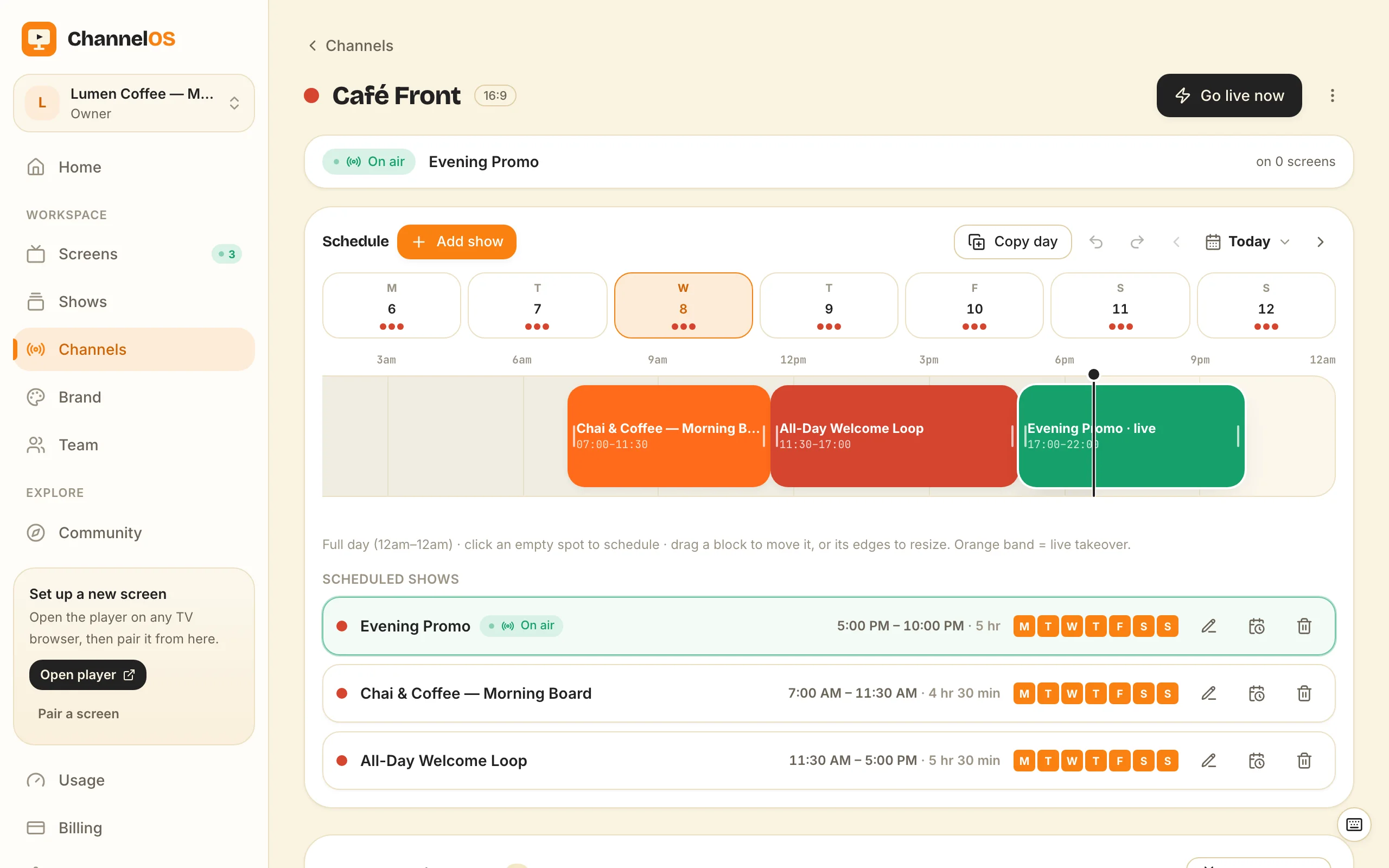
A channel is what a screen tunes into. It has a name and an orientation — think “Café Front · 16:9” — and its heart is a full-day timeline running 12am to 12am, with a tab for each weekday (M T W T F S S).
On that timeline you place coloured show blocks, each with a time range. A café might have a Breakfast block, an All-day welcome block, and an Evening promo block. A screen paired to that channel doesn’t store any of this — it simply plays whatever the channel says should be airing at this moment.
The important structural fact: a show is the slideshow (your content), a channel is the schedule, and a screen is a paired TV. Keeping them separate is what makes broadcast controls possible — you program the channel once and every tuned screen follows.
New channels don’t start blank unless you want them to. You can start from a template — Café Day, Retail Floor, Events, or Blank — and adjust from there.
Why it matters: a channel is a schedule, not a file — so you think in “what airs when,” not “what’s loaded on which box.”
What is dayparting?
Dayparting is running different content at different times of day and different days of the week — and it’s the single biggest thing a flat playlist can’t do.
Take a café with one screen behind the counter:
- Breakfast board, 7:00–11:30 — pastries, coffee, the morning specials.
- All-day welcome — hours, Wi-Fi, the loyalty pitch, filling the gaps.
- Evening promo, from 5pm — the wine-and-small-plates push.
In ChannelOS you build that by dropping three show blocks on the channel timeline and setting each one’s time range. Weekends look different from weekdays? Switch to the Saturday tab and program it separately — the per-weekday tabs mean a Saturday brunch board and a Monday commuter board live on the same channel without fighting each other.
The repeat modes do the heavy lifting. Each scheduled show is a row with its time range, duration, and weekday chips, and you pick how it recurs:
- Once — a single date (a one-off event).
- Weekly — pick the weekdays it runs. This is the daypart setting: a breakfast show Mon–Fri, a brunch show Sat–Sun.
- Date range — runs between two dates (a seasonal menu).
You set this once a week and walk away. The morning board comes up at 7, steps aside at 11:30, the evening promo takes over at 5 — no one touches the screen. Reworking the timeline is direct: drag a block to move it, drag its edges to resize its duration, and ⌘Z / ⌘⇧Z undo and redo schedule changes when you get it wrong.
Why it matters: your screens should know it’s Tuesday lunch — dayparting is how a sign stops being a loop and starts being a schedule.
How do I take over every screen at once?
Press Go live now. It’s the on-air button: an instant takeover across every screen tuned to that channel, shown on the timeline as an orange band so you can see at a glance that a live broadcast is overriding the regular schedule.
This is the announcement path. The lunch rush is starting and you want “Now serving the specials” on every screen in the room — you don’t edit three schedules and hope. One button, and the whole wall switches together. When the takeover ends, screens fall back to whatever the timeline says should be airing.
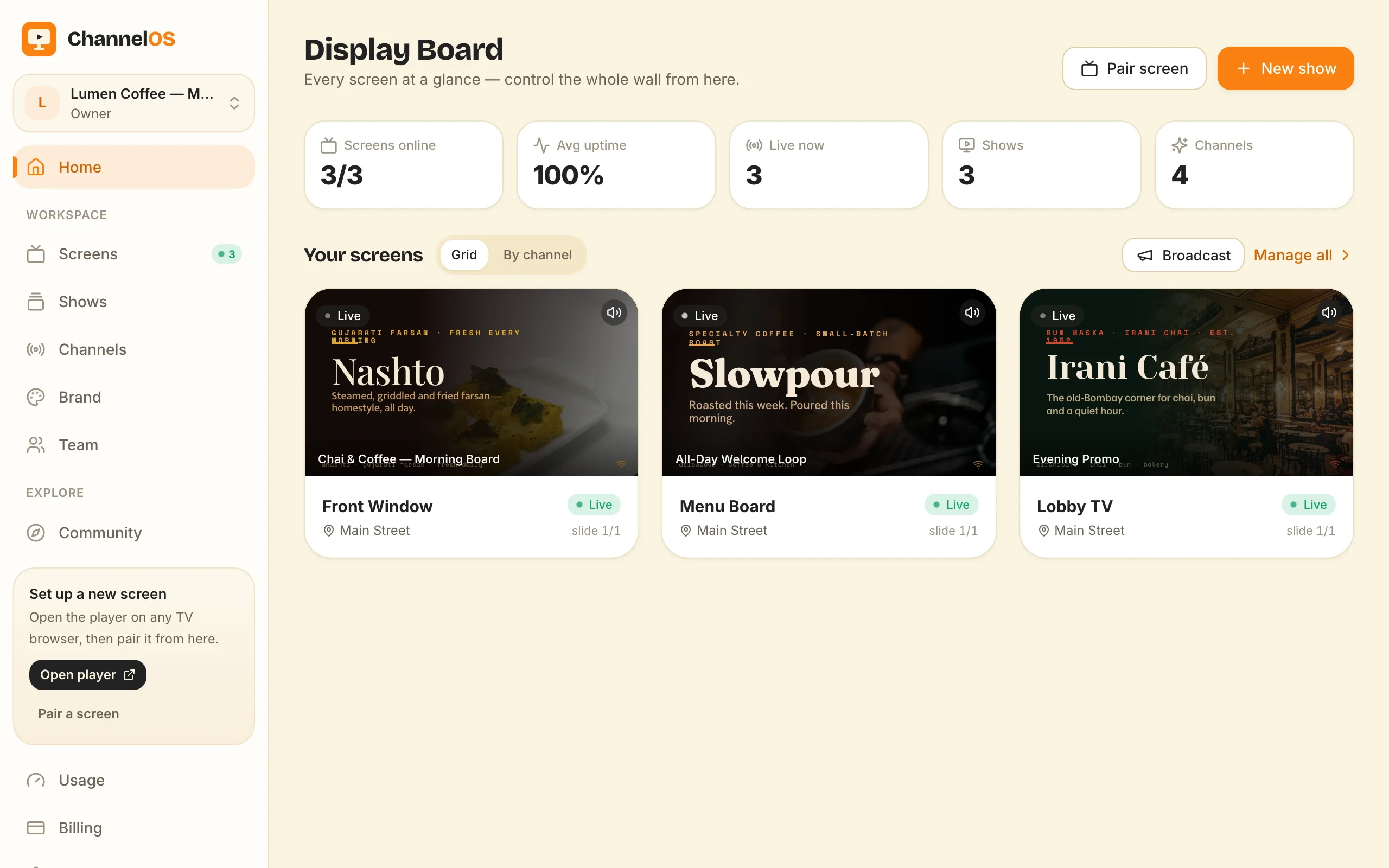
There’s a second way in from the Display Board — the one live board that shows every paired screen with a rendered live preview, live status, and one-tap controls (play, pause, blank, mute, next, and broadcast/takeover). From the glass you can push a broadcast to a screen or a channel without opening the schedule at all.
Either way, it’s fast because of how it’s wired: actions hit the glass in milliseconds, powered by Cloudflare Workers and Durable Objects. A takeover isn’t a file being copied to devices — it’s a command every tuned screen is already listening for.
And because one channel drives many screens, programming once airs everywhere. Ten TVs on the Café Front channel all get the same breakfast board, the same evening promo, the same instant takeover — you never program the tenth screen differently from the first.
Why it matters: “on air on every screen, now” should be one button — not a per-device chore you do while customers wait.
Why not just a playlist?
Because a playlist has no sense of time and no sense of scale. It’s a single ordered loop: it plays A, B, C, A, B, C all day, whether it’s 7am or 9pm, whether it’s Monday or Saturday. Want the lunch menu to only show at lunch? A flat playlist can’t express that — it only knows order, not clock.
The scale problem is worse. In the playlist model, content is usually edited per device — you load a loop onto this screen, a different loop onto that one, and every change is a round of pushing files to boxes. Twenty screens is twenty places to keep in sync.
A channel inverts both. Time is first-class: the timeline is the whole point, so dayparting is native, not a workaround. And scale is solved by derivation — a screen’s content is derived from the show and the channel schedule in real time, never pushed file-by-file. That’s the ChannelOS core move: edit the show once and every screen tuned to that channel updates instantly. No re-publish, no device-sync step. Edit once, airs everywhere. We go deeper on the mechanics in how ChannelOS works and on the show-to-schedule flow in from brand kit to a scheduled channel.
To be fair about the trade: a hardened offline media player genuinely wins in one place — a device with cached playback keeps looping through an internet outage, and a browser-tab screen depends on the network. If guaranteed playback through a dead connection is your hard requirement, that’s a real reason to keep a media box. For most cafés, clinics, lobbies and shops, though, the ability to program by time of day and take over every screen from one board is worth far more than a loop that never changes.
The channel is also how you keep a growing fleet sane — one board, one schedule, many screens. That’s the whole argument for managing many screens with channels.
Why it matters: a playlist scales your problems (more screens, more places to edit); a channel scales your reach (one schedule, every screen).
Program one channel, air on every screen
Broadcast controls aren’t a luxury — they’re what turns a wall of TVs into something you actually run, like a station. Open play.channelos.tv on any TV browser, scan the pairing code from your phone, and describe what the screen is for — a show drafts in seconds. Put it on a channel, daypart it once for the week, and keep the Go live now button for the moment you need every screen at once. The first screen is free, paid plans are per screen per month, and there’s no player box to buy.
The test takes a week and one afternoon of setup: put a real weekday timeline on one screen, then leave it alone. If on Friday the screen is showing the right thing at the right hour without you having touched it, the schedule has replaced a job you were doing by hand. If you found yourself overriding it every day, the timeline was wrong and it is worth fixing before you add a second screen.
Frequently asked questions
- What is a channel in digital signage?
- In ChannelOS a channel is a named broadcast feed with a real daily timeline — the thing a screen tunes into. You program shows onto its timeline by time of day and weekday, and every screen tuned to that channel plays whatever is scheduled right now.
- What is dayparting?
- Dayparting means running different content at different times of day — a breakfast board in the morning, a lunch menu midday, a promo in the evening. In ChannelOS you set it once on the channel timeline with per-weekday tabs and a Weekly repeat, and it runs every week.
- How do I put an instant announcement on every screen at once?
- Use Go live now on the channel (or Broadcast/takeover from the Display Board). It takes over every screen tuned to that channel immediately — shown as an orange band on the timeline — and actions hit the glass in milliseconds because ChannelOS runs on Cloudflare Workers and Durable Objects.
- How is a channel different from a playlist?
- A flat playlist loops the same items all day with no sense of time, and is usually edited per device. A channel has a daily timeline with dayparting, drives many screens from one place, and derives what each screen shows in real time — so editing a show updates every tuned screen with no re-publish step.
Your screen is two minutes away.
Open the player on a TV, scan the code, publish a show. Your first screen is free.
Free screens show a ChannelOS banner along the bottom of the screen, and any paid plan removes it.