AI slideshow generation: from a sentence to a finished show in seconds
How ChannelOS's AI slideshow generation works and why it's fast: describe the screen in a sentence and AI drafts every slide on-brand in seconds, reads PDFs and images for context, and hands you a real editable show — so you can turn around a new board in minutes, not a weekend.
The reason a screen goes stale is almost never the screen. It is the twenty minutes of making something that stands between a price change and the wall, twenty minutes you do not have at four o’clock on a wet Tuesday. Take that away and the screen stays current on its own.
AI slideshow generation in ChannelOS turns a one-sentence description into a complete, on-brand, multi-slide show in seconds. You describe what the screen is for, the AI drafts every slide grounded in your brand kit, and you get back a real editable show — not a locked export. Because a screen is derived from that show in real time, publishing a change airs it on every tuned-in screen instantly, so restyling a board is minutes of work, not an afternoon.
That’s the whole promise: the blank page and the “hire a designer” step both disappear, and the distance from idea to glass collapses to about the length of one sentence.
How does AI slideshow generation work?
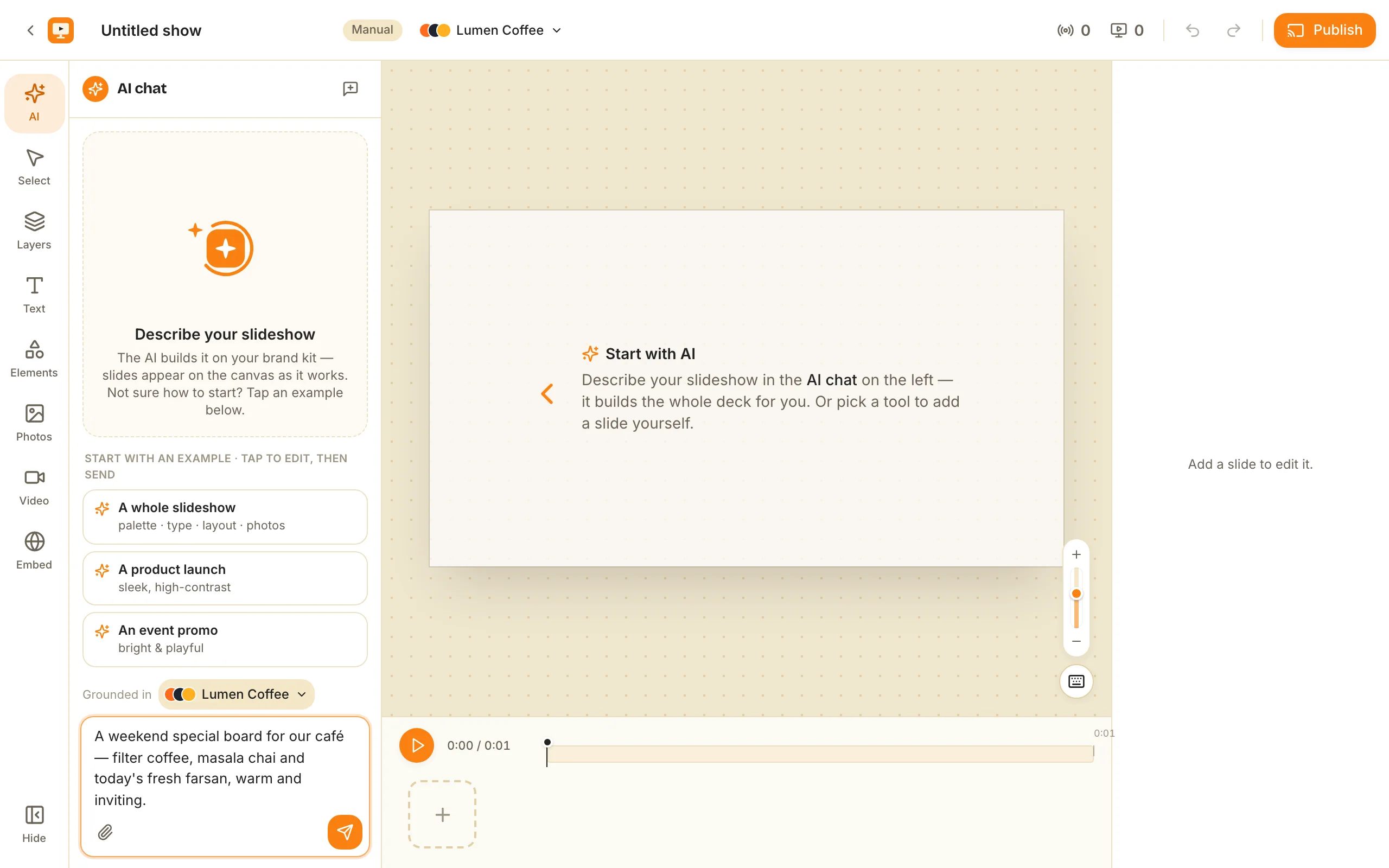
When you click New show, you land straight in the editor with the AI chat open — there’s no separate setup form. The panel invites you to “Describe your slideshow” and notes it builds it on your brand kit — slides appear on the canvas as it works, with a “Grounded in [your brand kit]” selector and tap-to-edit example starters (A whole slideshow, A product launch, An event promo). Type what the screen is for and send; the AI drafts the slide outline, designs on-brand layouts, and adds imagery as the slides fill in on the canvas.
The reason it lands on-brand automatically is the brand kit. You make one once: feed it a logo or brand image (it pulls a colour palette), a brand document or pasted text (it reads your voice and tone), and optionally a website. It drafts five colours, typography, a logo and footer marking, imagery settings, and tone. After that, every show starts from your look instead of a generic template — so the AI isn’t guessing at your style, it’s applying it.
You can also hand the AI your existing material instead of describing everything from scratch. From the chat’s attach you can add:
- PDFs — the text, structure and colours are extracted.
- Images — mark each one “Use it” or “Inspo.”
- A webpage URL — seed a show from content you already publish.
A café with a printed weekend-specials sheet doesn’t retype it. They attach the PDF, and the menu becomes slides.
Why it matters: the two hardest parts of making signage — starting from nothing and making it look designed — are handled before you touch the canvas.
How fast is it?
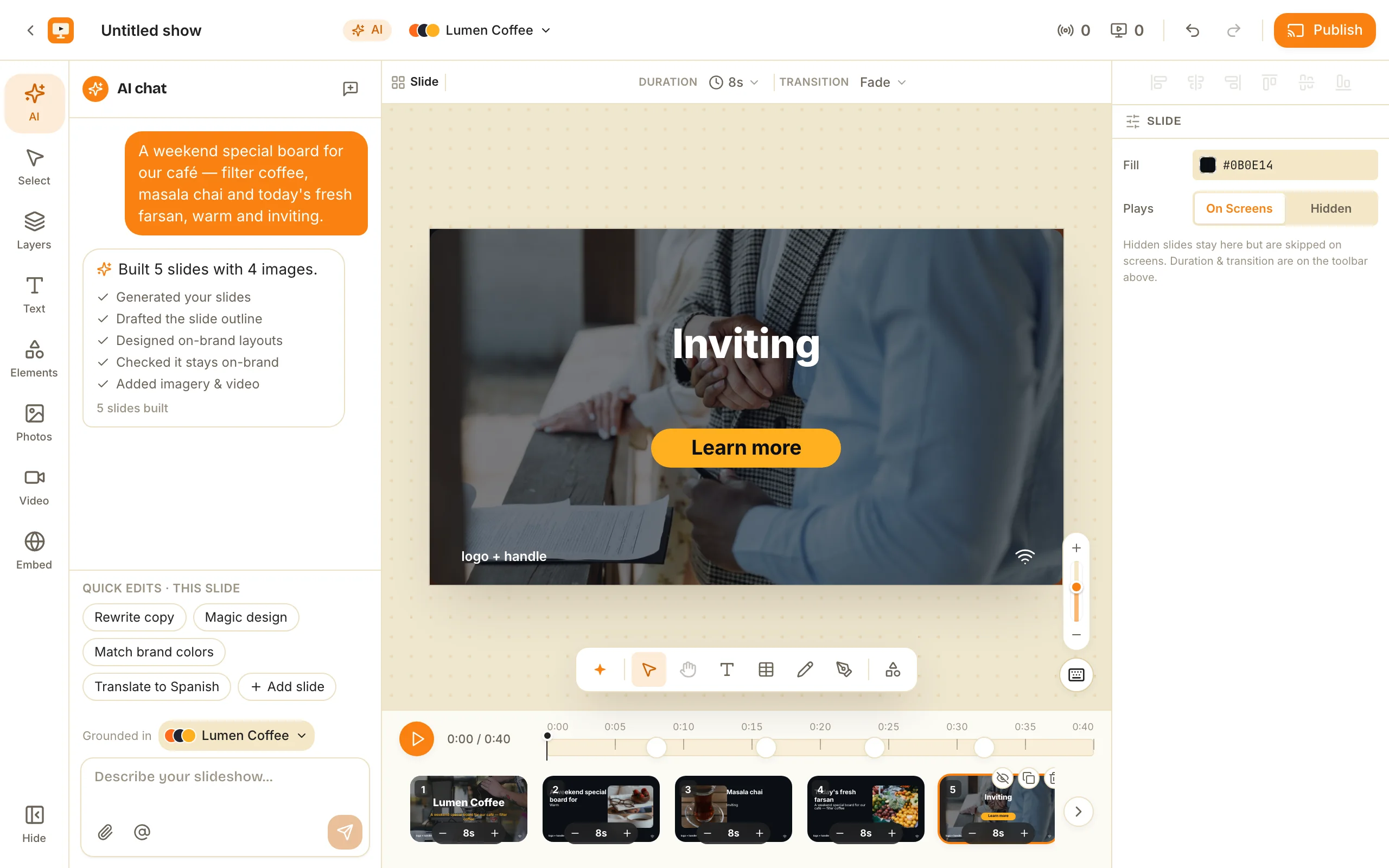
Fast enough that generation isn’t the bottleneck anymore. A one-sentence prompt builds the whole deck in seconds — the AI reports back what it made (“Built 5 slides with 4 images”) as the slides land on the canvas. There’s no wizard to configure: you describe it, it builds it, and every slide is editable the moment it appears.
The only real cost knob is imagery, and it’s honest: Pexels stock is free, while AI-generated images draw from credits. Either way the output is the same kind of real, editable show — you never trade control for speed.
Once the deck exists, tightening it is just as quick: per-slide quick edits sit right in the AI chat (rewrite the copy, match brand colours, add a slide), or you nudge things by hand on the canvas.
Why it matters: the effort of a first draft drops to one sentence, so making a screen stops being a task you schedule and becomes something you do between other things.
How quickly can I change what’s on screen?
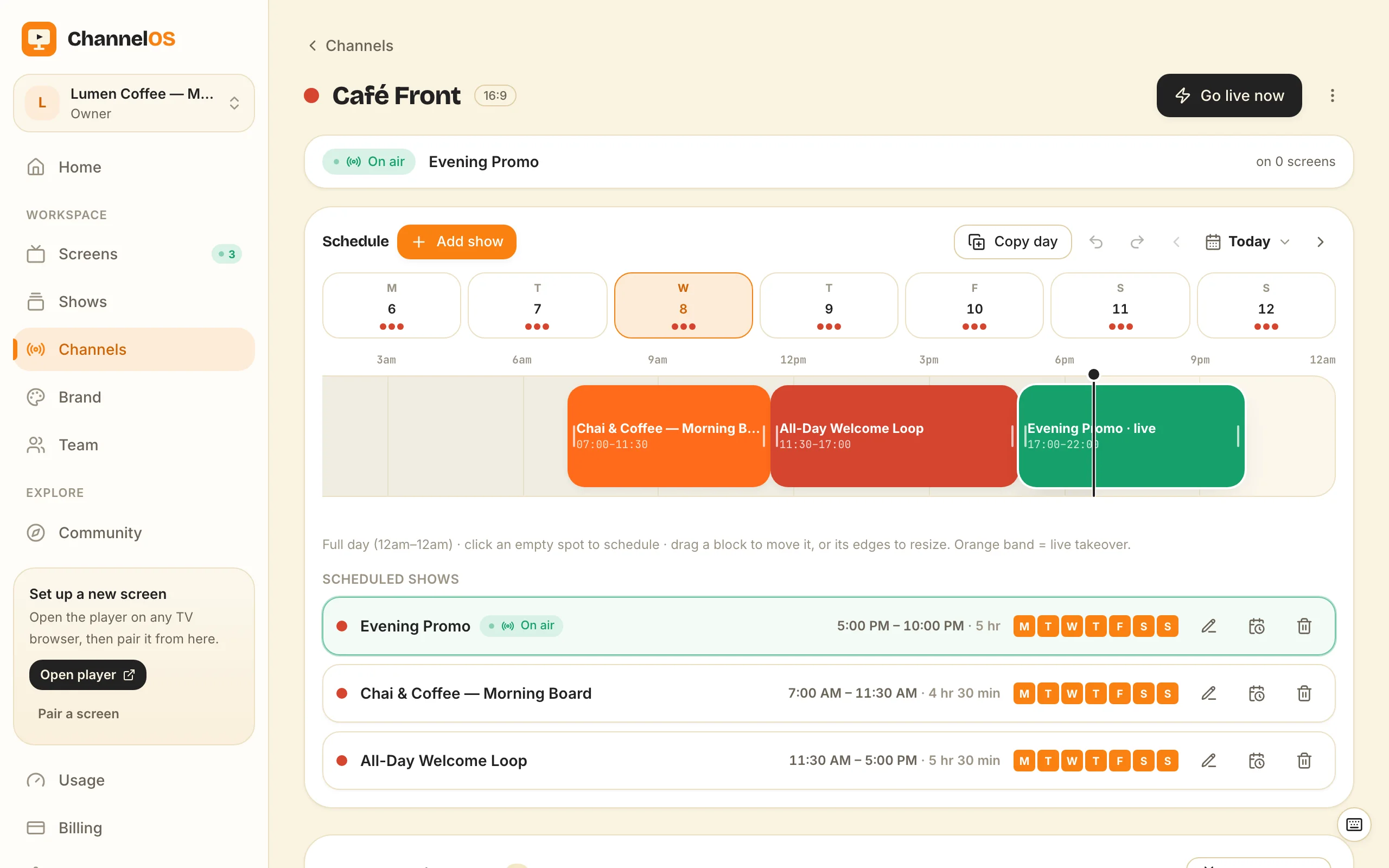
Almost immediately — and this is where the model does the heavy lifting, not just the AI. In ChannelOS, what a screen shows is derived from the show plus the channel schedule in real time. Nothing is pushed file-by-file to devices. So when you regenerate or tweak a show, you don’t re-export and re-sync anything: edit once, airs everywhere.
Two ways to turn something around:
- Change the sentence and regenerate. New special, new season, new tone — rewrite the prompt and generate a fresh draft in seconds.
- Refine the last details in the editor. The AI gets you most of the way; you nudge a headline, swap a photo, fix a price by hand.
Back to the café. It’s the morning before opening, and there’s a new weekend special. Someone describes it in a sentence, the AI drafts the show, they correct one price in the editor, and hit Publish. Every screen tuned to that channel updates on the spot — the board is live before the morning rush, no re-publish or device-sync step. A corrected price or a same-day promo is the same story: minutes of work, not a weekend.
For the full path from a brand kit through a scheduled channel, see from brand kit to scheduled channel, and for the end-to-end lifecycle of a screen, how ChannelOS works.
Why it matters: because the screen follows the show automatically, the cost of changing your mind drops to near zero — the thing that usually keeps signage stale.
Is the output actually editable?
Yes — and this is the honest part worth being clear about. The AI hands you a real editable show, not a flat export. It opens in the same Canva-style editor you’d use to build from scratch: drag, resize, rotate, group, undo/redo, copy/paste, with built-in background removal, rich text, live widgets, tables, and free Pexels photos and video. Nothing is locked or flattened.
A few honest caveats so expectations match reality:
- You still review and refine. The AI drafts; you’re the editor. It gets you most of the way, not to a signed-off final on every slide.
- Pexels imagery is free; AI imagery costs credits. The choice is yours per show, and the balance is always on screen.
- AI is the on-ramp, not a requirement. You can build any show entirely by hand — the two paths produce the same kind of show.
Because the draft is a normal show, everything downstream just works: it can be pushed straight to a screen or programmed onto a channel with a real daily timeline. To see the create-schedule-pair loop in one place, read create a show, schedule a channel, pair a screen, and for what “AI-first” actually means as a product stance, AI-first digital signage.
Why it matters: an editable draft means the AI saves you the boring bulk of the work without taking away the control you need for the parts that are specific to your business.
Try it — your first screen is free
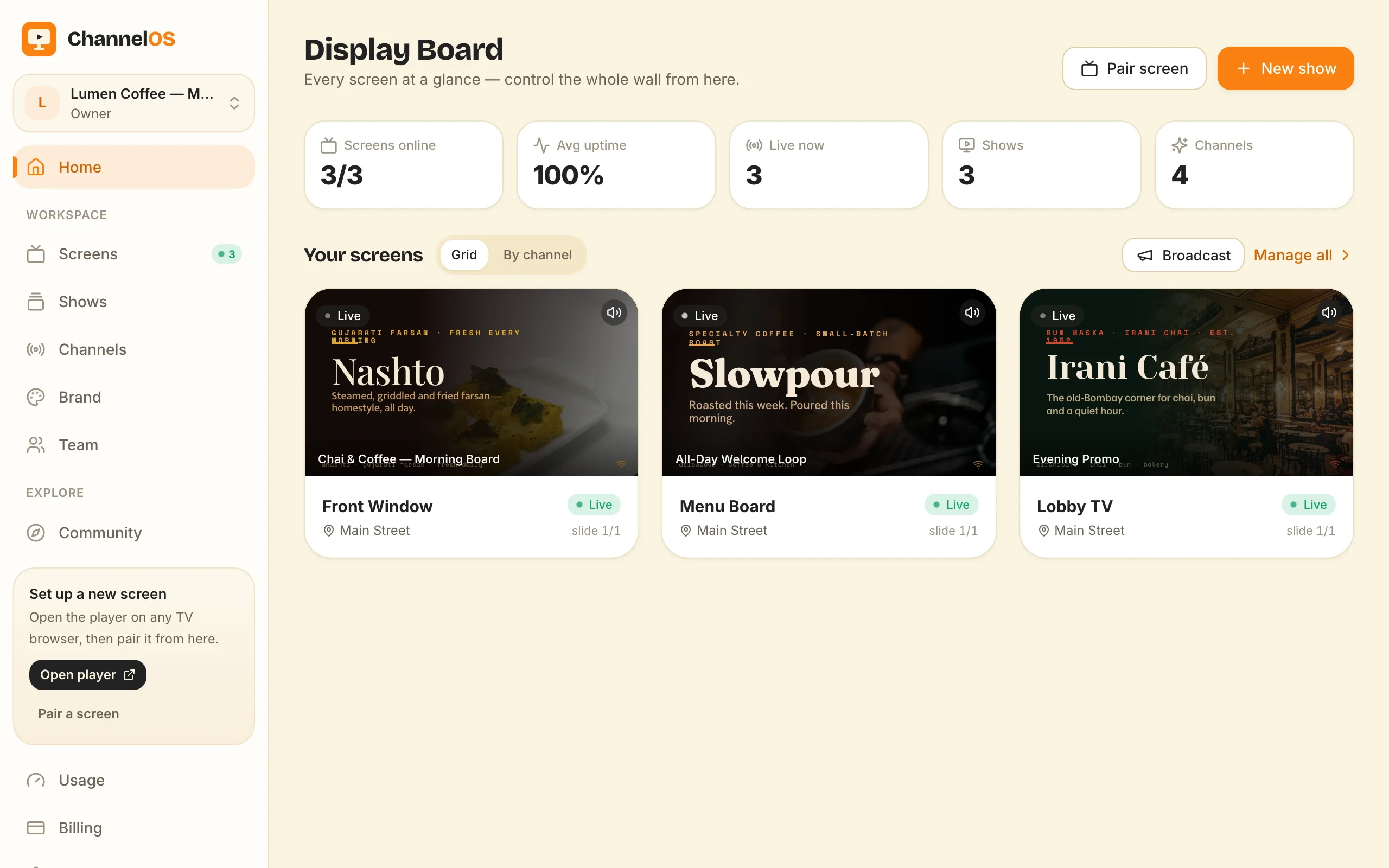
The first screen is free, so you can see the whole loop with nothing to lose. Open play.channelos.tv on any TV browser, scan the code from your phone to pair it, then describe the screen in a sentence and let the AI draft the show. From blank TV to a live, on-brand board is about the length of a sentence plus a few minutes in the editor.
One honest test, and it costs nothing: describe your business in a sentence and read the draft that comes back. If you would edit it, the blank canvas is gone and your screen will keep up with you. If you would bin it, say so, because that gap is ours to close and not yours to work around.
Frequently asked questions
- How long does AI slideshow generation take in ChannelOS?
- You type one sentence describing what the screen is for in the editor's AI chat, and the AI builds the whole deck on-brand in seconds — it reports what it made, like "Built 5 slides with 4 images," as the slides appear on the canvas. Refining the last details is optional and up to you.
- Does the AI slideshow use my brand colours and fonts?
- Yes. The prompt box is grounded in your brand kit — colours, fonts, footer and tone — so every generated show starts on-brand. If you pick "No brand kit," it uses a clean neutral style instead.
- Can the AI read a PDF or webpage to build the slides?
- Yes. You can attach PDFs (their text, structure and colours are extracted), images (marked "Use it" or "Inspo"), or a webpage URL, and the AI turns that material into slides. Existing menus, price lists and flyers become a draft show.
- Does AI image generation cost extra?
- Pexels stock imagery is free. AI-generated imagery costs credits, while AI drafting of the slides is what a generation spends against your balance. Both paths produce the same real, editable show.
Your screen is two minutes away.
Open the player on a TV, scan the code, publish a show. Your first screen is free.
Free screens show a ChannelOS banner along the bottom of the screen, and any paid plan removes it.