Digital signage TV: how to turn the TV you already own into a sign
What makes a good digital signage TV, and the three ways to run one — pair the TV's own browser (no hardware), a Raspberry Pi (~$35), or a dedicated media player. Plus burn-in, always-on duty cycles, and commercial versus consumer panels.

A digital signage TV is an ordinary television doing a different job. You put a signage player on the screen and point it at content you control from somewhere else. That’s the whole idea, whatever the brand: something on the TV renders your slides, and something in your pocket or on your desk decides what those slides are.
The fast way, with ChannelOS: open play.channelos.tv in the TV’s own web browser, scan the code it shows with your phone to pair it, and describe what the screen is for — AI drafts an on-brand show in seconds. No box to buy, and the first screen is free. Below, the honest version: what actually separates a signage TV from a living-room one, which sets handle the job best, the three real ways to run one, and when the cheap-hardware route earns its keep.
What makes a digital signage TV different from a normal TV?
Nothing in the panel. The same set that streams films at home is a digital signage TV the moment it runs a player and takes its content from somewhere else. What changes is the duty it’s asked for, and there are four requirements a living-room TV was never designed around:
- It runs one source, all day. No remote in anyone’s hand, no input switching, no app picker. The screen boots, loads one page, and stays there.
- Someone changes it from elsewhere. The content lives in an account, not on the device. You edit on a phone at the counter and the wall follows.
- It comes back by itself. Power cuts, cleaners, a knocked plug — the screen has to return to the show without anyone climbing a ladder.
- It never sleeps. No screensaver, no ambient mode, no “are you still watching” timeout at 4pm on a Saturday.
The first two are the platform’s job. The last two are three settings in the TV’s own menu, and they separate a screen that works from one somebody has to nurse: screensaver / ambient mode off, auto power-off or no-activity timer off, auto power-on after a power failure on (often buried under HDMI-CEC or “quick start”). Set them once per screen and forget them.
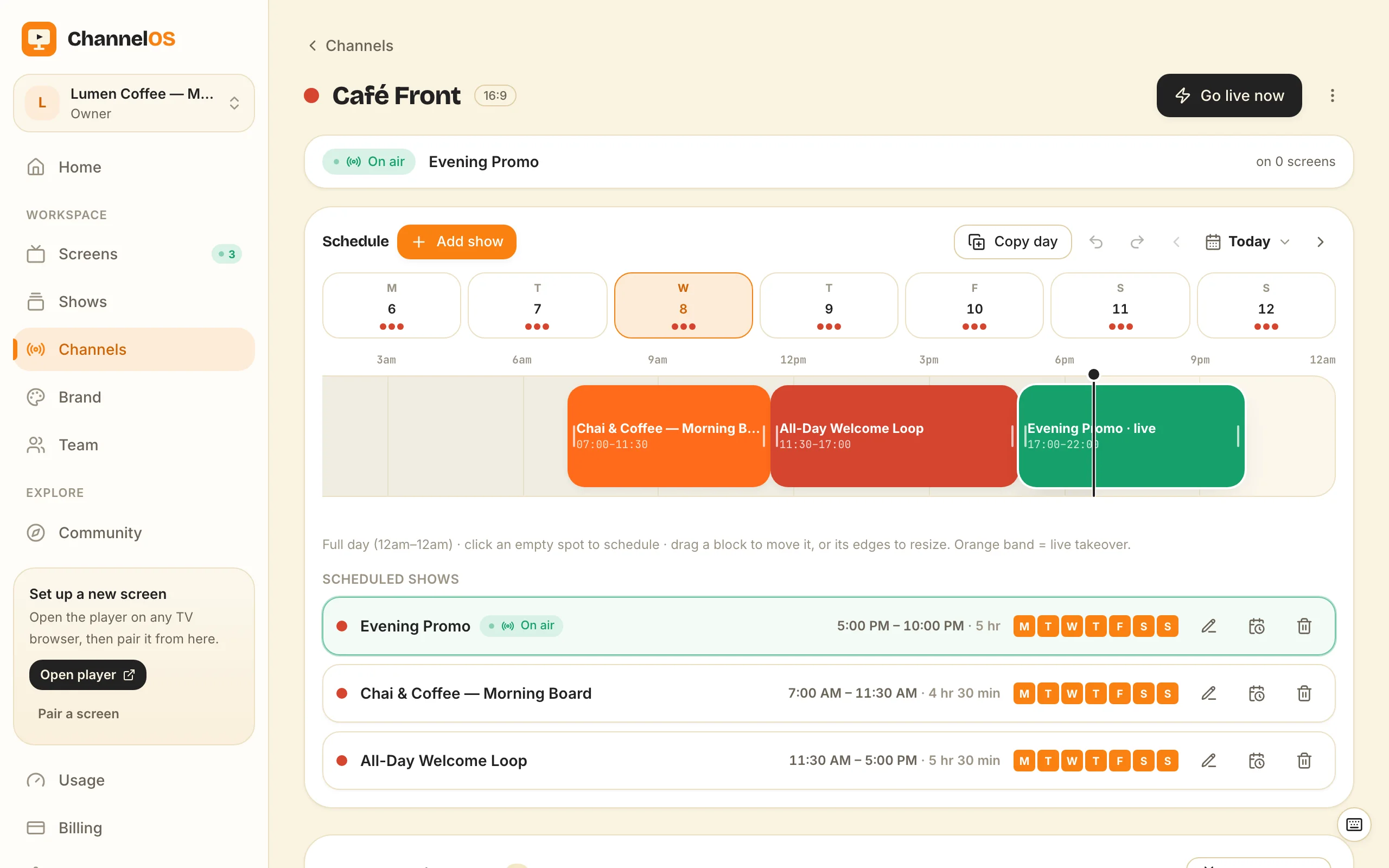
ChannelOS makes point 2 literal: what a screen shows is derived from your show plus the channel schedule plus the clock, in real time. Nothing is cached on the TV to go stale and there’s no publish-and-wait step — fix a price and the glass is already right.
Why it matters: people shop for “signage-grade” hardware when what they actually needed was three menu settings and a player that updates itself.
How do I turn my TV into digital signage?
Here’s the shortest path that gets a real, scheduled sign on the glass:
- Open the player on the TV. On the TV’s browser, go to
play.channelos.tv. The page mints a screen and shows a 6-character code and a QR code — “Add this screen from your phone or computer.” - Pair it from your phone. Scan the QR code (or type the 6 characters). The screen links to your ChannelOS account and comes under your control.
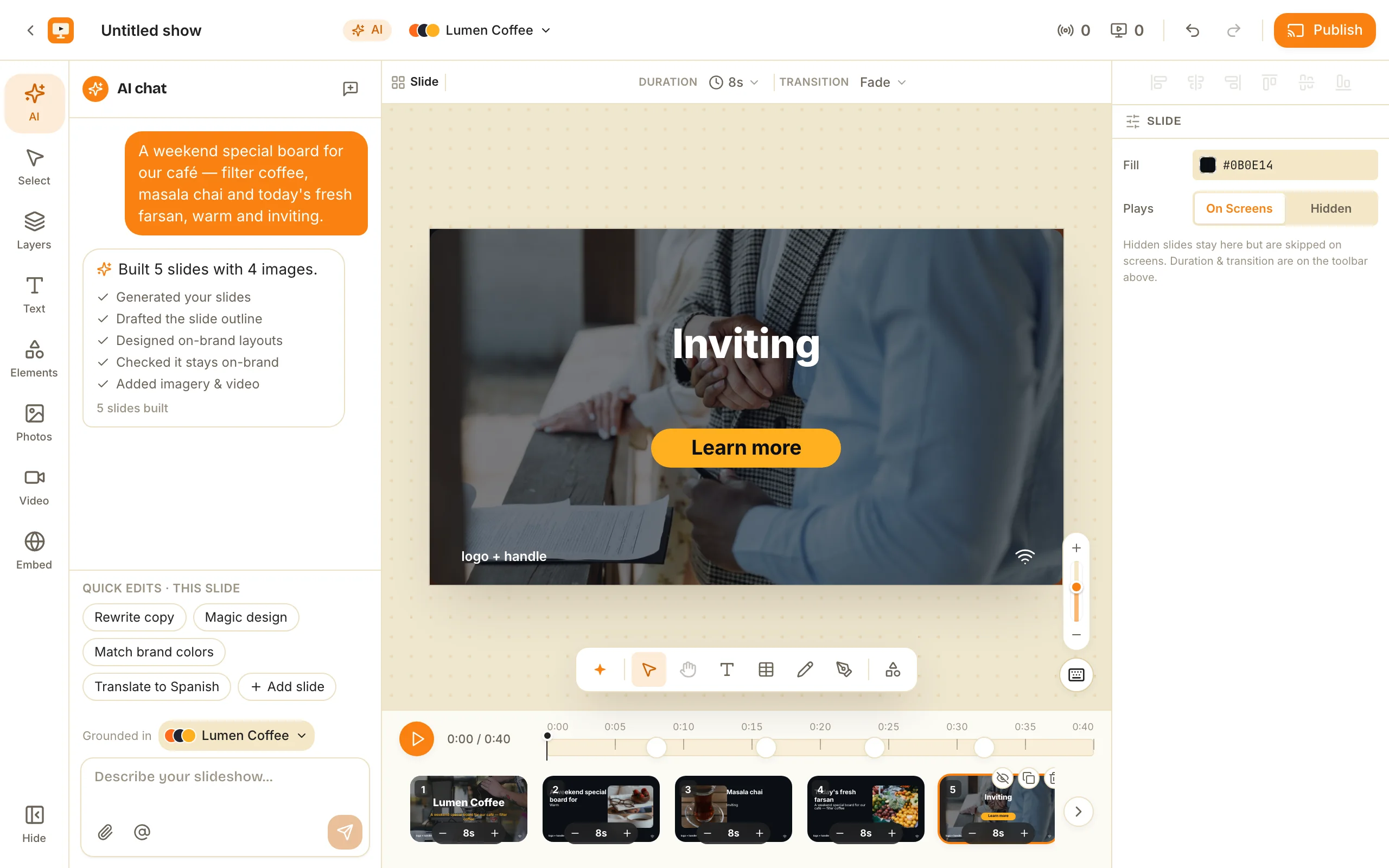
- Build a show. Describe the screen’s job — “lunch menu for a taco shop,” “clinic waiting-room notices,” “gym class schedule” — and AI drafts every slide on-brand. Or design it yourself in a Canva-style editor with free Pexels photos and video built in. How long that actually takes, and what the draft gets right and wrong, is covered in AI slideshow generation.
- Publish. Push the show live. The TV updates itself — no walking back to the screen, no USB stick.
That’s it. The screen you already own is now a sign you run from one board, in about two minutes — no shopping list.
What are my options for turning a TV into a sign?
There are really only three ways, and they differ in what runs the player. Pick by how your TV is set up and whether the screen must survive an internet outage.
1. Use the TV’s own web browser (no extra hardware). Most modern smart TVs — Android TV, Google TV, LG webOS, Fire TV via the Silk browser — already have a browser, and that browser is the player. Open the URL, pair, done. Cost: nothing beyond your subscription, and the first ChannelOS screen is free. Try this one first.
2. Add a cheap device to the HDMI port (~$35 and up). If your TV is older or its browser too limited, plug in a small computer that runs the player: a Raspberry Pi (~$35), an Android TV box, a Fire TV Stick, or a mini-PC / Chromebox. The device renders; the “dumb” TV just displays HDMI. You pair the device, not the TV.
3. Use a dedicated media player (the traditional signage way). Legacy platforms ship or require a purpose-built media player per screen that you provision, license and mount behind every TV. Most hardware, most upkeep — but built for the one thing browsers can’t guarantee, which we’ll get to.
| Route | Hardware cost | Setup effort | Best for |
|---|---|---|---|
| TV’s own browser | $0 | Lowest — scan a code | Modern smart TVs, normal Wi-Fi |
| Raspberry Pi / stick | ~$35+ | Medium — image + configure | Old TVs, or wanting offline caching |
| Dedicated media player | Highest | Highest — per-device license | Fleets that must play through outages |
Why it matters: most people asking this question already own a TV with a browser — route 1 is free and takes minutes. Only reach for hardware when route 1 genuinely can’t do the job.
The Raspberry Pi route — when it’s actually worth it
The Raspberry Pi comes up in every “turn your TV into signage” guide for a good reason: at ~$35 it’s a real computer that can drive a screen, and because it caches content locally, it can keep playing through an internet outage. That’s a genuine strength.
Be honest about the cost, though — it’s not the $35, it’s the time. Each Pi means imaging an SD card, setting up a kiosk browser that launches on boot, hiding the cursor, handling auto-restart, and then maintaining that device — one per screen — for as long as the sign runs. For a 10-screen rollout that’s ten little computers to buy, image, and babysit before a single slide goes up.
So: reach for a Pi when a TV has no usable browser, or when the screen must survive a network drop — a factory floor, a remote site with flaky internet. Skip it when the TV already has a browser and sits on normal Wi-Fi. We break down the removed hardware in more depth in signage with no media player required and the no-Android-player approach.
Why it matters: the Pi is a great tool for the job it’s built for — offline resilience — and overkill for a café menu board on the shop Wi-Fi.
Which TVs work?
Almost any screen that renders a modern web page. ChannelOS runs on:
- Android TV and Google TV
- LG webOS
- Fire TV (via the Silk browser)
- A Chromebox or mini-PC wired to any display
- A Raspberry Pi in kiosk mode driving an older TV
- A laptop in kiosk mode, for a quick test
The single test: can the device open play.channelos.tv? If yes, it pairs — you’re not shopping for “signage-compatible” hardware. If it can’t, add the cheapest thing that runs a browser and has an HDMI plug and pair that instead. Either way there’s no per-device license: screens run at a web address and self-update, polling for a new build and reloading themselves, and you can trigger a remote reload from the board.
What is the best digital signage TV?
There’s no such thing as a signage-certified TV for browser-based signage, so the best digital signage TV is decided by three things: the quality of its built-in browser, how well its panel survives static content, and how many hours a day it’s rated to run.
Browser first. This is the one that decides whether the screen works at all. Android TV and Google TV sets have the most current browsers and are the safest buy. LG webOS ships a capable browser of its own. Fire TV works through the Silk browser, though it lags the others. The awkward case is Samsung Tizen: several recent model years ship without a usable general-purpose browser, so those sets often need a cheap HDMI stick or Chromebox — which costs less than the price gap between one TV model and the next anyway.
Then burn-in. Signage is the worst case for it, because a menu board holds the same logo, header and price column in the same pixels for hours. OLED is the panel type to avoid for static layouts. LED, LCD and QLED sets are far more forgiving, and are what most shops already own. If OLED is what’s on the wall, keep the show moving — more slides, shorter dwell, layouts that shift between them rather than one board parked all day. (The free menu-board maker starts you on a multi-slide board rather than a single fixed image.)
If the plan is to hang the set sideways, the mount is its own decision and it has its own post: portrait digital signage and hanging a TV sideways covers the four quarter turns, how to get the direction right first time, and what the black bars cost you when a show and a panel disagree.
Then hours. Consumer TVs are typically warranted for domestic use, roughly six to eight hours a day. Commercial displays from LG, Samsung and Philips are built and warranted for 16 to 24, run brighter for daylight and shop windows, and officially support portrait mounting. That’s a real advantage, worth paying for in a 24/7 lobby, a sun-facing window or a portrait totem. For a shop open ten hours a day, a consumer TV is fine — and cheap enough to replace twice before a commercial panel pays for itself.
Buy the panel for the room, not for the software. ChannelOS costs the same per screen either way (see pricing) and the first screen is free, so you can prove the TV you already own is good enough before spending anything. If the budget is the whole question, free digital signage software compares what the free tiers in this category actually let you do, and where each one stops.
Why it matters: the expensive mistake isn’t buying the wrong TV. It’s buying a new one when the browser in the old one would have done the job.
What about casting or a USB stick?
You can cast a browser tab or load images off a USB drive, and for a one-off it’s fine. But it isn’t signage — there’s no schedule, no remote control, and no way to change what’s on the wall without walking to the TV. Casting shows a thing once; signage decides what plays, when, on which screens, from anywhere.
Turn your TV into a sign in about two minutes
You already own the hard part: the screen. Open play.channelos.tv on it, scan the code with your phone, and describe what the screen is for — AI drafts an on-brand show in seconds. The first screen is free, so pairing one costs nothing.
New here? Start with how ChannelOS works, see the full what you need list, then walk the end-to-end create a show, schedule a channel, pair a screen flow.
Frequently asked questions
- What is a digital signage TV?
- A digital signage TV is an ordinary television running a signage player instead of broadcast or streaming apps, with its content managed remotely. Nothing about the panel is special — the difference is the job: one source all day, changed from a phone or laptop somewhere else, and set to come back on its own after a power cut. With ChannelOS the TV's own browser is the player, so any set that loads a web page can be one.
- What is the best digital signage TV?
- For browser-based signage the best digital signage TV is the one with the most current built-in browser and the least burn-in risk — in practice an Android TV or Google TV set with an LED, LCD or QLED panel. Avoid OLED for static content like menu boards, because a fixed logo or price list held on screen for hours is the worst case for that panel type. A commercial display is worth the extra cost when the screen runs 16 to 24 hours a day, sits in direct sunlight, or is mounted in portrait.
- How do I turn my TV into digital signage?
- Open a digital-signage player on the TV and connect it to content you manage. With ChannelOS you open play.channelos.tv in the TV's built-in web browser, scan the on-screen code with your phone to pair it to your account, then build and publish a show. It takes about two minutes and the first screen is free — no media-player box. Free screens show a ChannelOS banner along the bottom of the screen, and any paid plan removes it.
- Do I need special hardware to turn a TV into a sign?
- Not with a browser-based platform. If your TV runs a modern web browser (most Android TV, Google TV, LG webOS, and Fire TV sets do), the TV itself is the player. If your TV has no usable browser, a ~$35 Raspberry Pi or a small media-player stick plugged into the HDMI port turns it into a signage screen.
- Can I turn an old TV into digital signage?
- Yes. An older TV with an HDMI port becomes a sign by plugging in a cheap device that runs the player — a Raspberry Pi (~$35), an Android TV box, or a mini-PC — then pairing that device. If the old TV already has a smart-TV browser, you may not need to add anything at all.
- Is a Raspberry Pi good for digital signage?
- A Raspberry Pi (~$35) is a proven, low-cost way to drive a signage screen, and it can cache content to keep playing through an internet outage. The trade-off is setup and upkeep: you image the SD card, configure a kiosk browser, and maintain one device per screen. For a handful of screens on normal Wi-Fi, pairing the TV's own browser is faster and cheaper.
- How much does it cost to turn a TV into digital signage?
- With ChannelOS the first screen is free — if your TV has a browser, the hardware cost is zero. Free screens show a ChannelOS banner along the bottom of the screen, and any paid plan removes it. Paid plans are per screen, per month with no per-user seats. If your TV needs a helper device, budget roughly $35 for a Raspberry Pi or a bit more for a media-player stick or mini-PC.
- Do I need to install an app on my TV?
- No, not with a browser-based platform. ChannelOS runs at a web address (play.channelos.tv) in the TV's own browser, so there's nothing to sideload and no APK to keep updated. Screens self-update by reloading the page when there's a new build.
Your screen is two minutes away.
Open the player on a TV, scan the code, publish a show. Your first screen is free.
Free screens show a ChannelOS banner along the bottom of the screen, and any paid plan removes it.