Pair your first screen: the two minute version, and the four TVs that take longer
Open the player on the TV, scan the code with your phone, done. Then the awkward cases: a TV with no browser, a TV out of wifi range, a code the server says is already in use, and what happens when you unpair.
The short version, in 6 steps
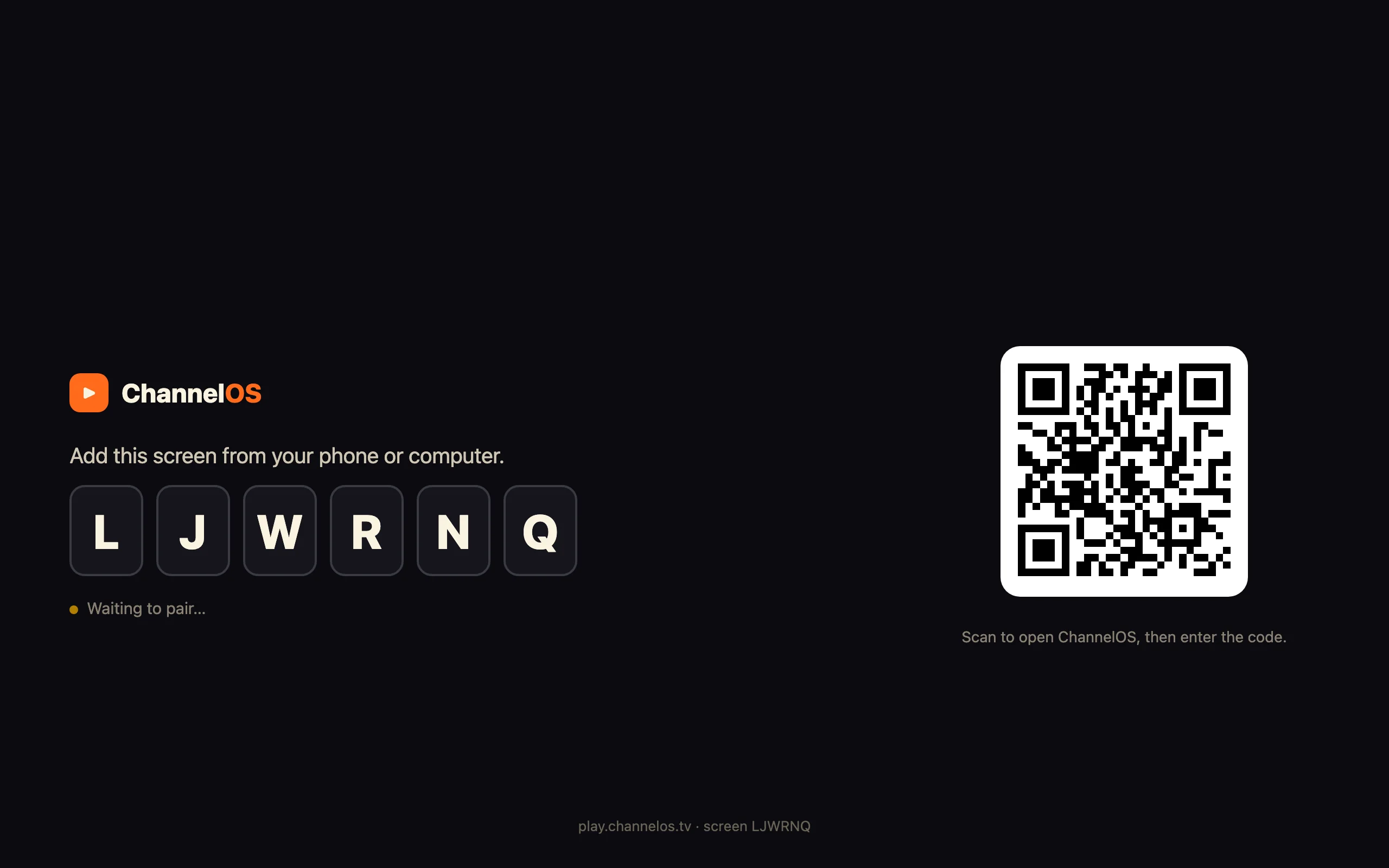
- On the TV, open its web browser and go to play.channelos.tv.
- Read the six-character code and the QR code the page puts on screen.
- Scan that QR with your phone camera, which opens ChannelOS with the code already filled in.
- Tell ChannelOS how the TV is hung: 0, 90, 180 or 270 degrees.
- Press Pair screen.
- Look back at the TV: it should stop showing the code within a few seconds.
The TV is on the wall. Somebody has found the remote. And now the actual job is to work out what to type into a television that has no keyboard, using a d-pad, while a delivery is coming in through the back door.
That is the whole of this lesson. To pair a TV, open play.channelos.tv in the TV’s own web browser, then scan the QR code it shows with your phone, or type the six characters underneath it into ChannelOS. No app, no media player box, no licence key, nothing to sideload.
On a cooperative TV that is about two minutes. Four kinds of TV are not cooperative, and they are the rest of the page.
How do I pair a TV in two minutes?
- On the TV, open its web browser and go to play.channelos.tv.
- The page puts a six-character code on screen, a QR code under it, and a status line saying it is waiting to pair.
- On your phone, scan that QR with the camera. It opens ChannelOS with the code already filled in. If you would rather type it, sign in, press Pair screen, and enter the six characters.
- Say how the TV is hung: 0, 90, 180 or 270 degrees. The browser cannot work this out for itself, because a TV turned on its side still reports itself as 1920x1080. A wrong answer here is the commonest reason a board comes out sideways, and it is correctable afterwards.
- Press Pair screen. A name is optional.
- Look back at the TV. It should stop showing the code within a few seconds.
Step 6 is not politeness. “The code was accepted” and “the TV is paired” are two different facts, and only the TV can settle the second one. Nothing on our side knows which codes are physically on a screen, so a mistyped code creates a real screen with no TV behind it, which on the free plan is your only slot. If the TV stays quiet the page says so and offers to undo it, which frees the code again.
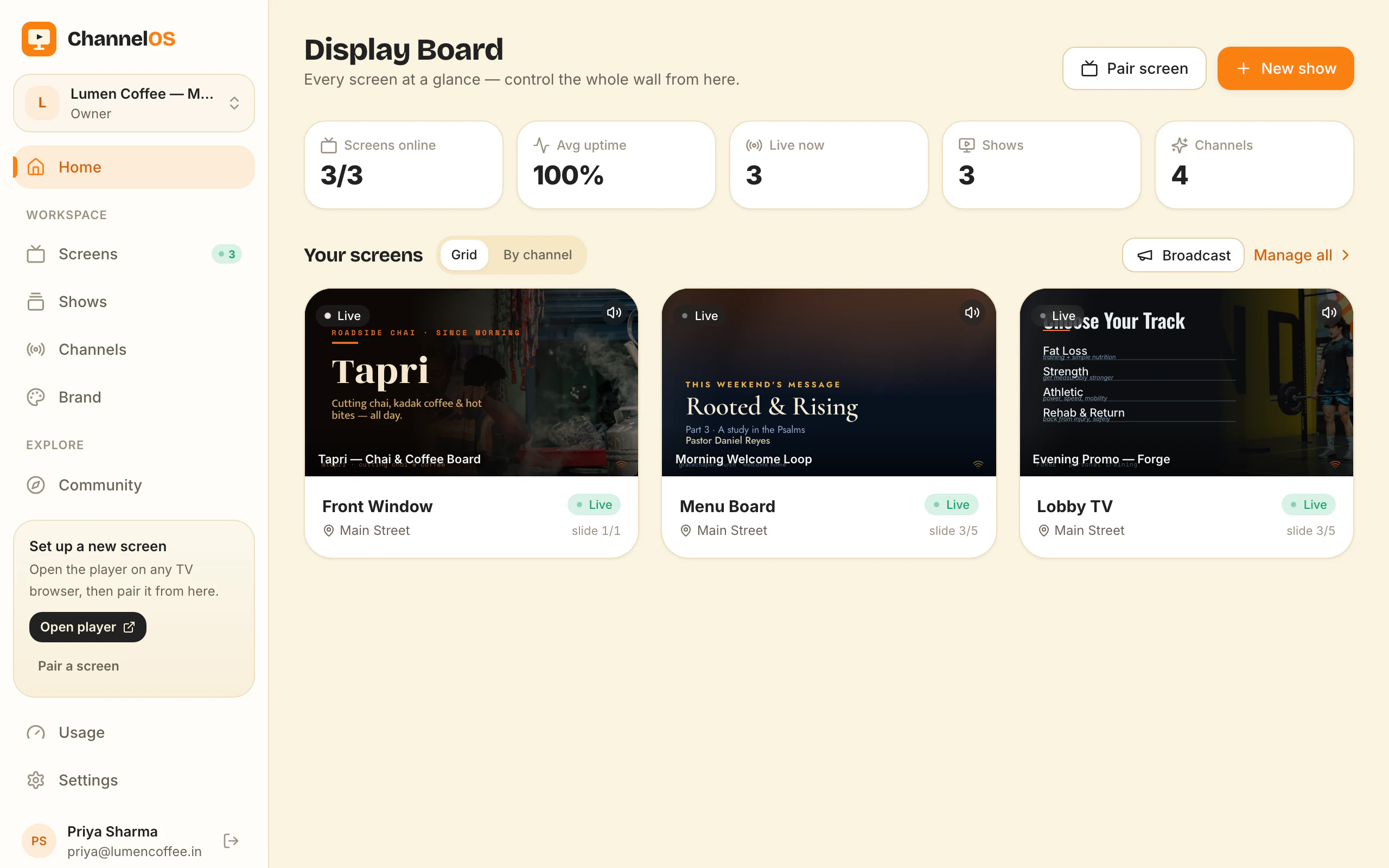
Before you call a screen free: it carries a ChannelOS banner along the bottom, and after about a minute that banner opens up over most of the frame for about 30 seconds, names what ChannelOS is and the channelos.tv address, then folds back down. It is up for roughly a third of the time, and that is what pays for the screen. Any paid plan removes both, and the free plan itself is one screen, permanent, no card.
What if my TV has no browser, or I cannot find it?
Browsers on televisions are not evenly distributed.
- LG (webOS): the Web Browser app is already on the set. Open it. Nothing to install.
- Samsung (Tizen): the Internet browser is already on the set. Same.
- Android TV and Google TV: these ship with no browser at all, which surprises almost everybody. Install one from the Play Store (Puffin TV Browser and TV Bro both work), or skip the browser and install our Android TV app.
- Amazon Fire TV: install the free Silk or Firefox browser from the Appstore, then open it.
- A computer, mini-PC or Raspberry Pi: Chrome, fullscreen. The least glamorous screen in the list and the most reliable.
- Roku and Apple TV: these cannot install a browser, full stop. There is no setting and no workaround. Plug a cheap Fire TV Stick or Android TV box into a spare HDMI port and pair that instead.
The fourth awkward TV is the one that is simply too far from the router. You will still see a code, because the code is generated inside the TV’s own browser rather than fetched from us, but the status line swaps from waiting to pair over to a warning that it cannot reach ChannelOS. Run an ethernet cable, move the access point, or move the stick to a set that is closer. Nothing in the app can fix a wifi problem.
Why is the TV still showing the code?
Usually one of four things, and the TV looks exactly the same in all four.
ChannelOS said the code is already paired. Some screen already holds it, and usually that screen is this TV, sitting on your Screens list, so look there first. If it genuinely is not there, reload the player on the TV to mint a fresh code. Retyping the same six characters will fail the same way for ever, because the code is not the thing that is wrong.
ChannelOS asked you to upgrade instead. That is the screen cap talking, not the code: the free plan is one screen, so a second TV is refused at the pairing step rather than half paired. Remove a screen you are not using, or move up to Solo at $5 per screen per month billed annually.
The code has not expired, because codes do not expire. A pairing code lives in that TV browser’s own storage and stays the same tomorrow morning. What loses a code is clearing that browser’s data, or opening the player in a private window, in which case you get a new one and pair again.
It paired and you are looking at a holding screen. A screen with nothing to play says so instead of going black. Your first show is the next lesson in this track and the shortest way out.
Is the Android TV app worth the extra step?
Only if nobody wants to walk over to the TV.
The app is not on Google Play yet, so it is a direct download from our own site: type channelos.tv/tv.apk on the TV, Android 8.0 or newer. It is a shell around the same player, so it buys nothing for a screen you switch on with the lights.
What it buys is the 6am problem. It tries to open when the TV powers on, holds the display awake, retries a failed load on its own, and puts a menu on the remote drawn by the app rather than by the web page, so it opens even when the board is blank. What the Android TV app adds over a browser tab covers it, including what it deliberately does not do.
Can I unpair a screen later?
Yes, and reversibly. On the Screens list, open the screen’s menu and choose Remove. The dialog is blunt about it: the TV is unpaired from your account, your shows and channels stay exactly as they are, and typing that same code in again brings the screen back.
There is one toggle underneath, Also release the code, which hands the TV out to the world: any ChannelOS account can pair it immediately. Leave it off and the code stays reserved to you. It is how you hand a physical screen to a different business without either of you touching the TV again.
Removing a screen also tells the TV to drop back to a pairing code, so it stops showing yesterday’s board. That part is best effort: a set that is switched off, or off the network, when you remove it keeps the old board up until it next reloads.
When is this the wrong answer?
If the screen has to survive a long power cut entirely on its own, this is not the product to buy.
A board that is already playing keeps playing when the wifi drops, and it keeps the show’s pictures and clips in the browser’s own storage so they are not re-downloaded every loop. A power cut is different: the page and the show are fetched fresh when the screen starts, so the screen needs its connection back before it can come up. If your line is genuinely unreliable, buy a media player with local storage. Whether a dedicated player is worth buying is the honest version of that decision, written by the people it costs money.
One other limit: channels and scheduling start on Solo at $5 per screen per month billed annually, so the free plan pushes a show straight to a screen rather than running a timetable.
What do I do next?
Open play.channelos.tv on the set that is actually on the wall, not the laptop in front of you. The browser you find there, or do not find there, is the only part of this that varies.
Frequently asked questions
- How can I create my own digital signage?
- Three things, in this order. Pair a TV you already own by opening play.channelos.tv in its browser and scanning the code. Build a show, either by describing it in a sentence and letting AI draft the slides or by laying it out by hand. Then publish that show to the screen. The first screen is free and permanent, and the TV itself needs nothing installed.
- Do I need to install anything on the TV?
- No. The TV's own web browser is the player, so pairing is a web address and a six-character code. There is an optional Android TV app for screens nobody wants to walk over to, and even that is a choice rather than a requirement. The board looks identical whichever route you take.
- Does it work on an LG or Samsung TV?
- Yes, and these are the two easiest sets in the building. An LG webOS TV has a Web Browser app already on it and a Samsung Tizen TV has an Internet browser already on it. Open either one, go to play.channelos.tv, and the code appears. Nothing is installed and nothing is sideloaded.
- What if my TV has no browser?
- Android TV and Google TV ship without one, so install a browser from the Play Store (Puffin TV Browser and TV Bro both work) or install the ChannelOS Android TV app instead. Fire TV needs the free Silk or Firefox browser from the Appstore. Roku and Apple TV cannot install a browser at all, so plug in a cheap Fire TV Stick or Android TV box and pair that.
- Can I unpair a screen later?
- Yes, from the screen's menu on your Screens list. Removing a screen unpairs the TV and leaves your shows and channels untouched. The TV goes back to showing a pairing code, and typing that same code in again brings the screen back. There is also a toggle to release the code so any ChannelOS account can claim that TV.
Further reading
Do it on a real screen.
Open the player on the TV, scan the code with your phone, and publish a show. Your first screen is free.
Free screens show a ChannelOS banner, and about every 2 minutes it opens into a full ChannelOS slide; any paid plan removes both.