Sold out in one tap: running a digital menu board from the counter
Running out of a dish mid service is the edit a menu board actually needs, and it should not mean retyping a line. Here is how to mark an item sold out on a ChannelOS board from a phone or a laptop, plus how to manage the items, the type and the colours.
The edit a menu board really needs is not the one the demos show. Nobody rebuilds a board at half past twelve. What happens at half past twelve is that the kitchen runs out of the avocado toast, and for the next four hours the screen keeps confidently selling it.
That is a two second job, and on most signage it is not a two second job. It is finding the laptop, opening the design, clicking into a text box, deleting a line, and remembering tomorrow morning what the line used to say. So it does not get done, and the board stops being trusted, and someone tapes a paper sign to the counter, which is where we all came in.
On a ChannelOS menu board, running out of something is a property of the item. One tap.
Mark a dish sold out, from a phone
Anyone on shift can do this, from the phone in their apron. It does not require the person who designed the board.
- Open the show in the editor and go to the slide with the menu board on it.
- Tap the board. The bar at the bottom of the screen fills with everything that board can do.
- Tap
Sold out. It is the first entry, because it is the only thing here that changes daily. Everything else about a board is set once. - Tap the dish. The chips carry the dish names, not row numbers, so you are looking for “Avocado toast” and not for “item 4”.
The row on the board above your thumb goes struck through and dimmed as you tap. That is deliberate: the controls sit in the bar rather than in a panel that covers the artwork, because seeing the change land is the thing that tells you it worked.
Tap the same chip again and the dish comes back. Nothing was deleted, so nothing has to be retyped, and the price is exactly where it was.
The same switches on a laptop
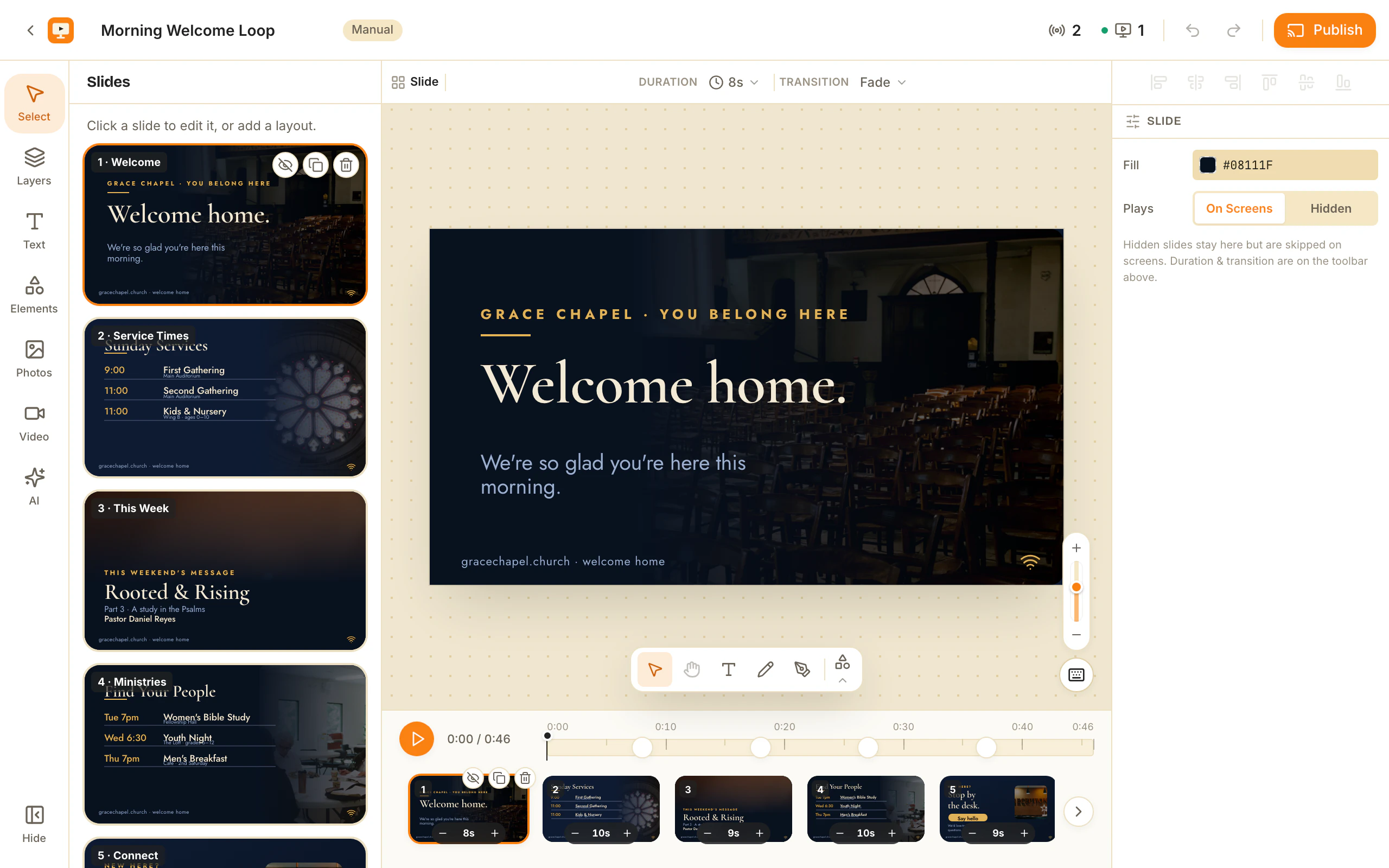
Select the menu board and the property panel on the right opens with Sold out at the top, above the copy: one row per dish, each with a switch, each drawn in the state it is in. Flip one and the board updates.
Both surfaces write the same thing, so a dish marked out on the counter phone shows as flipped in the panel on the office laptop, and the other way round. There is one menu, and two doors onto it.
What the screen actually shows
Four looks, under Sold out then Look on a phone, or Sold-out look in the panel:
- Both (the default): the row is struck through and dimmed.
- Strike: struck through, full strength.
- Dim: faded, no line through it.
- Tag: the price is replaced by the words Sold out.
Tag is worth knowing about. A price on a dish nobody can have is the one number on the board that is actively misleading, and replacing it removes the “how much is it, oh” exchange entirely.
You can also set the colour of the strike and how thick the line is, which matters more than it sounds on a board with a photograph behind it.
The item stays on the board on purpose. A missing row and a row that was never there look identical from three metres. A struck row says something a missing one cannot: we make that, we are out of it today. Kitchens have been writing 86’d on a board for a hundred years for exactly that reason.
Managing the items themselves
The board’s copy lives in one place, and it is deliberately plain text rather than a form.
On a phone, tap the board and then Items. On a laptop it is the Menu board section of the property panel. Each section has a heading (Coffee, Kitchen, From the fryer) and one item per line, in the shape:
Flat white, 4.0
Cortado, 3.8
Avocado toast, 8.0
Name, then the price after a comma. The split happens at the last comma on the line, so “Toast, jam and butter, 4.0” works exactly as you would hope.
A line that starts with a ~ is sold out. You will normally never type that, because the switches write it for you, but it is visible in the text for a reason: there is only one copy of the menu, and both editors are editing it. Nothing is hidden in a second list that can drift out of step with the first.
Making it look like your place
Everything below is set once, when the board is designed, and then left alone. On a phone it is behind Flow, Type and Colours; on a laptop it is the sections under the copy.
Flow decides whether the sections sit side by side or stack one under the other. A board added to a portrait show is born stacked and a board on a landscape show is born side by side, because two columns on a tall screen leave each item about half a screen wide and the longer dish names wrap. Switch it whenever you like.
Type has three roles, and they are separate on purpose:
- The heading gets its own typeface and its own size. A board is usually a display face over a plain one, and the heading is the half carrying the display face.
- The item name and the price share a typeface and each get their own size. A price set in a different family from the dish on its own line reads as two boards spliced together. What a price needs instead is even number widths, which the board applies whatever face you pick, so the column of prices lines up.
- Row gap is how tightly the list is packed. This is the control to reach for when a section is one item too long for the space.
Colours are four: the heading, the item name, the price, and the dotted leader that runs between a name and its price. All four are yours. That matters for anyone building a light board: a cream or white menu with warm off white type on it is a board nobody can read, and until recently that was a real limitation of this widget rather than a choice.
Where a TV menu board is the wrong answer
Two honest limits, because they should decide this before you spend an evening on it.
A ChannelOS board needs a working connection. The TV’s own browser is the player, which is what removes the media player box, the per device licence and the install visit. The trade is that a screen fetches what it shows. If the Wi-Fi in your kitchen genuinely drops for hours at a time, a player based system that caches locally is the better fit, and we would rather say so here than after you have set it up.
It needs a TV with a reasonably modern browser. Most smart TVs from the last few years qualify, and a cheap HDMI stick covers the ones that do not. A screen with no browser at all cannot run this, whatever the software.
If you need certified proof of play logs for an advertiser, that is a different category of product and we do not pretend to be it.
Getting one on a wall
The board is only half the job. The half that people stop at is the walk to the television, so it is worth doing in this order: build the board, then pair the screen, then keep editing from your phone with the TV already live in front of you.
Pairing is a code. Open play.channelos.tv on the TV, in its own browser, and it shows a short code. Type that code into your dashboard and the TV is yours. There is no box to buy and nothing to install on the television.
The first screen is free, permanently. After that it is billed per screen per month, and the current rate is on the pricing page.
If you have not built the board yet, the free menu board maker will lay one out for you without an account, and the menu board templates are a faster start than a blank slide. If you run a truck rather than a room, digital menu boards for food trucks covers the parts that are specific to a serving hatch.
Get a screen live, free and mark something sold out from your phone while you are standing in front of it.
Frequently asked questions
- How do I mark an item sold out on a digital menu board?
- On a ChannelOS board, select the menu board on the slide, open Sold out, and tap the dish. The row is struck through and dimmed on the screen, and the item stays on the board with its price intact. Tapping the same chip again puts it back. On a laptop the same list of switches sits at the top of the menu board's property panel.
- Should a sold out item be removed from the menu board?
- Usually not. Deleting the line means retyping it and its price the next time you have it, and it also removes the answer to the question people are about to ask at the counter. A struck through row says the kitchen is out of that dish today, which a missing row does not. ChannelOS keeps the item on the board and marks it, and it can show the words Sold out in place of the price if you prefer.
- Can someone update the menu board without editing the design?
- Yes. Sold out is a switch, not a text edit, so whoever is on shift changes what the screen says without touching the layout, the colours or the prices. That is the point of it being a property: the board cannot be broken by the person marking a dish out.
- Can a digital menu board be updated from a phone?
- Yes. The ChannelOS editor has a separate phone layout, and the menu board's controls sit in the bar at the bottom of the screen so the board stays visible while you change it. Sold out is the first entry, because it is the only thing about a menu board that changes daily.
- Can I change the fonts and colours on a digital menu board?
- Yes. The heading gets its own typeface and size; the item name and the price share a typeface and each has its own size; and the item colour, the price colour, the dotted leader between them and the heading colour are all set individually. There is a row gap control for how tightly the list is packed.
- Can a menu board be laid out for a portrait screen?
- Yes. A board added to a portrait show stacks its sections one under the other, and a board on a landscape show puts them side by side. The Flow control switches between the two at any time.
Your screen is two minutes away.
Mark a dish sold out from your phone and the board strikes it through, price and all.
Free screens show a ChannelOS banner, and about every 2 minutes it opens into a full ChannelOS slide; any paid plan removes both.