The screen is not showing my change
Nothing on screen tells you which of three things went wrong. Six checks from the outside in, starting with whether the screen is online at all and ending with the one button that forces a reload.
The short version, in 6 steps
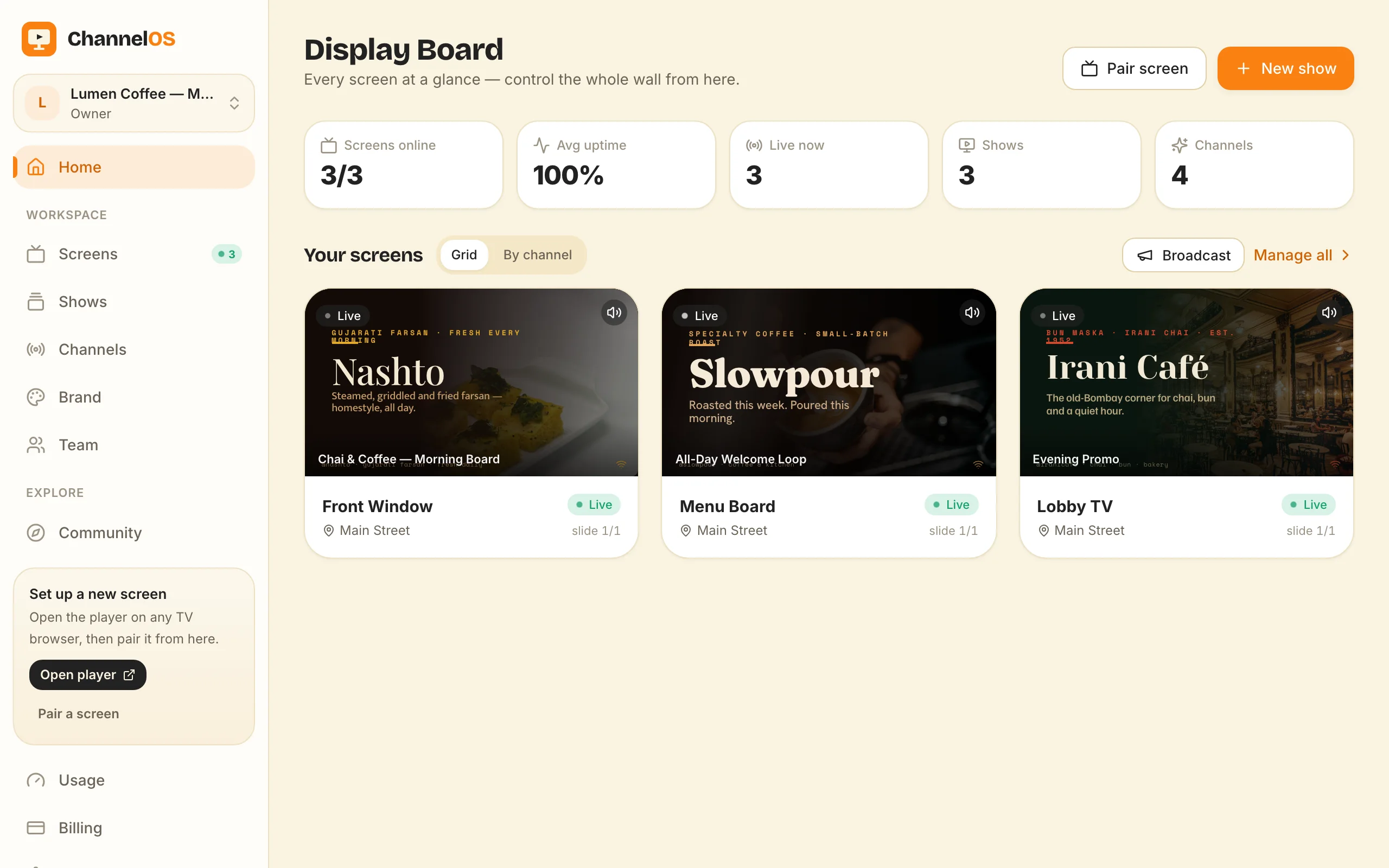
- Open the Display Board and check the screen reads Live rather than Offline.
- Read the live preview on that screen's card, because it reports what the glass is doing.
- Open the screen and read the Now playing line to see which show is airing on it.
- Open that show by that exact name, change one word, and watch the preview.
- Check the channel has something scheduled for this minute, not only for later.
- If nothing has landed, press More on the control bar and then Reload screen.
You changed a price, walked out to the floor, and the old number is still up there. By now you have probably reloaded the page on your phone twice and looked at the TV from closer up. Both are the right instinct. Neither is where the fault is.
Work from the outside in. In order: is the screen online, did you edit the show this screen is actually tuned to, and is anything scheduled for right now. Give the middle one real patience: it is the check that feels already done, and nothing tells you that you had the wrong show open.
There is no publish step to forget and no device sync waiting to run: what a screen shows is worked out from the show plus the channel schedule in real time, as how ChannelOS works sets out. So either the TV is not listening, or you changed something it was never looking at.
Start with the app’s own answer: when any of this is wrong a bell appears in the app’s header with a count, and each row names the screen, says why, and carries one control that fixes it. The rest of this page is for when that bell is empty and the board still looks wrong.
Is the screen actually online?
Open the Display Board. Every paired screen is a card with a status word on it: Live, Paused, Blank or Offline.
Two of those four are not faults. Blank means somebody blanked that screen and it stays black until it is woken. Paused means somebody paused it or held a slide, and a hold pauses the schedule too, so a held screen sits out a scheduled change.
Offline explains everything else, so read it first. A screen that has lost its connection keeps playing whatever it already had. From the other side of the room that is indistinguishable from a screen ignoring you. It is not ignoring you. It never heard you.
The proof is the preview on the card: rendered live from what the device reports, not from what the schedule says ought to be airing. A preview still showing last week’s board is telling you the truth about the glass.
Three things put a screen Offline, in the order worth checking: the TV is off or on a different input, the TV is off the wifi, or the player tab is closed or buried under another app.
Did I edit the show the screen is tuned to?
This is the dull one, and it is the one worth slowing down for.
A screen tunes into a channel and a channel schedules shows, so the show you had open has to be the one that channel has booked for this minute. The classic failure is two shows a glance cannot separate: Lunch board and Lunch board 2, or a duplicate made in March that is quietly the one on air.
Pushing a show straight to a screen creates a channel named after that show and tunes the screen to it, and renaming the show later leaves the channel on the old name. Do it a few times and the Channels list is a row of near-identical names.
So check from the screen rather than the show, because the screen is the thing that is wrong:
- Open the Display Board and click into the screen.
- Read the Now playing line and the channel strip under it, which name the channel and the show airing on it now.
- Open that show, by that exact name.
- Change one word in it, something obvious.
- Watch the preview on the screen’s own page.
If the preview changes, the pipe works and you were editing the wrong show. The editor autosaves, so there is no Save button to have missed. If it does not move, carry on down this page.
Why does the screen show an old show, or nothing at all?
Three different faults share that one symptom.
Nothing is booked for right now. Shows air in the hours you set, and the space between two blocks is a real gap: a screen with nothing scheduled at 3pm is correctly showing nothing at 3pm. Read it on the channel’s timeline, where the now line marks the minute being judged. Scheduling starts on the Solo plan, so on the free plan you pushed a show straight to the screen and have no timeline to have left a gap in.
Something is booked over the top. A takeover overlays the schedule for as long as it runs and then hands the channel back, so a screen showing an announcement instead of your new menu is a takeover doing its job rather than a stale screen. Starting one is a Pro feature, $8 per screen per month billed annually ($96 a year) or $10 monthly, so below Pro this is not the fault to go looking for. Stopping one that is already running is never gated. Cutting in without losing the plan covers clearing one.
The screen is free, and that is the ChannelOS slide. A free screen carries a ChannelOS banner along the bottom, and about every 2 minutes it opens into a full ChannelOS slide for about 30 seconds naming ChannelOS and the channelos.tv address, then folds back. That is what pays for the free screen, and any paid plan removes both. Walk up inside those 30 seconds and the screen looks like somebody else’s board, because it is.
How do I force a screen to reload?
When a change genuinely has not landed, this is the hammer.
- Open the Display Board, or the screen’s own page.
- On the dark control bar over the preview, press More, the three-dot button.
- Press Reload screen.
The TV reloads the player and fetches the page and the show fresh: walking over and reloading the browser, without the walk.
Screens already do this for themselves: they poll for new builds and reload when there is one. If one comes back on the old build anyway, the app says so in that bell and offers the reload in the same row.
If a reload fixes it every single time, that is our bug and not your workflow. Tell us through Report an issue in the assistant, and say roughly how long the screen had been up. A screen you have to reload by hand is not doing the one thing this is for.
Does the TV’s clock matter?
Reasonable suspicion, wrong tree. The schedule is worked out on our side, in the channel’s own timezone, not on the device, so a TV with the wrong time in its settings still airs the right block.
A device clock out by years is the one exception: it can fail the secure connection, so the page does not load at all. That reads as Offline, never as an old show.
When is this the wrong answer?
If the screen has been offline for days, stop reading and go and look at it. Nothing in the app reaches a TV that is not talking to us, so those checks have to happen at the TV, not on your phone.
If the picture is current but the shape is wrong, this is not an update problem. Bars down both sides, or a board on its side, is a show and screen mismatch: four quarter turns and one show shape.
And if the connection at that site drops for hours at a time, reloading does not touch the real problem. A screen already playing keeps playing when the wifi goes, and it holds the show’s pictures and clips in the browser’s own storage so they are not re-fetched every loop. It still needs the connection back to start again after a power cut. For a screen that has to ride out a long outage on its own, a vendor selling a media player with local storage is the better answer. That is a real reason to buy hardware.
Next time, swap the order round: open the screen’s page on your phone, then make the edit with that preview in front of you. The change either shows up there or it does not, and you never walk to the floor on faith again.
Frequently asked questions
- Why is my digital signage not updating?
- Work from the outside in. First, the screen may not be online at all, and a screen that has lost its connection keeps playing what it already had, which looks identical to one ignoring you. Second, and this is the one worth slowing down for, the show you edited is not the show that screen is tuned to, because two shows have similar names. Third, nothing may be scheduled for this minute. Only then is it worth forcing a reload.
- How do I force a screen to reload?
- Open the Display Board or the screen's own page, press the More button on the dark control bar over the preview, and press Reload screen. The TV reloads the player and fetches the page and the show fresh, which is the same thing as walking over and reloading the browser without the walk. Screens also poll for new builds and reload themselves, so this is the manual version of something they already do.
- Why does my screen show an old show?
- Check whether it is tuned to a channel carrying a different show from the one you edited. Pushing a show straight to a screen creates a channel named after that show, so a workspace collects channels with show names on them, and the screen stays tuned to whichever one it was given last. Open the screen and read its Now playing line rather than guessing from the Shows list.
- Does the TV's clock affect what the screen shows?
- No. The schedule is worked out on our side, in the channel's own timezone, so a TV with the wrong time in its settings still airs the right block. There is one exception and it is not subtle: a device clock out by years can fail the secure connection, in which case the page does not load at all. That shows up as Offline on the board, not as an old show.
- Why does the app preview look right when the TV does not?
- There are two different pictures in the app. The preview on a show or in the editor is what the show looks like, rendered in your browser. The preview on a screen's card on the Display Board is rendered live from what that device reports. If the first is right and the second is wrong, the screen is the problem. If both are right and the TV in the room is wrong, go and look at the TV.
Further reading
Do it on a real screen.
Open the player on the TV, scan the code with your phone, and publish a show. Your first screen is free.
Free screens show a ChannelOS banner, and about every 2 minutes it opens into a full ChannelOS slide; any paid plan removes both.