How to schedule what airs and when, so nobody has to swap the board
Scheduling in ChannelOS is a channel with a daily timeline, not a playlist pushed to a device. Set a time range and a repeat rule once, and the screen plays the right board at the right hour by itself.
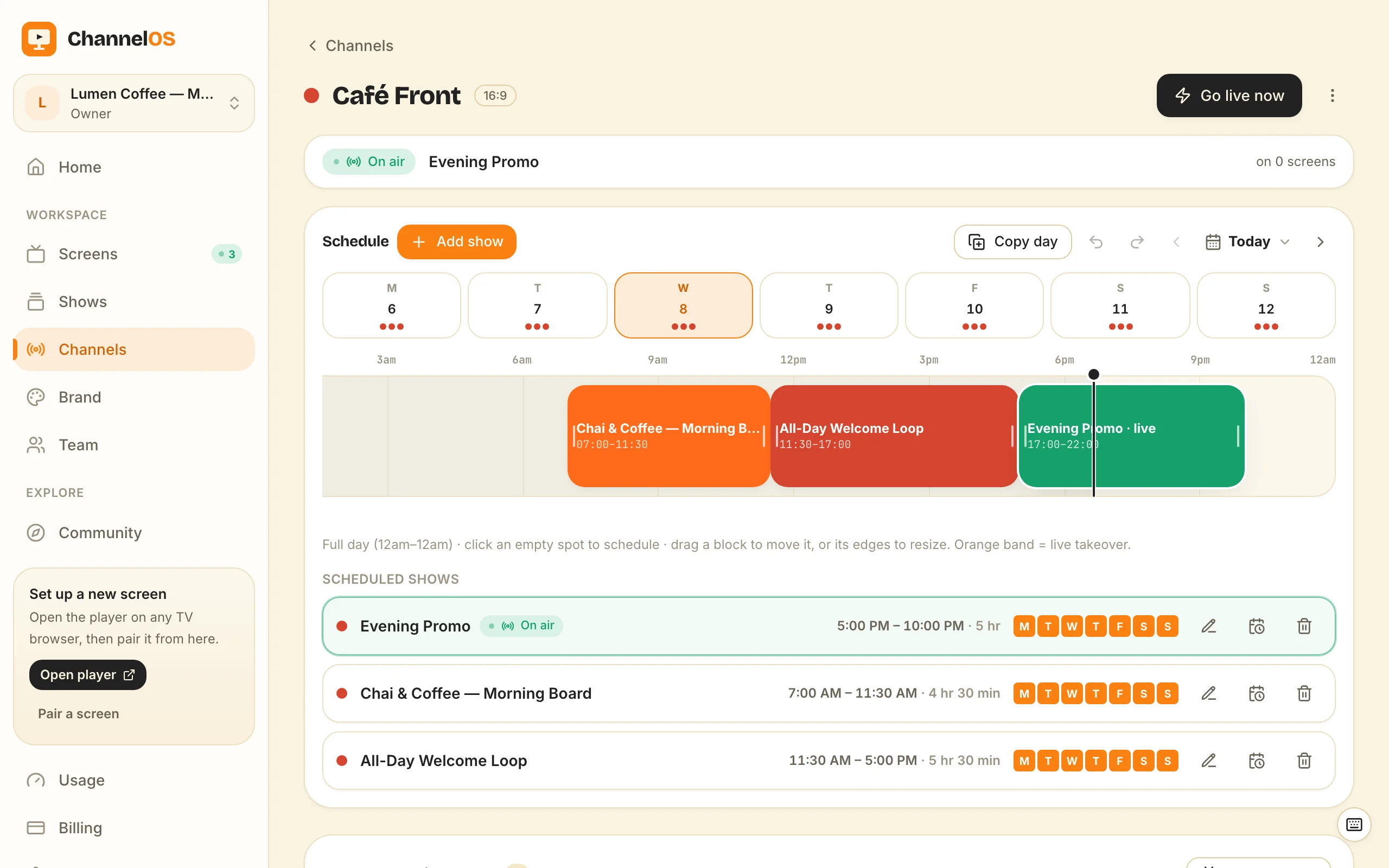
The short version, in 6 steps
- Open Channels and create a channel, from a template or from Blank.
- Click Add show and pick the board you want to air.
- Set the time range for that block on the day's timeline.
- Pick the Repeat mode: Once, Weekly with the weekdays chosen, or Date range.
- Drag the block to move it, and drag its edges to resize it.
- Tune the screen to the channel, and leave it alone.
The Saturday board is still up on Monday. Somebody switched it on for the weekend, which was right, and then the week started and nobody switched it back, so the weekend prices are on the screen on a Monday morning and a customer is standing there reading them. You spot it from across the room at about half nine, in the middle of something else.
Scheduling is how you stop being the person who remembers. You build each board once, give it a time range and a repeat rule on a channel’s daily timeline, and the screen plays the right one at the right hour on the right day by itself. Ten minutes of setting up replaces a job somebody is currently doing by hand and sometimes forgetting.
One thing to say before the steps, because it decides whether this lesson is for you today. Channels and scheduling start on the Solo plan, $5 per screen per month billed annually ($60 a year) or $6 monthly. On the free plan you publish a show straight to a screen and swap it by hand, which is the right first step anyway: get one board on the glass and watch it for a day before you automate the week.
What is the difference between a playlist and a channel?
This is the bit worth understanding first, because it is why the schedule keeps running without you.
A playlist is a list of files that a device plays. It is built, given a window, and pushed down to each player, and the player holds the list. Change the content and you have changed only your copy, so the change has to be sent again to every device, and until it arrives those screens are showing the old thing. That is the model almost every scheduling guide describes, and it is why “sync” is a word you have to think about at all.
A channel is a feed a screen tunes into. The channel owns a real daily timeline. The screen owns nothing but the address, and what it shows is worked out from the channel, live, every time the clock moves. The argument for building it that way is made at length in how ChannelOS works; what matters for your schedule is the consequence.
The consequence is that you change the show, not the schedule. Put the lunch menu on a channel at 11am on weekdays, then correct a price in that show three weeks later, and every screen tuned to the channel is showing the corrected price. You did not touch the timeline, you did not re-publish, and no device had to agree to anything.
How do I schedule digital signage content?
- Open Channels and create one. A new channel can start from a template (Café Day, Retail Floor, Events) or from Blank. Name it after the place rather than the content: “Front counter” outlives “October menu”.
- Click Add show and pick the board. If you have not made one yet, your first show is the one-sentence version of that job.
- Set the time range. The timeline runs 12am to 12am with a tab per weekday (M T W T F S S), so you are placing a block on one day and then saying which other days it belongs to.
- Pick the Repeat mode. Once is a single airing. Weekly repeats on the weekdays you tick. Date range runs between a start and an end date.
- Drag the block to move it and drag its edges to resize it. If you drag one to the wrong hour, ⌘Z puts it back (Ctrl+Z on Windows). Adding and removing a block are not on that undo stack: they are explicit actions with their own confirmation, so a block you no longer want is one you remove rather than undo.
- Tune the screen to the channel and leave it alone.
Can I set different content for different times of day?
Add one block per daypart and butt them up against each other. A café ends up with three: breakfast 7am to 11am, lunch 11am to 3pm, evening 3pm to close.
Two details are worth knowing before you build it, because both of them show up as something on screen rather than as an error in a log.
Two blocks of the same kind cannot hold the same minutes. Overlap two weekly shows and only one of them can win, so rather than guess, ChannelOS disables the confirm, ghosts the clashing block in red, and names the show already holding those minutes. You cannot accidentally build a day where one of your two boards never airs.
A gap is a gap. The timeline resolves one show per minute, so minutes nothing covers have nothing to resolve to. If the shop is open 7am to 6pm, cover 7am to 6pm. Dayparting a day walks a full open-to-close timeline block by block.
Can I schedule by day of the week?
Yes, with Weekly plus the weekday ticks. One board Monday to Friday, a different one on Saturday and Sunday, from the same channel.
Date range is the one worth knowing about. A seasonal board set to run the 20th to the 26th sits over the ordinary weekly plan for those days and then stops, which means you do not dismantle your week in December and rebuild it in January. ChannelOS treats that as a deliberate override rather than a clash and flags it with a note, so a date-scoped show winning over the weekly plan is behaviour you can rely on instead of a collision you got away with.
What happens if something changes at short notice?
If the content changed, edit the show. Every screen tuned to that channel follows, because the picture is derived rather than pushed.
If the day changed, that is a takeover: a sanctioned cut-in that overlays the schedule for as long as it runs and then hands the channel back, with nothing to undo afterwards. While it is running, the banner at the top of the channel reads Takeover instead of its usual On air, so the schedule being overridden is visible rather than something you have to remember. Cut in on every screen is the lesson for that one.
When is a schedule the wrong answer?
One screen showing one thing all day does not need a channel. A schedule is a thing you maintain, and if the board is the same at 9am and 5pm it earns nothing. Publish the show straight to the screen and leave it. That is also the free plan’s shape, which is why the free plan not having channels is less of a hole than it sounds.
A schedule is a clock, not a sensor. It changes the board because the hour moved, never because something happened. If you need the screen to react to stock running out, a queue building, or a button somebody presses, this is not that tool and no amount of timeline will make it one.
And the timeline runs on the connection. A screen that is already playing keeps playing if the wifi drops, and it keeps the show’s pictures and clips in the browser’s own storage so they are not fetched every loop. After a power cut, though, the page and the show are loaded fresh, so the screen needs the connection back before the schedule picks up again. If a screen genuinely has to come back on its own through a long outage, a vendor who sells a media player with local storage is the better buy, and that is a real reason to buy hardware.
Do not build the whole week first. Put one show on a channel with one time range, add the second one next to it, and stand in front of the screen at the hour where they meet. Once you have watched the board change by itself, the rest of the day is the same move repeated.
Frequently asked questions
- How do I schedule digital signage content?
- Create a channel, click Add show, set the time range, and pick a Repeat mode. The channel holds a full day's timeline from 12am to 12am with a tab per weekday, so a block is a show plus the hours it covers plus the days it repeats on. Any screen tuned to that channel then plays whatever the timeline says is airing right now.
- Can I set different content for different times of day?
- Yes, and that is what the timeline is for. Add one block per daypart and butt them up against each other: breakfast 7am to 11am, lunch 11am to 3pm, evening 3pm to close. Two blocks of the same kind cannot hold the same minutes, so ChannelOS disables the confirm and names the show already holding the slot rather than letting one of the two silently never air.
- What is a digital signage playlist?
- A playlist is an ordered list of files that a device plays, usually with a time window attached and pushed down to each player. ChannelOS does not work that way. A channel is a feed with a daily timeline that a screen tunes into, and what the screen shows is worked out from the channel in real time, so there is nothing to push and nothing to keep in step.
- Can I schedule by day of the week?
- Yes. Set the Repeat mode to Weekly and pick the weekdays, so one board can run Monday to Friday and a different one on Saturday and Sunday. Date range covers a run with a start and an end date, which is how a seasonal board sits over the ordinary week without you dismantling the week to make room for it.
- Is scheduling included in the free plan?
- No. Channels and scheduling start on Solo, which is $5 per screen per month billed annually ($60 a year) or $6 billed monthly. The free plan publishes a show straight to one screen instead, and you swap it by hand. A free screen also carries a ChannelOS banner that opens into a full ChannelOS slide for about 30 seconds every couple of minutes; any paid plan removes both.
Further reading
Do it on a real screen.
Open the player on the TV, scan the code with your phone, and publish a show. Your first screen is free.
Free screens show a ChannelOS banner, and about every 2 minutes it opens into a full ChannelOS slide; any paid plan removes both.