How to put one urgent message on every screen, then get the schedule back
A takeover airs over the top of whatever is scheduled, for as long as you set, and then hands the channel back by itself. Nothing is edited, so nothing has to be put back. Also the one job it must never be given.
The short version, in 6 steps
- Open the channel the screens are tuned to.
- Press Go live now.
- Pick the show to air, in the same shape as the channel.
- Pick how long it runs: 20 min, 30 min, 1 hr or 2 hr.
- Press Air now.
- Press Stop on the takeover banner to end it early, or let it expire on its own.
The card reader died at twenty past eight on a Friday. Cash only until it comes back, and the four screens in the room are working through the evening lineup as if nothing has happened: cocktails, the Sunday roast, quiz night. Somebody has to tell the room, and the person who built those boards left at six.
A takeover is for exactly this. It airs one show over the top of whatever is scheduled, for as long as you set, and then hands the channel back on its own. The timeline is not edited, paused or rebuilt, so when the takeover ends there is nothing to put back. That is the whole reason it is safe to press on a Friday night: the worst case is a notice that stays up twenty minutes longer than it needed to.
Two gates first, because between them they decide whether this works on your account today. A takeover overlays a channel, so you need a channel, and channels are a paid feature from Solo up: $5 per screen per month billed annually ($60 a year), or $6 monthly. Starting a takeover is gated one step further, on Pro: $8 per screen per month billed annually ($96 a year), or $10 monthly. If Go live now opens the upgrade panel rather than the dialog, that is the gate you have hit. The plan comparison on your own billing page inside the app is the one to trust, because it is served from the same list the API checks.
How do I show the same urgent message on every screen?
- Open the channel those screens are tuned to. A takeover belongs to a channel, not to a screen, which is why one press reaches a whole room. If you have not built a channel yet, start with how to schedule what airs and when.
- Press Go live now. The dialog says what it is going to do: air a show immediately as a takeover, and resume the schedule afterwards.
- Pick the show. It has to be the same shape as the channel, so a portrait channel only lists portrait shows. If the list is empty, that is why, and the fix is to make a version of the show in the channel’s shape from the three-dot menu on Shows.
- Pick how long it runs. The choices are 20 min, 30 min, 1 hr and 2 hr, and it opens on 1 hr. Err short. A takeover that ends too early is one more press; one that ends too late is a sign nobody believes any more.
- Press Air now.
Every screen tuned to that channel changes together, because each of them is reading the channel live rather than waiting for a file to be copied to it. There is no publish step and no per-device sync in between.
Can I interrupt the schedule without breaking it?
The schedule is still running underneath. A takeover is an overlay, and the timeline carries on resolving in the background exactly as it did a minute ago, which is why there is nothing to undo.
Two things follow from that, and both show up on screen rather than in a log.
The channel’s timeline draws the takeover as its own labelled band while it is airing, with the show’s name and the window it covers, so what is overriding what is visible rather than remembered. And when the takeover ends you get whatever is scheduled at that moment, not the show that happened to be on when you pressed the button. Take over at 8:20pm for an hour on a channel that changes at 9pm, and the room comes back to the 9pm board. That is usually what you want, and it is worth knowing before it surprises you.
How do I put a screen back to normal?
Let it expire, or press Stop on the “Airing a takeover now” banner at the top of the channel.
One detail worth having in your pocket: stopping a takeover is never gated. Every plan gate in ChannelOS blocks creation only, so a cut-in that is already running can always be taken off a live screen, whatever happened to the account in the meantime. A screen cannot be stranded showing a notice nobody can clear.
What if the screens are not on the same channel?
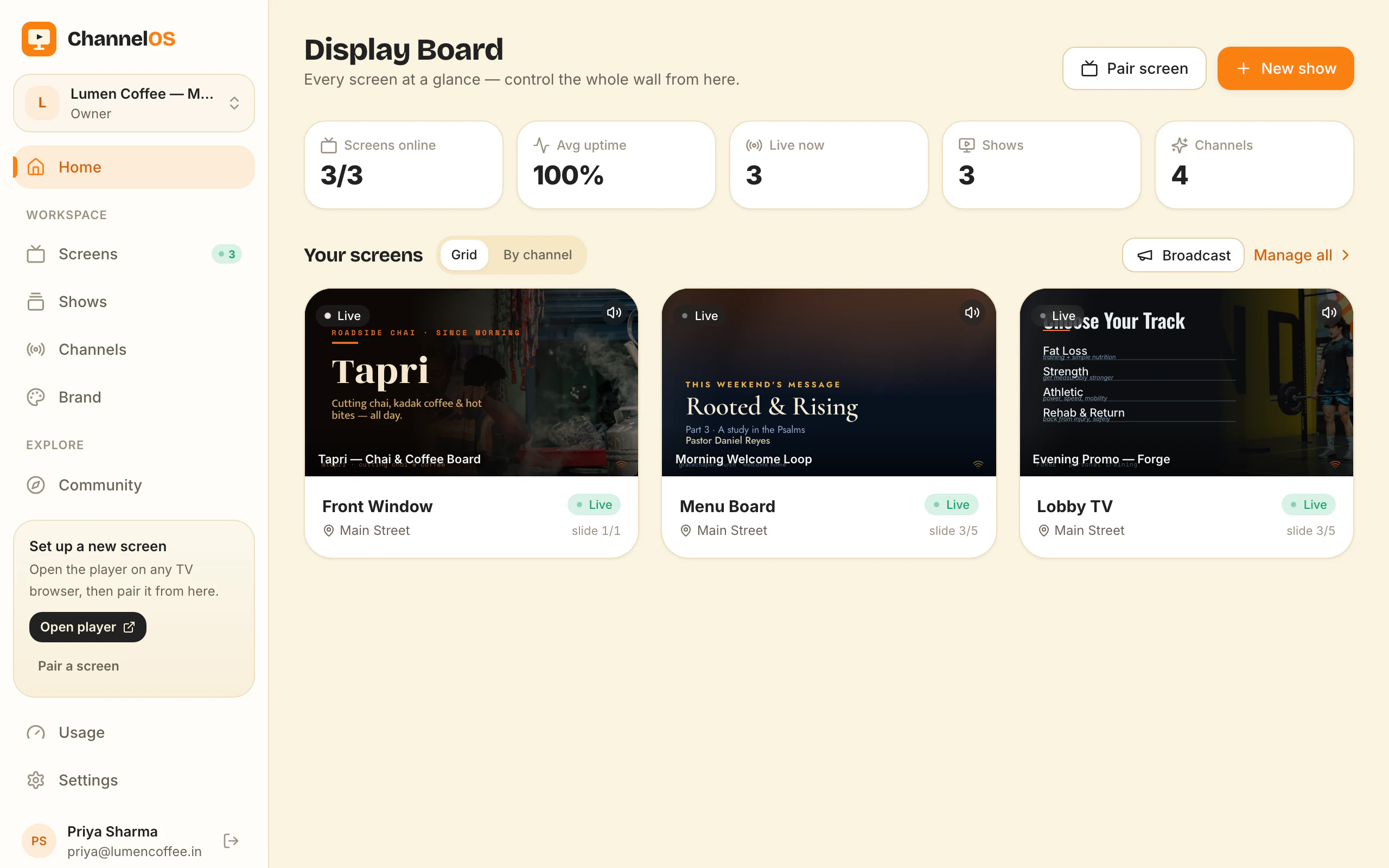
Then the takeover is the wrong door, because it reaches one channel. Use Broadcast on the Display Board instead: it puts one show on every paired screen at once, whatever each screen was tuned to.
Be clear about what you are trading, though. Broadcast is not an overlay. It re-tunes each screen to that show, which means two jobs for you afterwards: you put the wall back by tuning each screen to its own channel again, and if the show you broadcast did not already have a channel of its own, one is created named after it, and it stays in your channel list from then on. For a wall that genuinely shares a channel, the takeover is the cleaner tool, because the clock does the tidying up. Broadcast controls for your screens covers the rest of the board’s one-tap controls.
Is this an emergency notification system?
No. Do not use it as one, and do not let anyone in your building believe it is one.
A takeover has no guaranteed delivery, no acknowledgement that any screen received anything, and no second path when the first one fails. Nothing fires automatically: there is no alarm feed, no bell or PA integration, and a person has to pick up a phone and send it. A screen that is switched off, unplugged, asleep or off the wifi shows nothing and reports nothing back, and you will not know which of those it is from the next room.
If a message has to reach people for their safety, buy a system certified for that job. Fire, evacuation, lockdown and lone-worker alerting are a different category of product with a different set of guarantees behind them, and a TV running a web page is not a substitute for one. Keep this for the things that are merely urgent. For a school or a campus, where Rise Vision wins in a school is the comparison to read before you pick us.
What is worth taking over for?
The test is three-part: it is true now, it stops being true soon, and the ordinary schedule is right again afterwards.
- Cash only for the next hour.
- The 6pm class is cancelled.
- The kitchen closes an hour early tonight.
- The car park is full, use the side road.
- The lift is out, the clinic is on the first floor.
And three things that are not takeovers. A price that has actually changed belongs in the show, where every screen tuned to it picks the correction up by itself. A dish you have run out of belongs in the show too: a menu board carries a sold-out marker on each line, which strikes that one row through and leaves the rest of the board alone, and it is free on every plan. Something that happens every week belongs on the timeline, which is what dayparting a day is for. A takeover used for any of those is a reminder you have to remember to cancel.
Send one before you need one. Pick a quiet hour, take over a channel for 20 minutes with any show you already have, and watch the band appear on the timeline and clear itself. The Friday version is then three presses you have already made once.
Frequently asked questions
- How do I show the same urgent message on all screens?
- Open the channel those screens are tuned to, press Go live now, pick the show, pick how long it runs, and press Air now. Every screen tuned to that channel switches together, because each one is reading the channel live rather than waiting for a file to arrive. If your screens are spread across different channels, the Display Board's Broadcast button covers all of them in one go instead.
- Can I interrupt the schedule?
- Yes, and that is exactly what a takeover is. It airs over the top of the timeline rather than editing it, so the schedule keeps running underneath and resumes by itself when the takeover's time is up. Nothing is paused, moved or deleted, and there is nothing to rebuild afterwards. While it runs, the channel's timeline shows it as a labelled band, so you can see what is overriding what.
- How do I put a screen back to normal?
- Let the takeover expire, or press Stop on the 'Airing a takeover now' banner at the top of the channel. The channel goes straight back to whatever the timeline says should be airing at that minute, which may not be the show that was on when you started. Stopping a takeover is never gated by a plan, so a cut-in that is already running can always be taken off a live screen.
- Is this an emergency notification system?
- No, and do not buy it as one. There is no guaranteed delivery, no acknowledgement that a screen received anything, no second path when the first one fails, and nothing fires on its own: a person has to send it. A screen that is switched off, unplugged or offline shows nothing and tells you nothing. If a message has to reach people for their safety, buy a system certified for that job.
- What if my screens are on different channels?
- Use Broadcast on the Display Board, which puts one show on every paired screen at once whatever channel each one is on. It is not an overlay, though: it re-tunes each screen to that show, so you put the wall back by tuning each screen to its own channel again afterwards. For screens that do share a channel, a takeover is the cleaner tool, because it clears itself.
Further reading
Do it on a real screen.
Open the player on the TV, scan the code with your phone, and publish a show. Your first screen is free.
Free screens show a ChannelOS banner, and about every 2 minutes it opens into a full ChannelOS slide; any paid plan removes both.