Run Your TV Screens From a Google Sheet
Bind a menu board or price list to a published Google Sheet and the screens read it on a schedule. Edit the spreadsheet you already keep, and the TV follows.
Most screens do not go stale because the software is hard. They go stale because changing one price means finding a laptop, opening an editor, and getting the layout right again. So the board on the wall quietly stops matching the till, and after a while nobody trusts it.
A spreadsheet does not have that problem. It is already open, it is already how the prices are kept, and anyone on shift can be trusted with a cell.
So a ChannelOS board can read one.
What it does
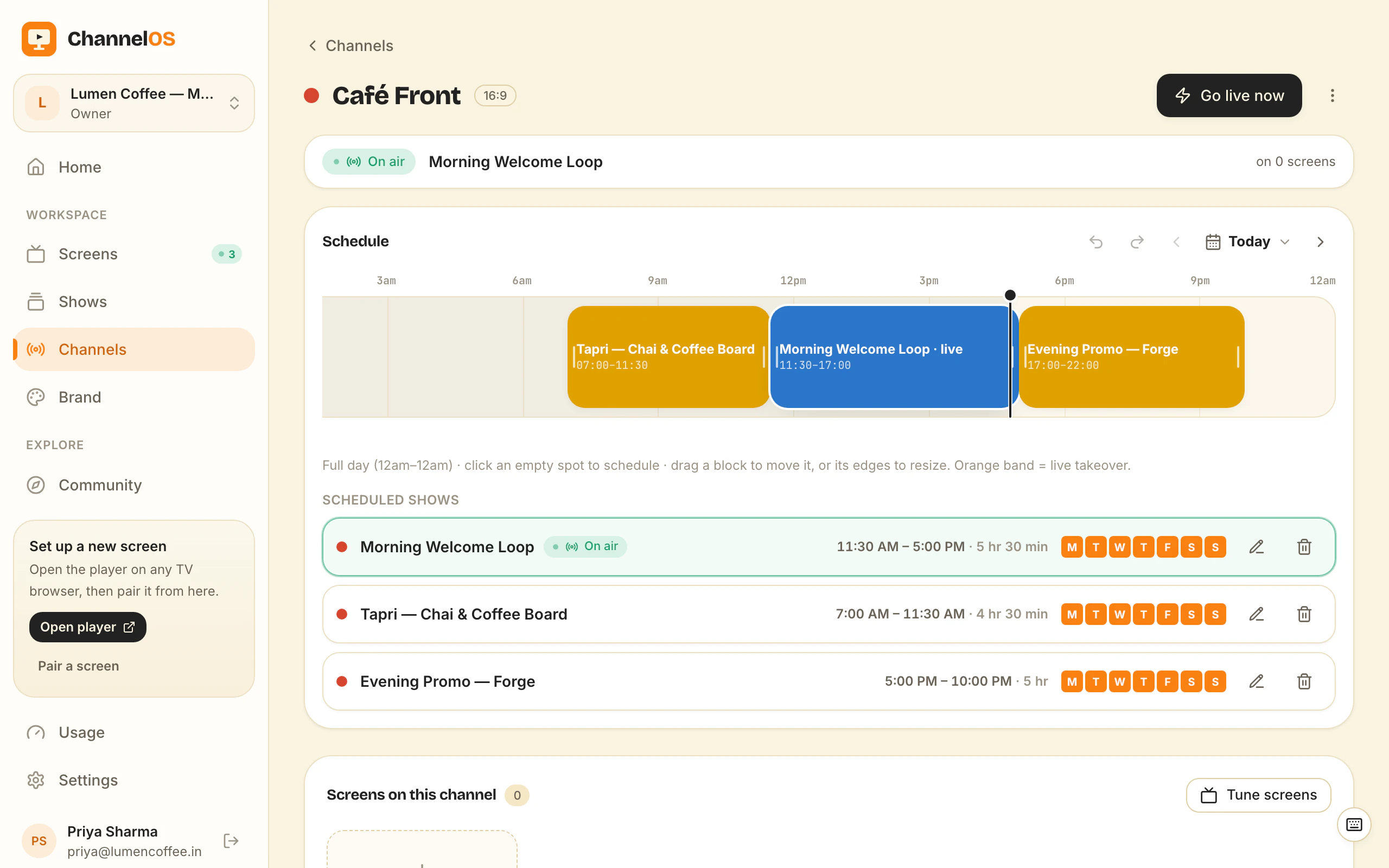
Pick a menu board or a table layer, paste the link to a published sheet, and the board’s content comes from that sheet from then on. The server reads it on the interval you set. When a read finds something different, the screens showing that board are told immediately.
The spreadsheet stays where it is. Nothing is imported, and there is no copy of your data to keep in step.
Setting it up
1. Publish the sheet. In Google Sheets: File, Share, Publish to web. Choose the tab,
set the format to Comma-separated values (.csv), and copy the link.
This step is the one people skip, and it is worth being exact about. The link in your browser’s address bar is the edit link, and it serves a sign-in page rather than data. Pasting it is the commonest mistake with this feature, which is why ChannelOS reads the link before you commit to it and tells you if that is what happened.
2. Lay the sheet out as the board reads. One row per item. First column the name, second column the price:
Flat White,4.00
Cortado,3.80
Pour Over,4.50
~Cold Brew,4.20
A third and fourth column work too, for a size or a note, up to eight.
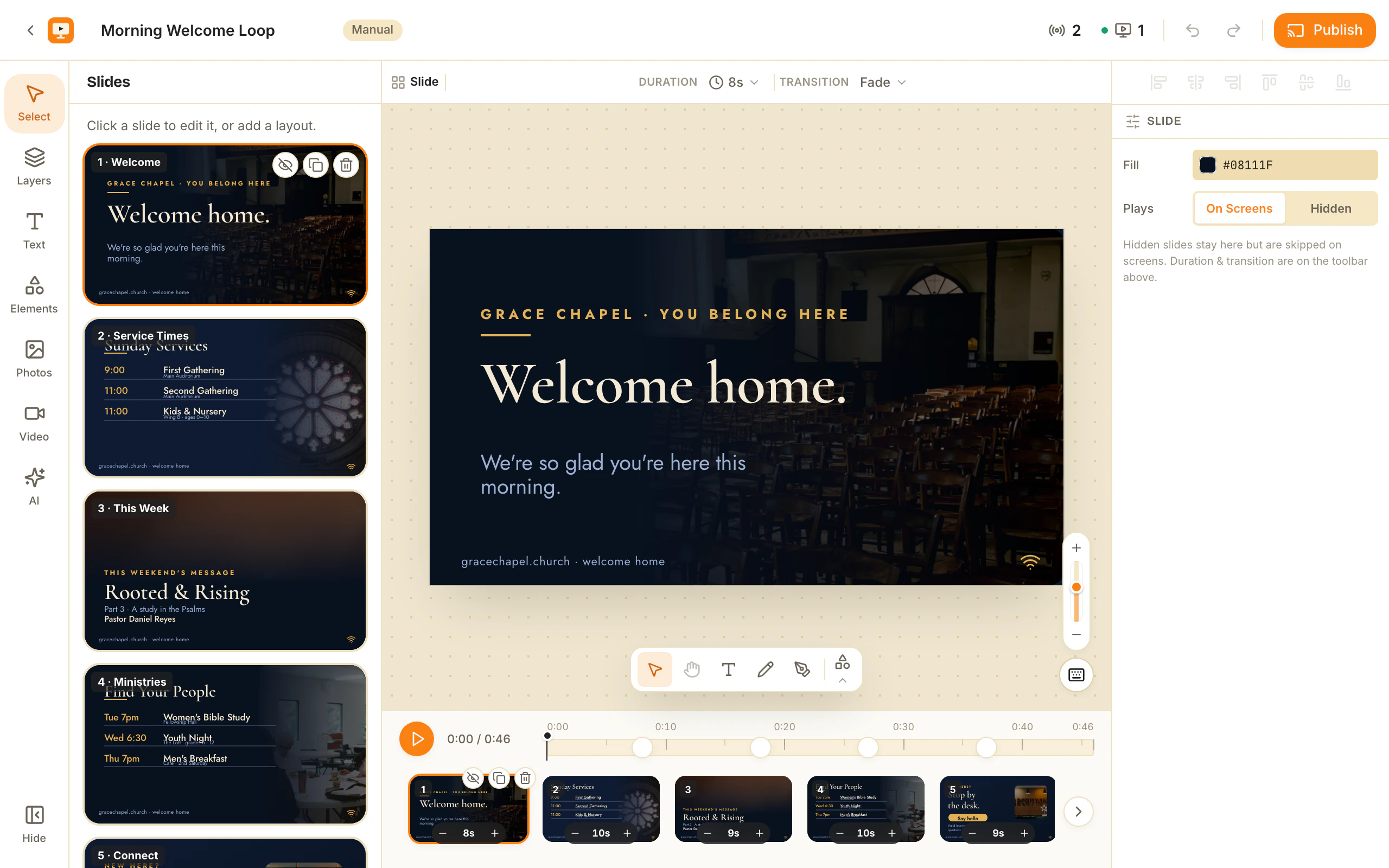
3. Bind the layer. In the editor, select the board. In the right-hand panel open Live data, paste the link, and press Read the sheet. You get the row and column count and the first few rows back, so you can see it is the right document before anything changes. Press Use this sheet and the board fills.
4. Set the interval. Every 5 minutes is the default. A lunch board that changes twice a day is fine at 30 minutes. A board showing something that moves, like a waiting time or a stock count, can go to 1 minute.
The tilde marks something sold out
Put ~ in front of an item’s name in your sheet and that row is drawn struck through and
dimmed on the board, with the price still showing:
~Cold Brew,4.20Take the tilde off and the item comes back. Nothing is deleted, so nothing has to be retyped in the morning. This is the same mark ChannelOS already uses when you tap a dish out by hand, so the sheet and the editor agree.
Keeping a sold-out line on the board is deliberate. A restaurant that shows what it is out of answers the “do you still have” question before it is asked.
What happens when the sheet breaks
Links rot. Someone moves the file, un-publishes it, or renames a tab.
When a read fails, the board keeps showing the last values it read. It does not blank, and it does not fall back to placeholder text. The screen in the room goes on being yesterday’s prices, which is wrong but readable, instead of empty, which is a fault anyone standing there can see.
In the editor, the layer tells you. Its selection box carries a Sheet chip, and that chip turns red when the last read failed. Select it and the Live data panel gives you the reason: the link was not found, the sheet took too long, or it returned a web page rather than data.
What the TV is doing
Nothing, which is the point. The TV never fetches your spreadsheet. The read happens on our side, the values are written into the board, and the screen is told to pick up the new version the same way it picks up any edit you make.
That matters for three reasons. A sheet with a view limit is read once however many screens show the board. A screen on a slow connection is not waiting on a third-party request mid-playback. And a board that was built from the sheet an hour ago still renders if the network drops, because the values are in the board, not fetched at paint time.
Where this fits, and where it does not
It suits anything that is a list and changes more often than its design does:
- a café or bar price list
- a daily specials board
- a garage or salon service menu
- a stock or availability list
- a market stall’s prices
It is not the tool for a layout that changes shape, for photographs, or for anything with one value on it. Binding is for a grid: a menu board or a table. If what changes is the design rather than the numbers, open the editor.
And if the people who update prices will not keep a spreadsheet, this adds a step rather than removing one. Editing the board by hand on a phone is the better answer then, and it is two taps from the same panel.
Getting started
Any board you already have can be bound. Select it, open Live data, and paste a link. If it does not read, nothing has changed and you can try a different one.
Frequently asked questions
- Can digital signage read from a Google Sheet?
- In ChannelOS, yes. Select a menu board or table layer, open Live data, and paste the sheet's published CSV link. The board reads the sheet on the interval you set and every screen showing that board follows.
- How do I publish a Google Sheet as CSV?
- In Google Sheets open File, then Share, then Publish to web. Choose the tab you want, pick Comma-separated values (.csv) as the format, and copy the link it gives you. That link is what you paste into ChannelOS. The normal edit link will not work, because it serves a sign-in page rather than data.
- How quickly does the screen update after I change the sheet?
- You choose the interval, from every minute to once a day. When a read finds something different, the change is pushed to the screens showing that board straight away rather than waiting for the TV to poll.
- What happens if the spreadsheet is deleted or stops loading?
- The board keeps showing the last values it read. Nothing goes blank. The editor shows why the read failed when you select the layer, so you can fix the link.
- Can I still mark an item sold out?
- Yes. Put a tilde in front of the item name in your sheet, like ~Flat White, and that row is drawn struck through and dimmed on the board. Remove the tilde and it comes back.
- Does this work with Excel or Airtable?
- Any link that returns CSV or tab-separated text over https will work, which covers Excel on the web, Airtable and most database exports. The link has to be readable without signing in.
Your screen is two minutes away.
Bind one board to the sheet you already keep, and stop opening the editor to change a price.
Free screens show a ChannelOS banner, and about every 2 minutes it opens into a full ChannelOS slide; any paid plan removes both.